Answer and make phone calls with an AI agent
What Voice AI does, where to find it, who can use it, and where the agent gets its knowledge and personality from.
businessYou’ll need: The Business plan. Team members also need the Voice AI permission.
Voice AI gives your business a phone number that an AI agent answers. The same agent can also call your leads for you. This article explains how the pieces fit together before you set anything up.
#What it does
- Answers incoming calls on your Tayon number, around the clock, using what you have told the AI about your business.
- Makes outgoing calls to a list of leads through a calling campaign.
- Keeps a record of every call: who called, how long the call lasted, how it ended, a written transcript and an AI summary.
- Writes each conversation into your CRM. The transcript is saved as a note on the caller’s lead. A caller Tayon does not recognise becomes a new lead.
#Find it
AutomationVoice AI
The Voice AI page has three tiles. Each one has an Open button:
| Tile | What it is for |
|---|---|
| Numbers | Buy and manage phone numbers and assign AI agents to answer calls. |
| Call Logs | Review call history, transcripts and outcomes. |
| Campaigns | Create outbound calling campaigns powered by your AI agents. |
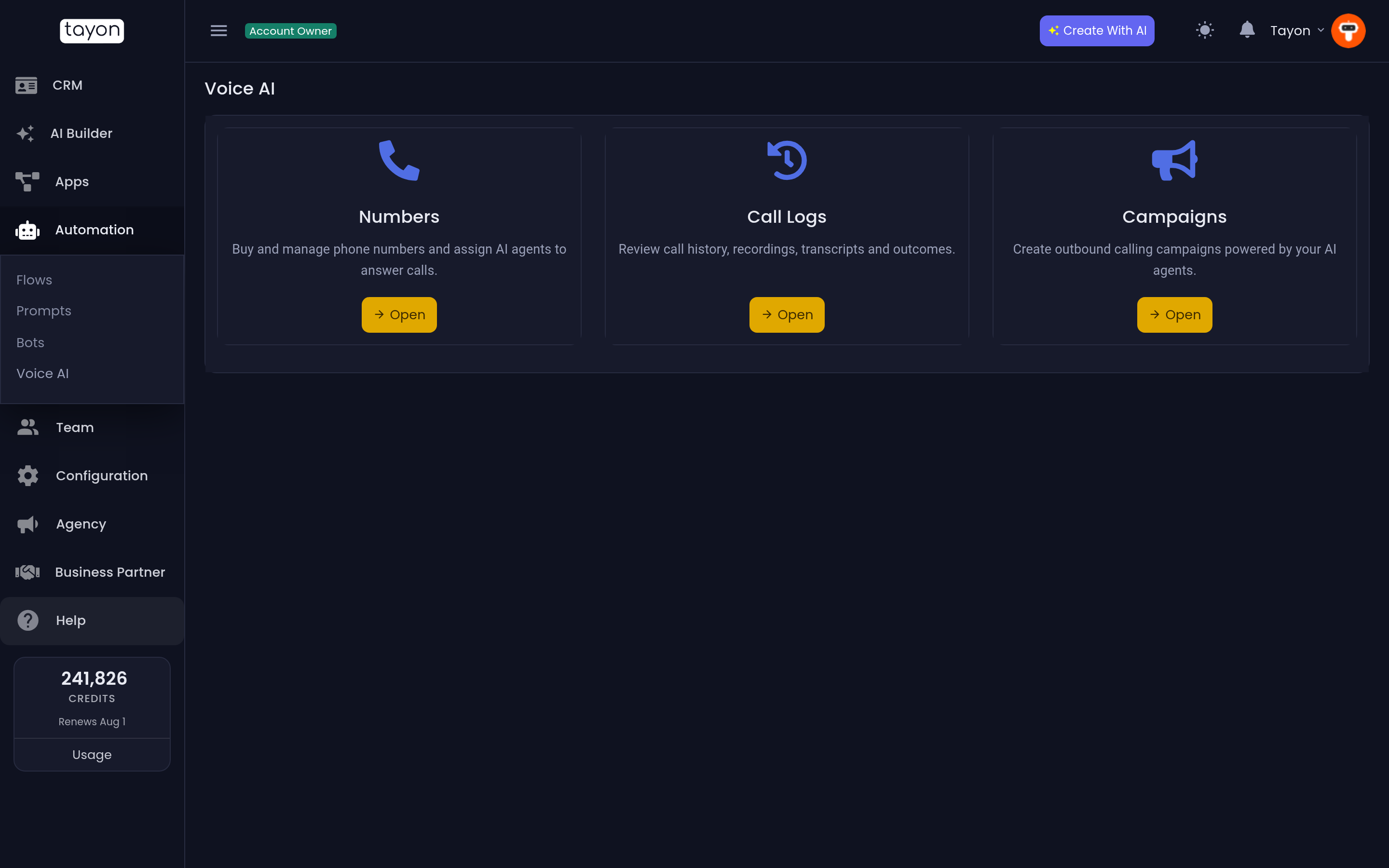
There is no settings tile, and you never enter details from a phone company. Phone numbers come from Tayon, so you do not need an account with a telephone provider. See Get your Voice AI phone number.
#Who can use it
Voice AI is part of the Business plan. On other plans the Voice AI page shows an upgrade card instead of the tiles. The card lists what Voice AI costs in credits and says Voice AI is available on the Business plan.
The account owner always sees Voice AI. Team members see it only if their permissions include Voice AI. Members who have that permission but not Automation see Voice AI as the only item under Automation. See Invite your team.
Being able to see the screens is not enough to change anything. Buying a number, saving a configuration and starting a campaign all need editing rights as well as the Voice AI permission.
#Where the agent gets its knowledge
A voice agent is not configured from scratch. It uses the same Prompts as your chat agents, so what it knows matches what your website bot knows.
When you configure a number or a campaign, you choose an AI Agent:
- Default (main assistant) uses your account’s Business Info and Instructions prompts that have no agent name.
- A named agent, such as
sales, uses the prompts saved with that agent name. Those prompts are created when you use the AI Builder to build an agent, or when you type the name into Agent (optional) on a prompt. If one of them is missing, the agent falls back to your account’s shared prompts.
Rules that only apply on the phone go in a third prompt of type Voice Agent. These rules cover how the agent talks and when it should hang up. You edit this prompt from the number’s Configure dialog, under Call & Ending Rules (AI-Calls). It is not edited from the Prompts screen. It appears in your Prompts list so you can see it exists.
To change what the agent says about your business, edit its Business Info. To change how it behaves, edit its Instructions. See Tell your bot about your business.
#What it costs
Calls are charged in credits:
| Charge | How it is worked out |
|---|---|
| Voice Call Minutes | 50 credits for every minute of call time, rounded up to the next whole minute |
| Voice AI Interaction | A small charge per call for the AI conversation, plus one for the call summary |
Both appear under those names on your credit statement. The charges are made when the call ends, so a long call can use more than you expect. Keep your balance comfortably above what a day of calls costs, and set a Max call duration on your number.
#Getting started
- Open Numbers and get your phone number.
- Choose Configure on the number and pick the AI Agent that should answer. Write a Welcome Greeting for it to say first.
- Call the number from your own phone and talk to the agent.
- Open Call Logs to read the transcript and the summary.
Once inbound calls sound right, use Campaigns to have the agent call your leads.
Updated: