Start from a template
Pick the outcome you want from a gallery of eleven cards, answer two or three questions, and let the AI build the flow or funnel around it.
You’ll need: An account with credits available.
The blank chat is a hard place to start if you are not sure what to ask for. The template gallery gives you the other way in: pick the result you want, and the AI works out the rest.
AI BuilderConversational Form
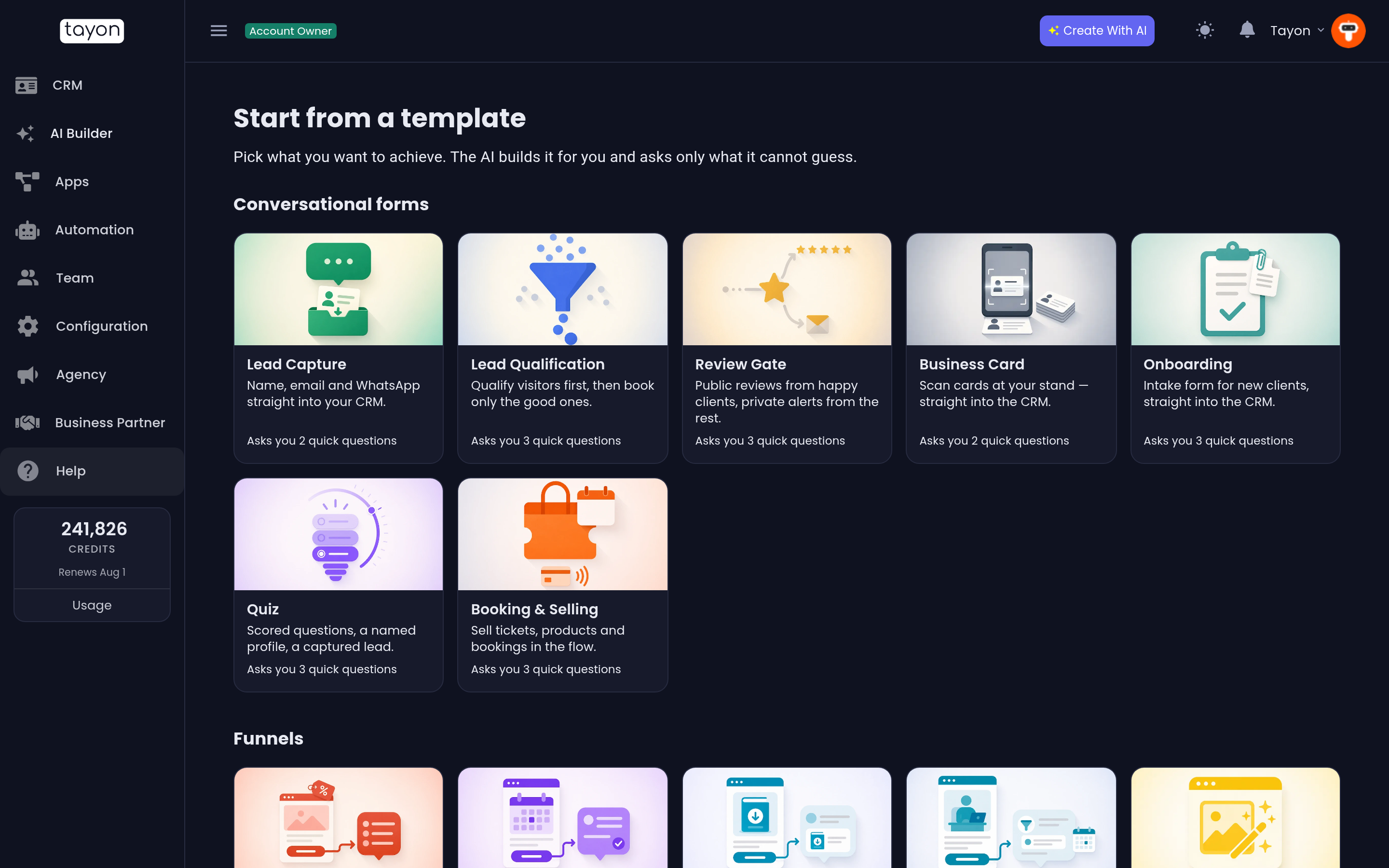
The screen reads Start from a template — “Pick what you want to achieve. The AI builds it for you and asks only what it cannot guess.”
#A template is a starting point, not a copy
This is the thing worth understanding before you click anything.
Picking a card does not drop a ready-made flow into your account. It hands the AI Builder a description of what you are trying to achieve and a reference plan for how flows of that shape are usually built, and then the chat asks you only the two or three things it cannot work out for itself.
What you get back is written for your business, in your language, with your questions in it. Two people picking the same card get two different flows.
#Pick a card
Cards are grouped into sections — Conversational forms and Funnels — with one card per goal, eleven in all. Each one says what it produces and how much it will ask you:
| Card | What it builds |
|---|---|
| Lead Capture | Name, email and WhatsApp straight into your CRM. |
| Lead Qualification | Qualify visitors first, then book only the good ones. |
| Review Gate | Public reviews from happy clients, private alerts from the rest. |
| Business Card | Scan cards at your stand — straight into the CRM. |
| Onboarding | Intake form for new clients, straight into the CRM. |
| Quiz | Scored questions, a named profile, a captured lead. |
| Booking & Selling | Sell tickets, products and bookings in the flow. |
The Funnels section builds two things at once and is covered in Build a landing page and a flow together.
Under each card is a line like Asks you 2 quick questions. That is exactly how much work the card is going to be. A card marked Coming soon cannot be picked yet; one marked Upgrade needs a higher plan.
At the end of the list is a No template card — “Just describe what you want in the chat.” That takes you into the ordinary builder chat with nothing pre-filled.
#Tell it about your business
After the card comes one short screen: Tell me about your business, asking “What kind of business is this for?”
Write it in your own words — a hair and beauty salon in Miami, a law firm, a pizzeria. If Tayon already knows your business it is filled in for you, and you can change it.
- Type what your business is, then choose Continue.
- Or choose Skip.
There is no list of industries to pick from and nothing to scroll through. Free text is the point: a trade that is not on anybody’s list still gets described properly.
Skip is a real option, not a shortcut with a penalty. The difference is only when you answer:
| What happens | |
|---|---|
| You type it | It goes straight into the brief, and the chat never asks you about it again |
| You skip it | It becomes the first question the chat asks you |
#Then it is the ordinary builder
From there you are in the AI Builder chat you already know, except that it opens already knowing what you are building. It asks its two or three questions, tells you when it has enough, and you press the generate button. See Build a conversational form with AI for what happens next, and what it costs.
#Where the gallery opens from
You do not have to go looking for it — it is on the way in from several places:
| From | What you get |
|---|---|
| Ticking Conversational Form on its own, with nothing typed | The gallery, showing conversational-form cards |
| Ticking anything with a description already typed | Straight into the builder — you have already said what you want |
| Apps → Conversational Forms → New Site | The gallery, showing conversational-form cards |
The gallery is also the only way to start a funnel. It is not something you tick on the start screen — see Funnels.
A short version of the gallery also sits on the home screen, with a See all templates link through to the full one.
Updated: