Create your account and sign in
How to sign up, sign in, recover a forgotten password, and what the role badge next to your name means.
#Sign up
- Go to app.tayon.ai and choose Register.
- Enter your name, email address and a password.
- Confirm your email address from the message Tayon sends you.
Your new account starts on the free plan with 3,000 credits. They arrive once, when you register, and they do not expire. The free plan has no monthly refill, so those 3,000 are what you have until you buy a credit package — from the credits panel at the foot of the sidebar — or move to a paid plan with Upgrade Your Plan. See Plans and credits.
#Sign in
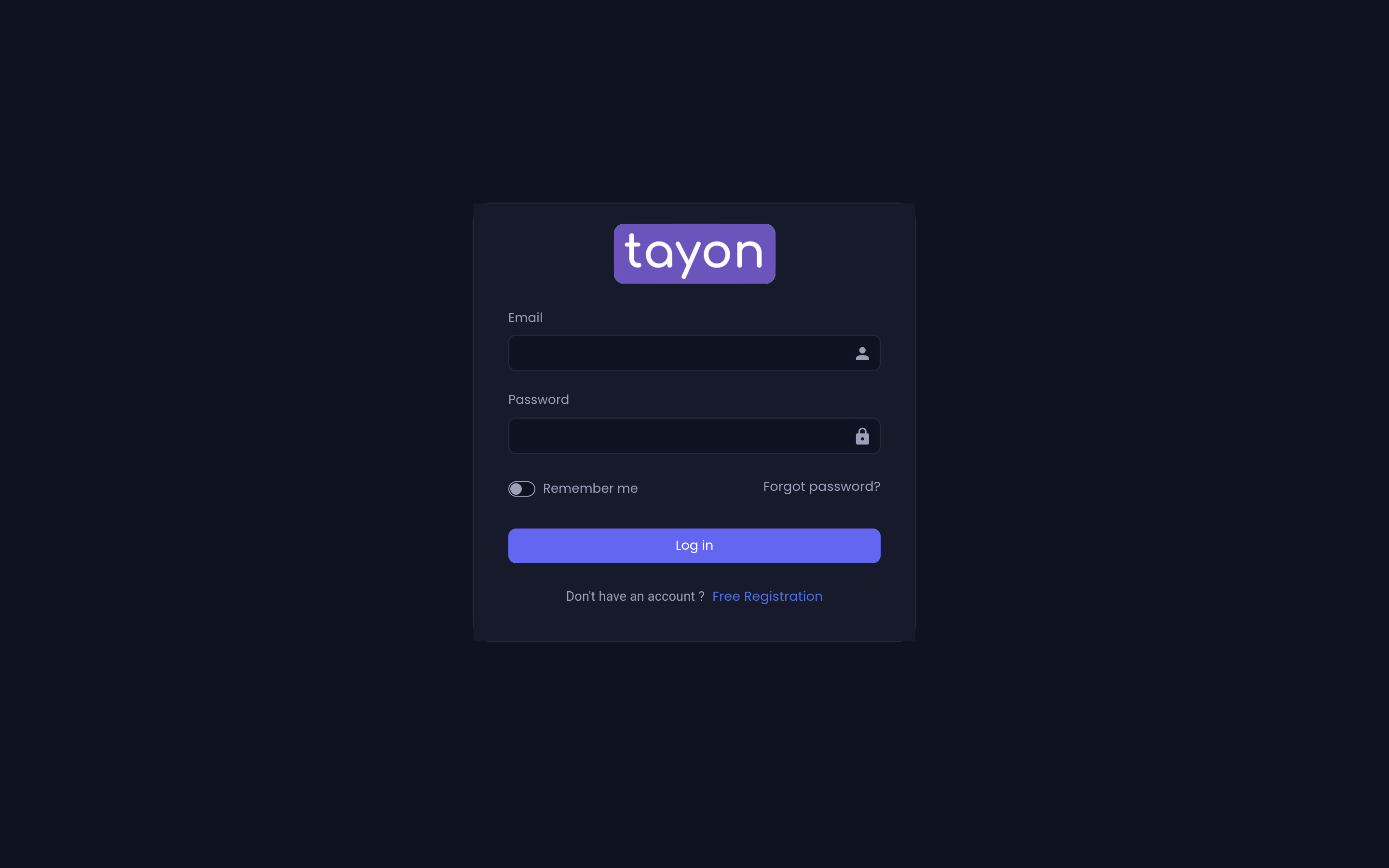
Go to app.tayon.ai and enter your email and password.
#If you forgot your password
Choose Forgot password on the sign-in screen and enter your email address. Tayon sends a reset link. The link works once, and it expires — if it has gone stale, just request another.
#Sign-in links
Tayon can also issue a login link that signs you in with no password at all. Account owners create their own from the Integration Keys screen in the account menu — see Integration keys and API usage. An administrator can create one for a team member from the Members list — see Invite your team. Anyone holding the link can get into that account.
These links are most useful for support: you can hand one to someone helping you without sharing your password.
#Who am I signed in as?
A badge next to your name in the top bar tells you which kind of user you are.
| Badge | What it means |
|---|---|
| Account Owner | The account is yours. You can see and change everything, including billing. |
| Team Member | Access limited to whatever permissions the owner gave you — up to full administrator access, but never billing. |
| Accessing: name | You are working inside someone else’s account — as their agency, or through a linked account. |

If a screen described in this help site is missing for you, your role is the first thing to check — see Invite your team for how permissions map to screens.
#Switching between accounts
If you have been linked to more than one account, a My Linked Accounts button appears in the top bar; choose it to switch. Agencies open their clients’ accounts from Managed Accounts instead — see Manage client accounts as an agency. Switching reloads the app with that account’s data; nothing is shared between them.
Updated: