Send people down different paths
Use a split to check something you already know and route the visitor down a True or a False branch.
A split is a fork. It tests something you already know about this visitor and sends them down one of two paths. The visitor never sees it — they just find themselves on a screen that suits their answers.
Splits are the reason a conversational form can be shorter than a form. Instead of asking everyone everything, you ask each person only what applies to them.
#Add one
- Drag Split from the palette onto a + button, after the question you want to branch on.
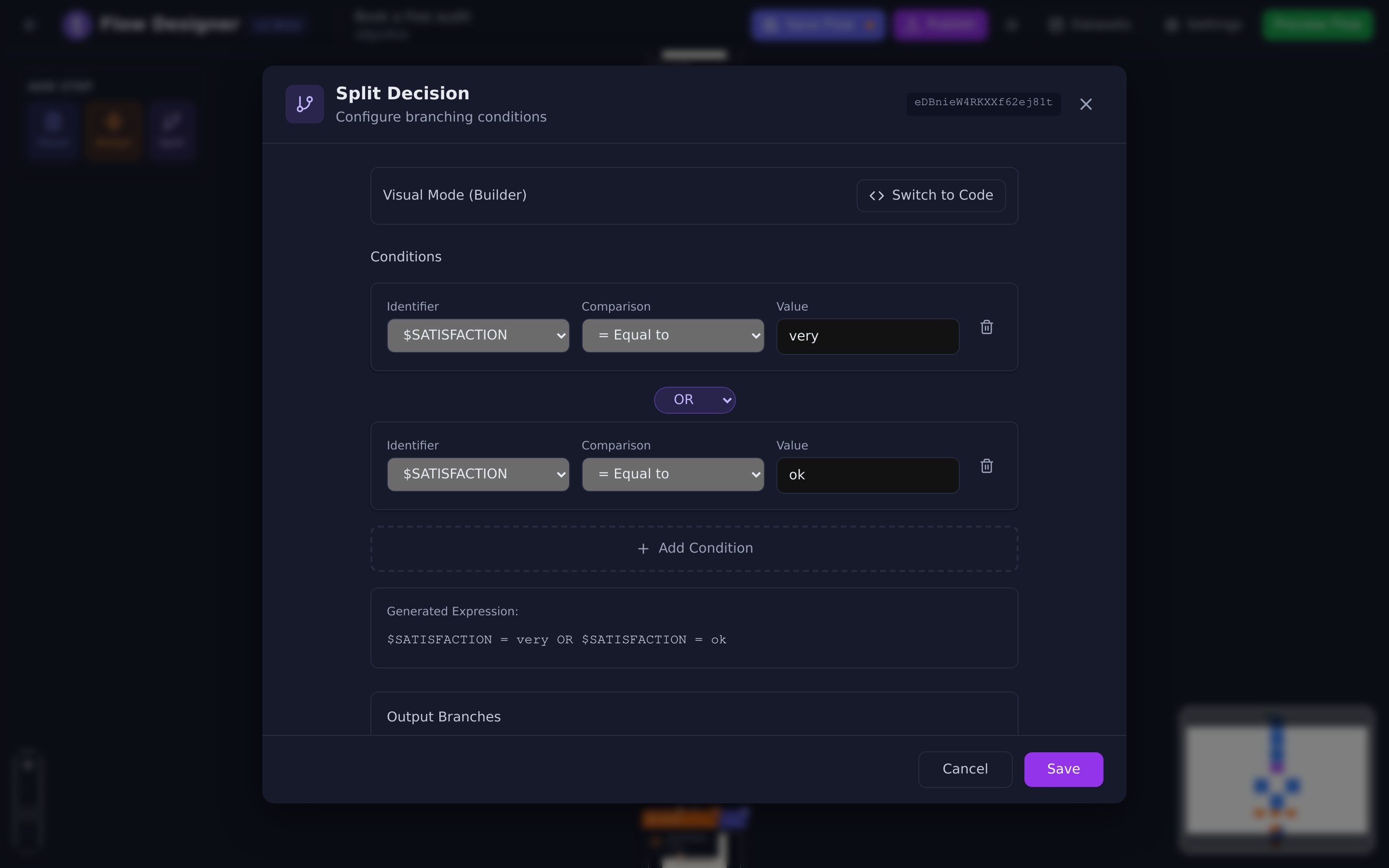
- Select the split to open Split Decision.
- Build the condition.
- Save.
- Add steps under both the True and the False outputs.
#Building the condition
There are two ways to write it, and a button to switch between them.
#Visual mode
Three fields per condition:
| Field | What you pick |
|---|---|
| Identifier | What to test. The list is grouped into Flow Inputs — the answers this flow collects — and System Variables. |
| Comparison | Equal to, Not equal to, Greater than, Less than, Greater or equal, Less or equal, Contains, Not contains. |
| Value | What to compare against. |
Add Condition adds another row when one test is not enough. Underneath, a Generated Expression line shows you what you have built, which is the easiest way to check you have said what you meant.
#Code mode
Switch to Advanced Mode (Code) to type the condition yourself. It is also
where you write tests the list does not offer, such as JSON() or
$DATASETFILTER.
$AGE > 18 AND $PLAN = GOLD
| Syntax | Meaning |
|---|---|
$IDENTIFIER |
The value stored under that name. |
= <> > < >= <= |
The usual comparisons. |
% |
Contains. |
!% |
Does not contain. |
[EMPTY] |
No value: $PHONE = [EMPTY] is true when there is no phone, $PHONE <> [EMPTY] when there is one. |
AND OR |
Combine tests. |
How a condition is read:
- Put a space on each side of every operator.
$AGE > 18works,$AGE>18does not. - Type values without quotes.
$CITY = New Yorkmatches New York;$CITY = 'New York'looks for the quote marks too. - Text ignores capitalisation, so
USandusmatch. - A value starting with
$is another variable.$ECODE = $VALIDATION_CODEcompares two values;$PLAN = GOLDcompares with the word GOLD. - Use either AND or OR in one split, not both. Brackets do not group conditions, and a split that mixes the two behaves as if every link were AND. For “A and B, or C”, chain two splits.
Numbers are compared as numbers when the question is an A Number question,
and only whole numbers work there. Anything else is compared as text, where
10 comes before 9.
#What you can test
Beyond the answers this flow collected, splits can read these System Variables:
- Flow Points, Flow Parameter and Flow Session ID
- Lead Name, Email, Phone, Stage, Quality, Tags and the other lead fields, when the visitor is a contact you already know
- Assigned First Name and the other details of the team member the conversation is assigned to
- Results that actions stored under an identifier, such as a webhook reply or an AI Prompt answer
In code mode you can also test:
$DATASETFILTER, how many rows the last Filter DataSet found- a value inside a JSON reply, with
JSON($CUSTOMER[address][city]) = Lisbon
That makes some useful patterns easy:
| Test | What it does |
|---|---|
$FLOWPOINTS >= 50 |
Scores a quiz and gives a different result screen. |
$CRMDATA.STAGE = Customer |
Says something different to people who already buy from you. |
$BUDGET > 5000 |
Routes bigger opportunities to a booking screen instead of a brochure. |
$ECODE = $VALIDATION_CODE |
Checks the code you emailed or texted the visitor. |
#Both branches need somewhere to go
Every split has two outputs, labelled True and False on the canvas.
If you genuinely do not need two paths, the False branch can be a single thank-you screen. It still has to exist.
#Chaining splits for more than two outcomes
A split gives you two outcomes. For three or more, put a split on a branch of another split.
Score >= 80 ?
  True  -> "Excellent" screen
  False -> Score >= 50 ?
             True  -> "Good" screen
             False -> "Needs work" screen
Order matters: test the highest threshold first. If you test >= 50 before
>= 80, everybody scoring 90 takes the first branch and the second is never
reached.
#When a condition seems to be ignored
Work through these:
- Is the identifier spelled exactly right?
$BUDGETand$BUGETare not the same, and a name that matches nothing never passes the test. - Does the split come after the question? A split placed before the question it tests has nothing to read.
- Are you comparing a number as text? If the question is a Text type,
10may sort as text rather than as a number. Ask numeric questions with A Number. - Are you comparing against the label or the value? If your options have a Value set, that is what gets stored, not the label the visitor saw.
- Did you put quotes round the value, or leave out the spaces? See Code mode.
Updated: