Rate leads with qualities
Qualities say how good a lead is, independently of how far along it is. Set yours up, colour them, and rename the word.
You’ll need: Administrator access.
Stage says how far along a lead is. Quality says how much it is worth caring about. The two are independent on purpose: a brand-new lead can be excellent, and a lead deep in negotiation can be a waste of a Tuesday.
ConfigurationQualities
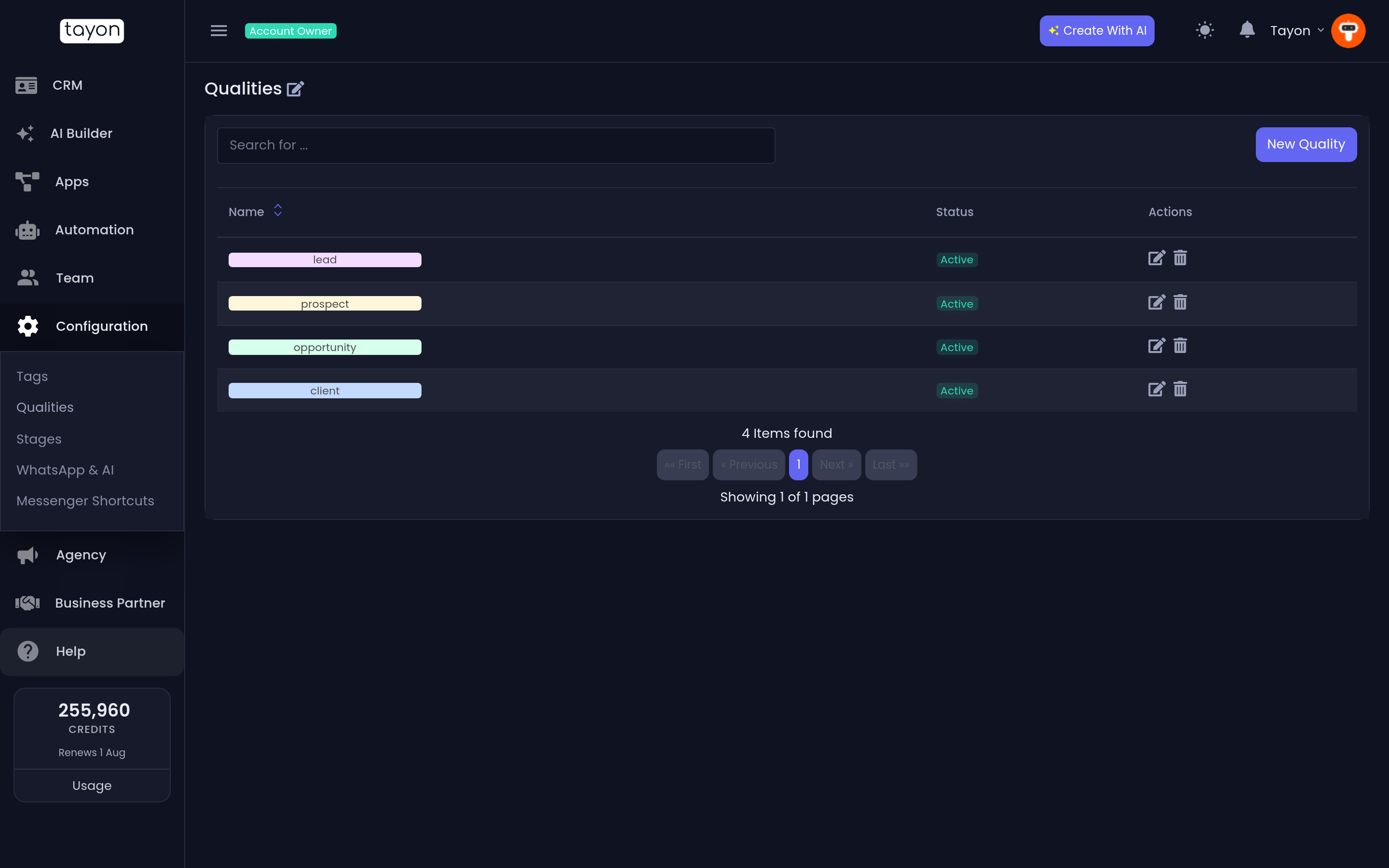
#Add a quality
- Choose New Quality.
- Type a Name.
- Pick a Background Color and a Font Color.
- Choose Save.
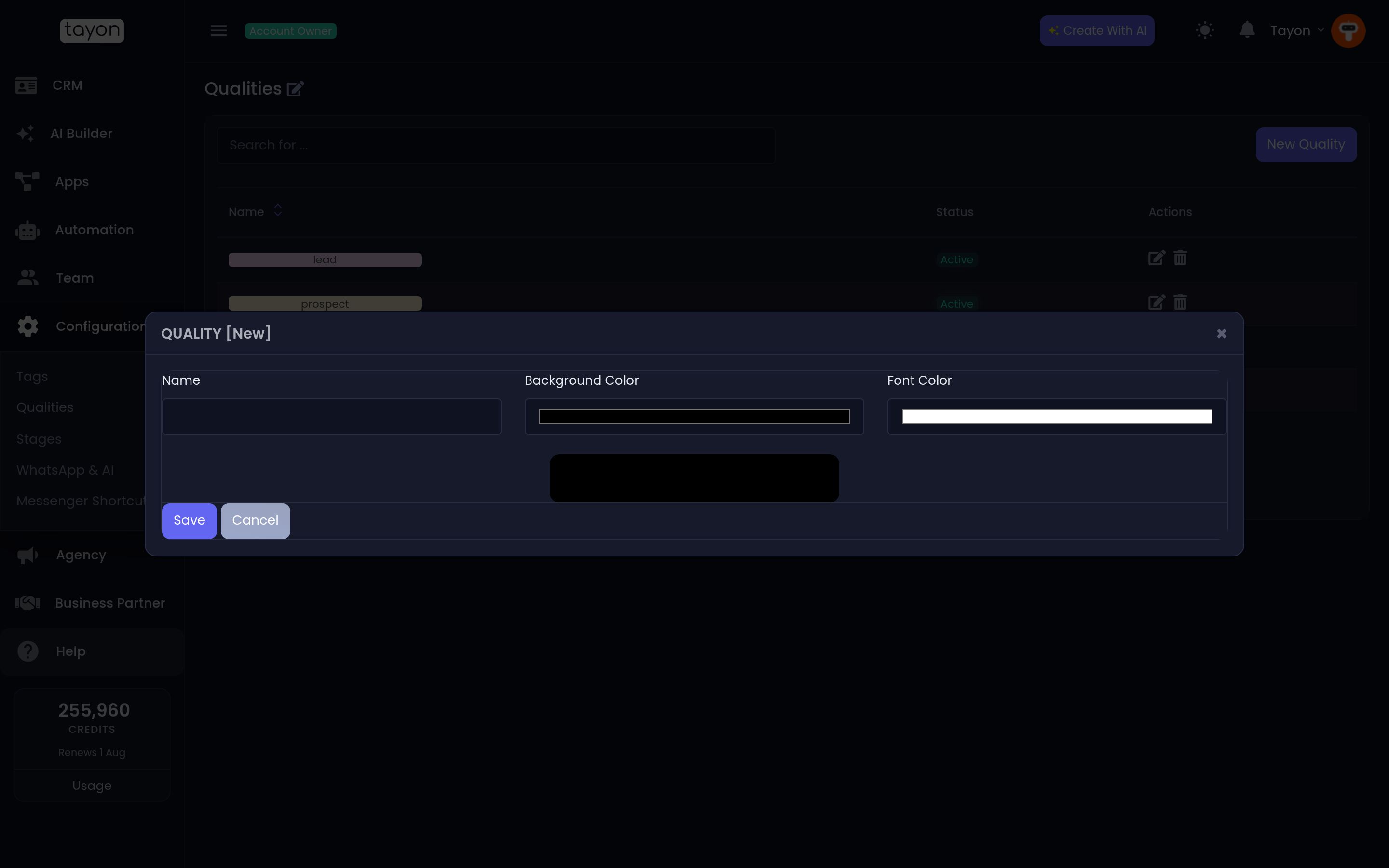
The preview at the bottom of the dialog shows the badge as it will look in the Leads list.
Unlike stages, qualities have no Feedback status — nothing about a quality tells Tayon that a deal was won or lost. That is the stage’s job.
#Turn one off
The Status switch on the dialog, and the Active / Inactive badge in the list, control whether a quality is offered when someone rates a lead. Leads already carrying an inactive quality keep it.
#Where qualities show up
- As a badge in its own column in the Leads list, and on every card on the pipeline board.
- As a filter, on the Leads list, the board, the dashboard and the campaign builder.
- As the Leads by Quality chart on the CRM dashboard.
- As a bulk action, so you can re-rate a filtered set of leads in one go.
#Rename the word “Quality”
Edit page title replaces the word throughout the product. Type your own Title and save; the new word appears in the column header, the filters, the field on a lead and the dashboard.
#Keep the list short
Three or four qualities is the useful range. Colour them so the ranking is obvious at a glance — most teams run warm-to-cold, and then the Leads list reads correctly without anybody having to remember what B2 meant.
Updated: