Duplicate or transfer an item to another account
Copy a form, bot, template, page, prompt, calendar or AI Builder project — in your own account or into someone else's — or hand the item itself over to another account.
You’ll need: Edit access to that kind of item to duplicate it; administrator access to transfer it. The other account is identified by its owner's email.
When you need a second version of something, or want to hand it to a client or a colleague’s account, Tayon gives you two actions that work the same way on every list:
- Duplicate makes a copy and keeps the original. The copy can stay in your account or go to another one.
- Transfer to another account moves the item itself. It leaves your list and appears in theirs.
#Where you find them
The two buttons sit on each row of these lists:
| List | Notes |
|---|---|
| Apps > Conversational Forms | Tick several forms to transfer them together |
| Automation > Bots | Tick several bots to transfer them together |
| CRM > Templates | |
| Apps > Content Pages | Tick several pages to transfer them together |
| Automation > Prompts | |
| Apps > Calendar | |
| Apps > Websites | |
| AI Builder | Websites, conversational forms, AI agents, follow-up agents, funnels and suites. Courses cannot be duplicated or transferred |
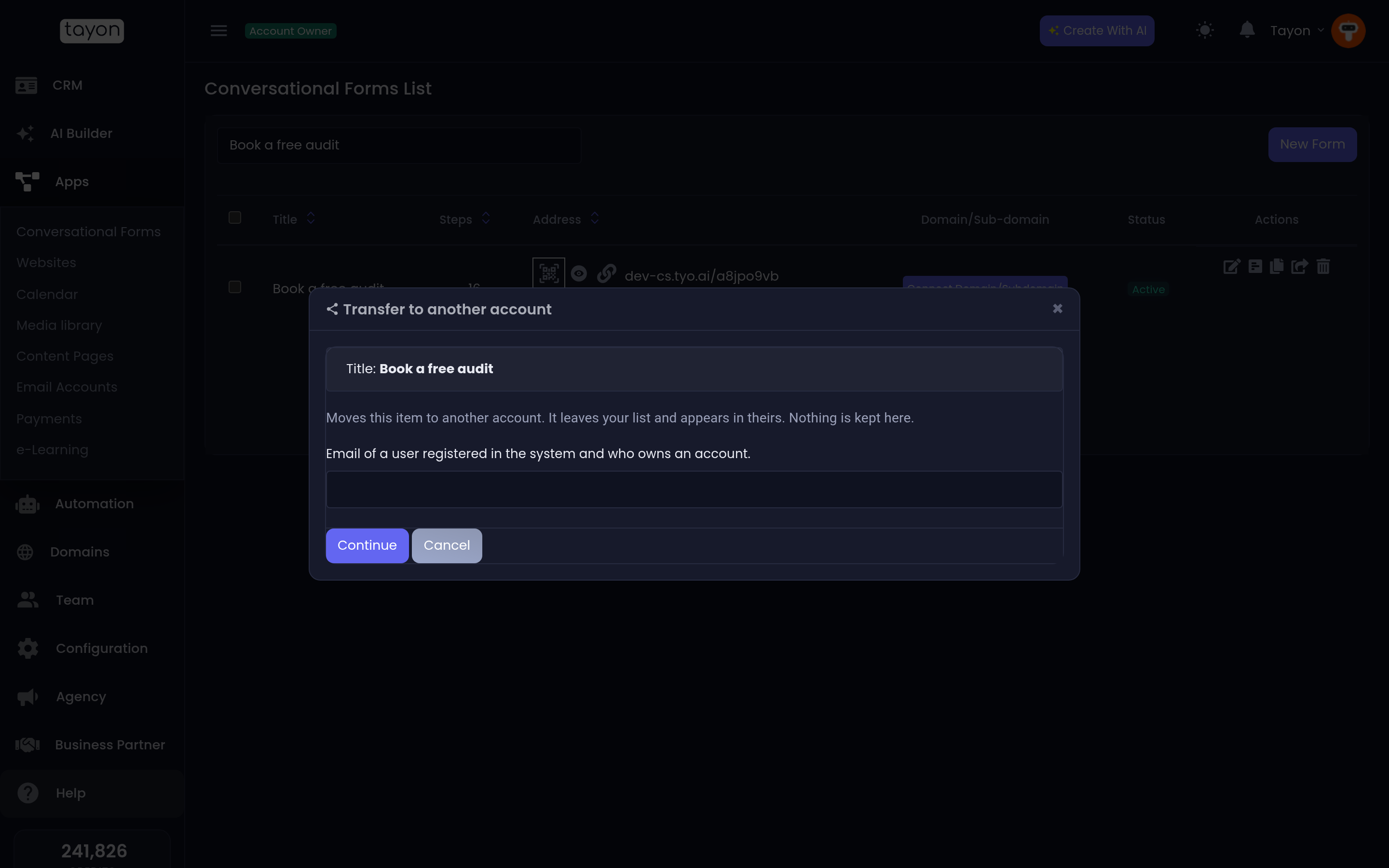
Both open the same window.
#Duplicate
- Choose Duplicate on the item’s row.
- To keep the copy in your own account, leave the email empty — the box reads Leave blank to copy into your own account. To put the copy in another account, enter the email of that account’s owner.
- Choose Duplicate. If the item uses things from your account, review them first — see below.
A copy in your own account is renamed so you can tell the two apart: most items get - copy at the end, and AI Builder projects and websites get (Copy). A copy sent to another account keeps the original name.
A few kinds of item arrive switched off, so they cannot act twice:
- A duplicated bot is always inactive, even in your own account. Otherwise two bots on the same channel would answer every message. Switch it on in the list when it is ready.
- A copied prompt arrives inactive. Switch it on when it is ready — or, in another account, the new owner does.
- A duplicated website is unpublished.
#Transfer to another account
- Choose Transfer to another account on the item’s row.
- Enter the email of the account owner who will receive it, and choose Continue.
- Review the linked items and the warnings.
- Tick I understand this item will leave my account.
- Choose Transfer.
The window is explicit about it: This is a real transfer, not a copy. Once it is done, only the other account can send the item back.
#Review what the item is linked to
Most items point at other things in your account — a form uses a calendar, a content page as its privacy policy, CRM stages and tags; a bot uses prompts. Before a copy or a transfer goes to another account, the window lists them under Linked items in your account, and you decide for each one:
| Choice | What happens |
|---|---|
| Copy | A copy of that item goes to the other account too, and the new owner’s copy points at it |
| Use theirs (same name) | Shown when the other account already has a stage, quality, tag or prompt with the same name. The item uses theirs |
| Clear link | Nothing goes across. The other account connects its own later |
Copy is chosen to start with. When there are more than three, Copy all and Clear all set every row at once.
#What stays behind after a transfer
What the item collected is yours and stays in your account:
- Leads, responses and bookings it collected.
- A conversational form keeps its public address, so links and QR codes keep working — for the new owner. Its responses stay with you, and the other account starts with none. Websites of yours that link to it now send visitors to the other account. Payment connections, course enrollments and team-member assignments are removed from it.
- A bot’s conversations and the leads it captured stay with you. It is removed from your websites and pages, and the window tells you how many bot links, forms, WhatsApp connections and prompts stop using it.
- A calendar’s upcoming bookings stay in your account, and its Google Calendar sync is removed — the other account can connect its own.
- A website is unpublished: its address stops working until the other account publishes it. Its domains are released and stay with you.
- An AI Builder project takes everything it built with it — website, form, agent. Credits already spent on it stay in your history.
The window lists exactly what applies to the item you chose before you confirm.
#When it is refused
Transfer refuses an item that something else in your account still depends on, and says why — for example It is still used by one conversational form in your account. Detach it first, or use Duplicate instead, which still works.
Other common answers:
- This email does not belong to an active account owner, so it cannot receive items. Use the email of the account’s owner, not of a team member.
- That account already owns this item. You entered your own email for a transfer.
- It was built as part of a suite or funnel. Transfer the whole project from the AI Builder instead.
- It is still being generated. Wait for it to finish. An AI Builder project cannot be copied or moved while it is building.
- That account has reached its plan limit for conversational forms. The other account must free a place or upgrade first.
- That account already has a prompt named … Rename one of the two prompts, then try again.
Updated: