Brand and protect your academy
Give your academy a name, address, colours and logo, protect your videos, set your policies, and put it on your own domain.
probusinessYou’ll need: The Pro plan or above, and the e-Learning permission set to Allow as administrator (or the account owner).
Your academy is the website where students learn. Academy settings decides how it looks, how your videos are protected, and where it lives.
Appse-LearningAcademy settings
Only e-Learning administrators can change these settings. Other team members see Only e-Learning admins can change these settings.
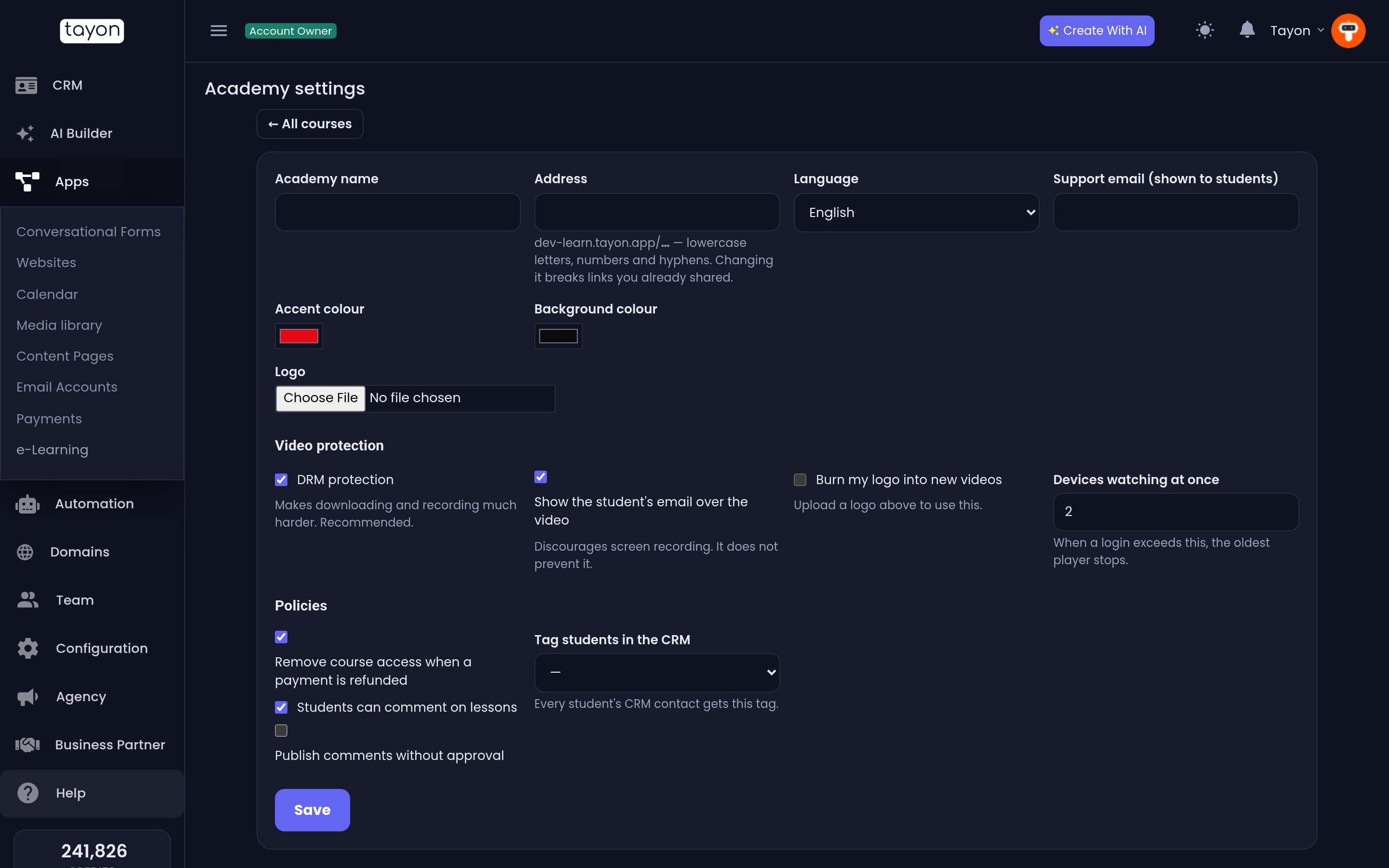
#Name, address and look
| Setting | Notes |
|---|---|
| Academy name | Shown at the top of every academy page and in students’ emails |
| Address | The last part of learn.tayon.app/…. Lowercase letters, numbers and hyphens |
| Language | The language of the academy’s buttons and emails |
| Support email (shown to students) | Where students can reach you |
| Accent colour and Background colour | Your brand colours |
| Logo | An image up to 2 MB |
#Video protection
These settings apply to your course videos. YouTube and Vimeo lessons are not protected by them.
| Setting | What it does |
|---|---|
| DRM protection | Makes downloading and recording much harder. On by default, and recommended |
| Show the student’s email over the video | Moves the student’s email across the picture. It discourages screen recording; it does not prevent it. On by default |
| Burn my logo into new videos | Encodes your logo into the bottom-right of every video you upload from now on. Needs a Logo first |
| Devices watching at once | How many devices one student can watch on at the same time, from 1 to 10. It is 2 unless you change it |
When a student goes over the device limit, the oldest player stops and shows This account started watching on another device, so playback stopped here.
#Policies
| Setting | What it does |
|---|---|
| Remove course access when a payment is refunded | Revokes the course when you refund its payment. On by default |
| Students can comment on lessons | Shows the comment box under each lesson |
| Publish comments without approval | Lets comments appear straight away instead of waiting in Comments |
| Tag students in the CRM | Every student’s CRM contact gets this tag |
#Put the academy on your own domain
Under Your academy’s own domain you can serve the academy on an address like
courses.yourbrand.com. Students, links and emails switch to it once it is
live.
If the domain is already in Tayon, under Use a domain you have in Tayon:, type a Subdomain, pick the domain and choose Connect. Tayon creates the DNS record for you, and it goes live in a few minutes.
If the domain is somewhere else, choose Connect another domain and follow the instructions on screen:
- for a subdomain, create a CNAME record pointing to the address shown;
- for a main domain, point its A record to the IP address shown.
Then connect it. Tayon checks the DNS and adds the security certificate. The status moves from Checking DNS… to Live. If it says DNS not found, the record is missing or has not spread yet — it can take a few hours.
To stop using the domain, choose Remove and confirm with Remove domain.
#When it goes wrong
- Students cannot watch any video. Check whether your academy is paused for lack of credits — see Sell online courses with e-Learning.
- That domain is already connected to something else. The domain is in use by one of your websites or another service. Use a different subdomain.
Updated: