Translate your site into another language
Rewrite every question, button and message in a conversational form into another language in one pass, using AI and transactional credits.
You’ll need: Enough transactional credits on your account. The translation replaces the existing text and cannot be undone.
If you have a site that works in English and you want the same site in Spanish, you do not have to rebuild it. Translate Flow rewrites the whole thing in one pass.
It is in the Flow Designer, under Settings.
#What gets translated
Everything a visitor reads:
- Panel titles, subtitles and body text
- Button labels
- Questions and their option labels
- Validation error messages
- Email, SMS and AI prompt content inside your actions
#What is left alone
The plumbing, deliberately:
- Webhook URLs
- Identifiers — the names your answers are stored under, such as
NAMEorBUDGET - Technical parameters
That matters. Because identifiers are untouched, a $NAME you wrote into a
closing screen still resolves after translation, and any split that branches on
an identifier keeps working.
#Translate
- Open the site in the Flow Designer.
- Choose Settings, and find Translate Flow.
- Pick the target language from the list.
- Choose Translate Flow.
- Read the confirmation, then choose Confirm Translation.
Twenty languages are offered, each shown with its own name beside the English one — Spanish (Español), Portuguese (Brazil) (Português (Brasil)), French (Français), German, Italian, Dutch, Polish, Russian, Turkish, Arabic, Hebrew, Hindi, Japanese, Korean, Chinese in both Simplified and Traditional, Thai, Indonesian, and Portuguese (Portugal) as its own entry.
It takes 10 to 60 seconds. The editor reloads itself when it finishes so the new text appears on the canvas.
When it is done you are told what happened: the language, how many items were updated, and how many credits were charged.
#The two things to know before you press it
#Afterwards
Three things are worth doing straight after a translation:
- Click through the whole site. Machine translation is good, not perfect. Question wording and button labels are where a slightly-off phrase does the most damage.
- Check anything with a variable in it. A sentence like Thanks $NAME may read awkwardly once the words around it move.
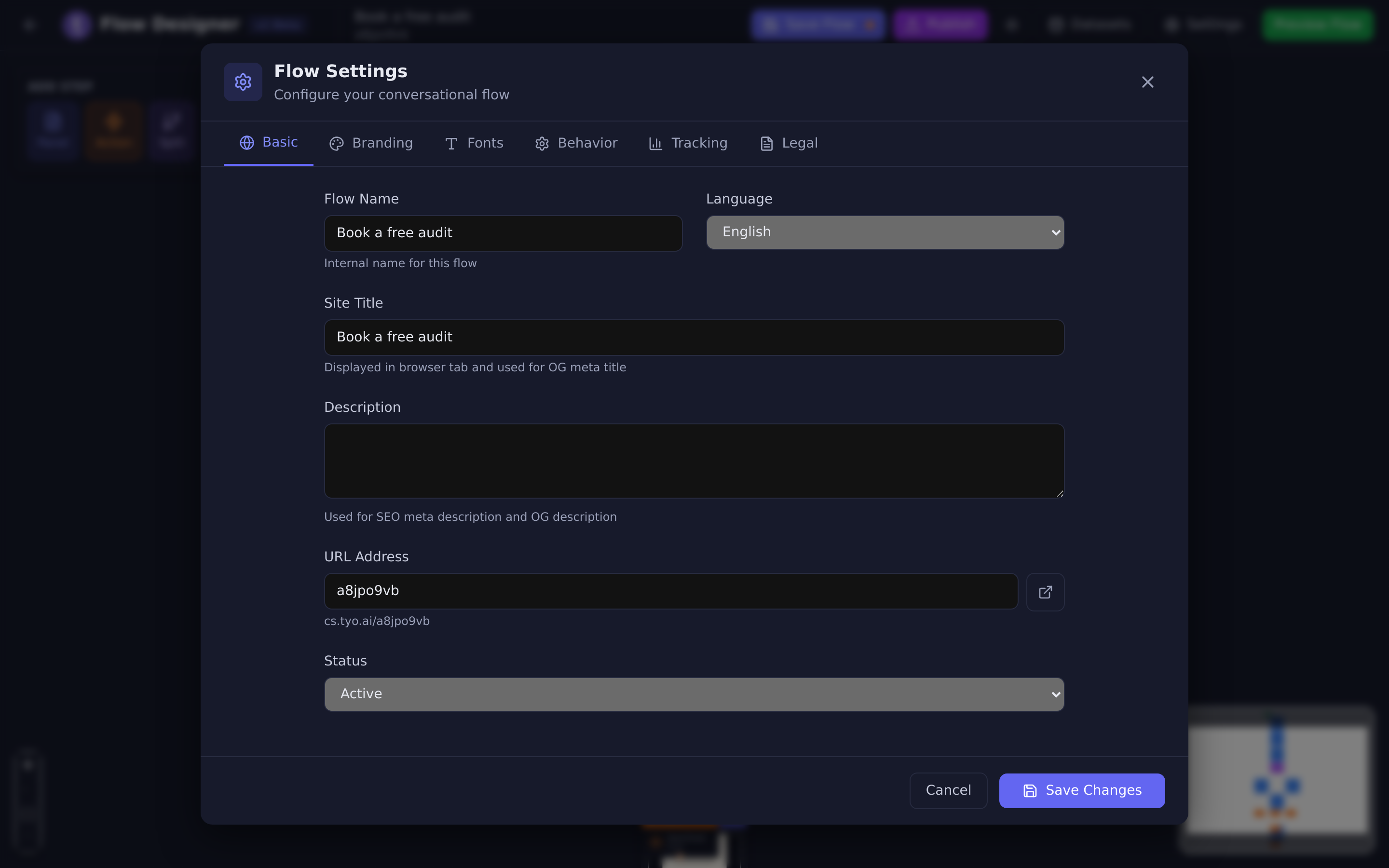
- Set the language on the Basic tab. The translation changes the words; it does not change the site’s declared language, which affects things like date formatting.
Then Publish. As always, nothing reaches visitors until you do.
Updated: