Connect a domain you already own
Keep your domain where you bought it and let Tayon manage its DNS, by changing its two nameservers.
You’ll need: Account owner, or a team member whose Domains permission is not set to None, plus your login at the company where you bought the domain.
If you bought your domain somewhere else, you can keep it there and still get the same automatic setup as a domain bought on Tayon: one-click connection to your website and forms, email records written for you, and DNS you manage from one screen. You make one change at your registrar — the company you bought the domain from — and Tayon does the rest.
The domain stays registered where it is. You keep paying for it there.
Domains
#Start the connection
- Open Domains in the main menu and choose Connect a domain you own.
- Type the domain, for example
yourbusiness.com, and choose Connect.
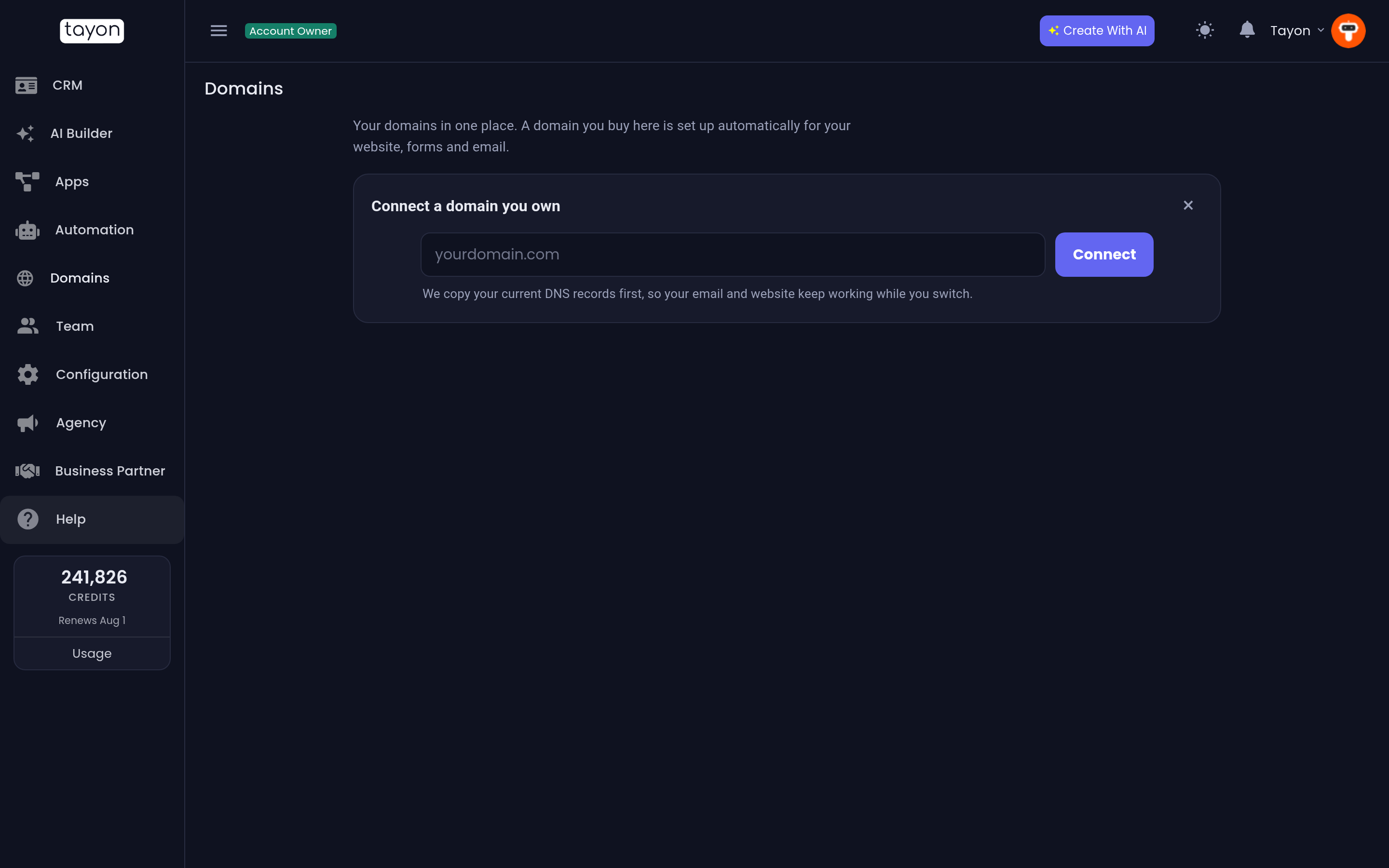
Tayon first copies every DNS record the domain has today — website, email, verifications — so nothing stops working while you switch. This takes a moment; the screen reads Preparing … and copying its current records.
#Change your nameservers
When the copy is done, the screen shows three things:
- We copied your current records — the list of what was kept.
- Change your nameservers to these two — two names, each with a Copy button. If Tayon can tell where the domain is registered, it names that company.
- We finish the setup automatically — what your domain uses right now, and how long the change usually takes.
- Sign in where you bought the domain.
- Find the domain’s nameserver (or DNS server) settings.
- Replace the current nameservers with the two Tayon shows. Use Copy so there are no typos.
- Remove any other nameservers listed there, and save.
Tayon shows step-by-step instructions for the registrar it detects. There are guides for Registro.br, GoDaddy, Namecheap, Hostinger, HostGator and Squarespace Domains, and a general one for everyone else.
#Wait for the change
Nameserver changes usually take from a few minutes to a couple of hours. For .br domains it can take a few hours. You do not need to keep the page open: Tayon checks on its own and finishes the setup as soon as the change is visible.
If you have just saved the change and want to know straight away, choose I changed them, check now. The answer tells you what Tayon saw:
- Found your new nameservers — Tayon is finishing the setup.
- Your domain still uses …, with the time of the check — the change has not reached the registry yet. Give it longer; Tayon keeps checking.
- The registry did not answer — try again later; Tayon keeps checking.
While it waits, the domain’s status on the list reads Waiting for nameserver change. Choose See steps on that row to get back to the instructions.
When it is done you see … is connected. Your records were kept, and the domain now reads Active with the label Connected (registered elsewhere).
#After it is connected
- Connect it to a website, conversational form, chat link or landing page from Use a domain you have on Tayon, without copying records. See Publish your website.
- Create mailboxes on it and the email records are written for you. See Set up email on your own domain.
- Add or change records in Manage DNS.
Renewal stays with your registrar. Keep it paid there — if the domain expires, your site and email on it stop working.
#Stop connecting, or disconnect
- Before it finishes — choose Cancel connection, then Yes, cancel. Nothing changes at your registrar.
- After it is active — first point the nameservers back to your previous provider. Then choose Remove on the domain’s row and Yes, stop managing it. Tayon refuses while the domain still uses its nameservers, because the site and email would stop working.
#If something goes wrong
- We couldn’t connect … — choose Remove and start over and try again. If the message says the domain is set up in another Cloudflare account, remove it from that account first.
- It has been more than a day — check at your registrar that the change was saved and that only the two nameservers are listed.
Updated: