Have the AI call a list of leads
Build a calling campaign, choose who gets called and when, then start, pause or cancel it and follow its progress.
businessYou’ll need: The Business plan, an active voice number, and the Voice AI permission with editing rights.
A voice campaign has your AI agent phone a list of leads, one after another, within the hours you choose. You can use it to re-engage old leads, confirm appointments or qualify a list. You can follow the results while it runs.
AutomationVoice AICampaigns
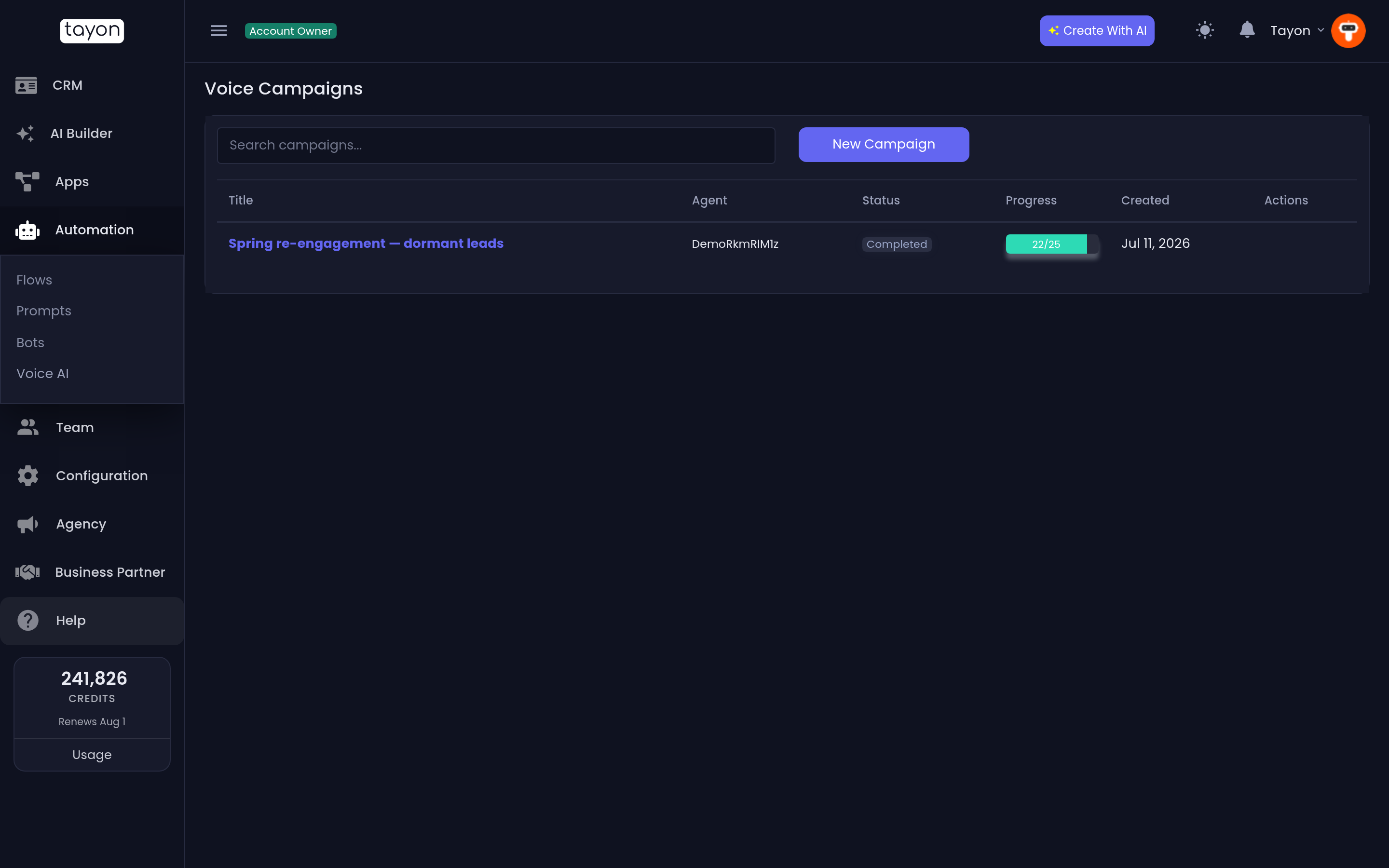
#Create a campaign
- Choose New Campaign.
- Give it a Campaign Name.
- Choose the AI Agent that will speak, and the Voice Number it will call from.
- Under Schedule, set the Start Time, End Time and Days of Week when calls may be made.
- Under Settings, adjust concurrency and retries if you need to (see below).
- Under Contacts, type at least two letters of a name, phone number or email into Search Contacts. Choose Add on each lead you want called.
- Check the Selected Contacts list, then choose Create Campaign.
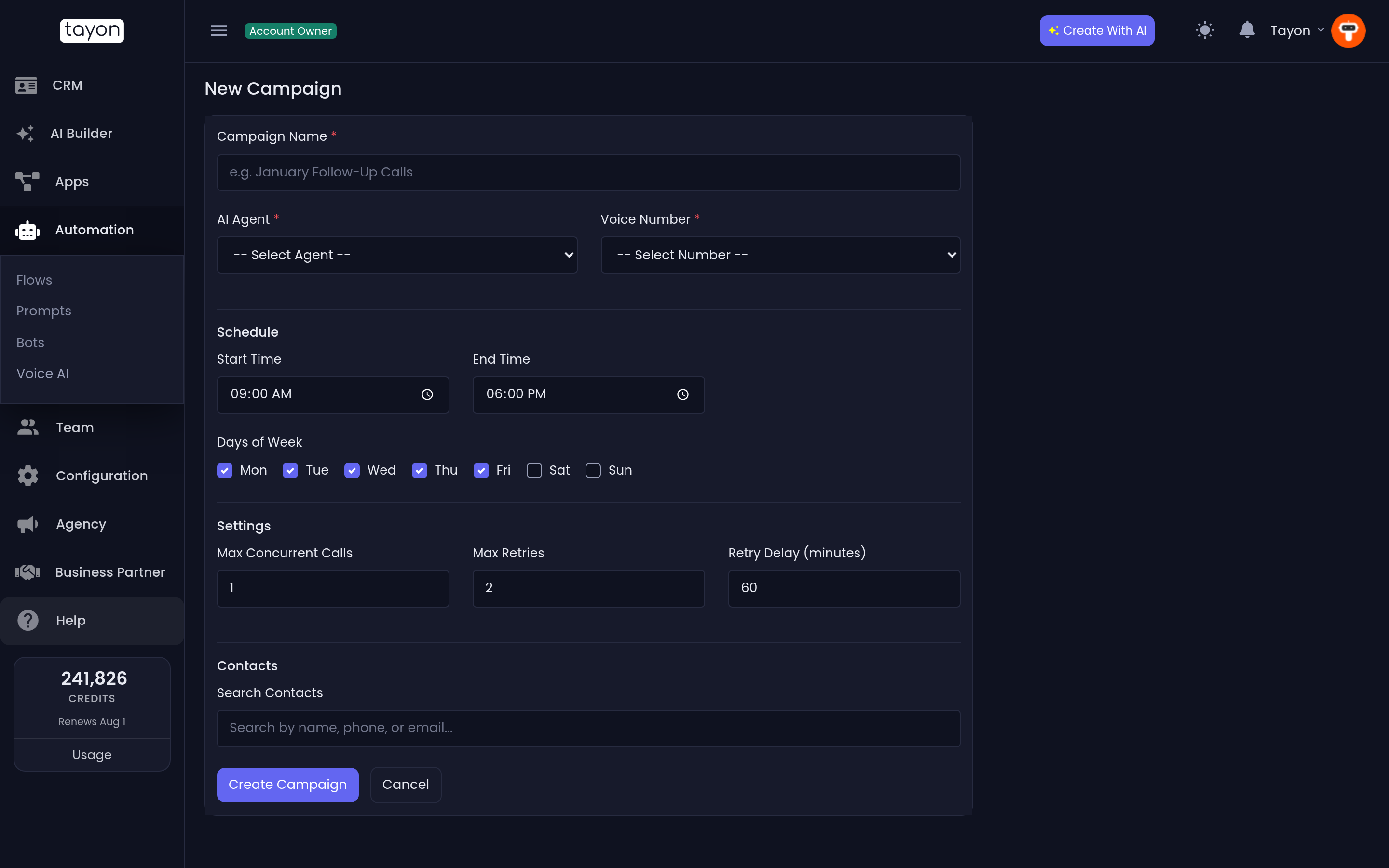
The campaign is saved as Draft. No calls are made until you start it.
Only active numbers appear under Voice Number. If yours is missing, switch it back to Active on the Numbers screen. The contact search only finds leads that have a phone number.
#Schedule
| Field | Default | What it does |
|---|---|---|
| Start Time / End Time | 09:00 to 18:00 | Calls are only placed between these times |
| Days of Week | Mon to Fri | Calls are only placed on the ticked days |
Times follow your account’s time zone, not the time zone of the person being called. If your leads are in a different time zone from you, adjust the hours so you do not call them at night.
#Settings
| Field | Default | Allowed | What it does |
|---|---|---|---|
| Max Concurrent Calls | 1 | 1 to 10 | How many calls can be in progress at once |
| Max Retries | 2 | 0 to 5 | How many more times to try a number that was busy or did not answer |
| Retry Delay (minutes) | 60 | 5 or more | How long to wait before trying again |
#Start, pause and cancel
Each campaign row has buttons for the actions it allows:
| Button | Shown when | What it does |
|---|---|---|
| Start (play) | Draft or Paused | Begins calling, within the schedule |
| Pause | Active | Stops new calls. Calls already connected finish normally |
| Cancel (stop) | Draft, Active or Paused | Ends the campaign for good, after you confirm Cancel this campaign? |
| Edit | Draft | Opens the campaign to change it |
A campaign can only be edited while it is a Draft. After that, its name opens a read-only view with a Campaign Status panel showing Total Calls, Completed and Failed.
If you start a campaign outside its calling hours, it waits and begins at the next allowed time.
#Follow progress
The Status column moves through these values:
| Status | Meaning |
|---|---|
| Draft | Saved, not started |
| Active | Calling within its schedule |
| Paused | Stopped by you, and can be started again |
| Completed | Every lead has been called, or has run out of retries |
| Cancelled | Stopped by you for good |
Progress shows calls completed out of the total, such as 22/25. A campaign switches itself to Completed when nothing is left to dial. A lead who stayed busy or never answered after all retries counts as Failed.
Every campaign call also appears in Call Logs as an Outbound call, with its transcript and summary. The conversation is saved as a note on the lead.
#If calls are not going out
- It is outside the schedule. Check Start Time, End Time and Days of Week against the current time in your account’s time zone.
- Too many calls are already connected. New calls wait until one ends, up to your Max Concurrent Calls.
- The leads are waiting to be retried. A lead who was busy or did not answer is not called again until its Retry Delay has passed.
- The campaign is still a Draft. Saving does not start it. Choose Start on the list.
Updated: