Choose the address your messages are sent from
Connect the mailbox Tayon sends your campaigns and lead replies from, and understand why a hosted address is the reliable choice.
You’ll need: Account owner access, and a mailbox to connect.
Before Tayon can email a lead or run a campaign, it needs an address to send from and permission to use it. That is what this screen sets up.
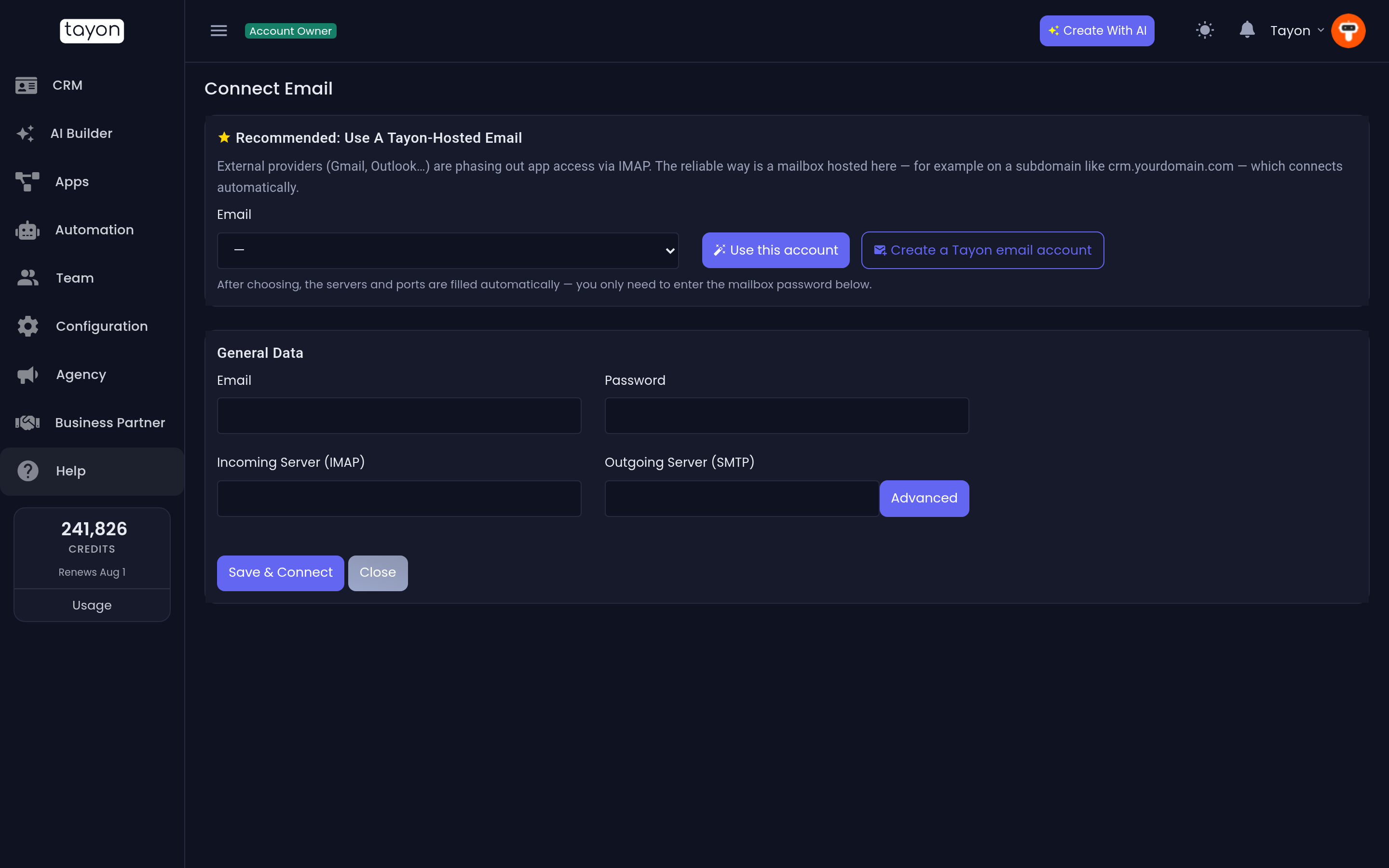
Open it from your account menu: choose your name in the top bar, then Email account. The screen is titled Connect Email. If you pick an email sender while scheduling a campaign and the field says No confirmed Email sender found, click here to create a sender, this is also where that link goes.
Account menuEmail account
#The short version: use a hosted mailbox
The screen leads with a card titled Recommended: use a Tayon-hosted email, and the recommendation is worth taking:
External providers (Gmail, Outlook…) are phasing out app access via IMAP. The reliable way is a mailbox hosted here — for example on a subdomain like
crm.yourdomain.com— which connects automatically.
A hosted mailbox fills in the servers and ports for you. You only type the password.
- In the card, pick the mailbox from the Email list.
- Choose Use this account. The servers and ports below are filled in for you.
- Under General Data, enter the mailbox Password.
- Choose Save & Connect.
If you have no mailbox yet, Create a Tayon email account takes you to Email Accounts to make one.
While it tests the connection you will see Trying to connect to email servers. When it finishes, Status shows whether it worked.
#Connecting a mailbox somewhere else
For a mailbox hosted elsewhere, fill in General Data yourself: Email, Password, Incoming Server (IMAP) and Outgoing Server (SMTP). Advanced opens the rest:
- IMAP Port and SMTP Port
- SMTP User and SMTP Password, if the outgoing server wants different credentials from the incoming one
Leave SMTP User and SMTP Password empty when they match the mailbox address and password — Tayon reuses those.
#Checking it later
Come back to this screen at any time to see Status. A connection that has dropped shows Email Disconnected — re-enter the password and choose Save & Connect again.
For a Tayon-hosted mailbox, changing the password with Change Password on the Email Accounts screen updates this connection for you. Changing it anywhere else — inside webmail, or at another provider — breaks the connection, because Tayon is still using the old one. Re-enter the new password here.
#When it goes wrong
Campaigns still say there is no confirmed sender. The connection has not completed. Open this screen and check Status rather than assuming it saved.
It connects, then disconnects on its own. Almost always a password change somewhere else, or a provider withdrawing IMAP access.
Mail sends but lands in spam. That is not a connection problem. A hosted mailbox needs its SPF, DKIM and DMARC records in place — see Set up email on your own domain.
Updated: