Add the chat widget to your website
Copy one line of code into your site to put a chat bubble on every page — or embed the chat inline — and control how it appears before anyone clicks it.
You’ll need: A web bot on your account, and the ability to edit your website's HTML.
Embedding a bot takes one line of code. The rest of this article is about getting it to appear the way you want.
#Get the embed code
- Go to Bots and open Bot Configuration. You land on the Web Bots List.
- Open the bot you want, or choose New Web Bot to make one.
- In the Widget Studio, open the Embed code tab.
- Choose Copy to Clipboard next to the first snippet.
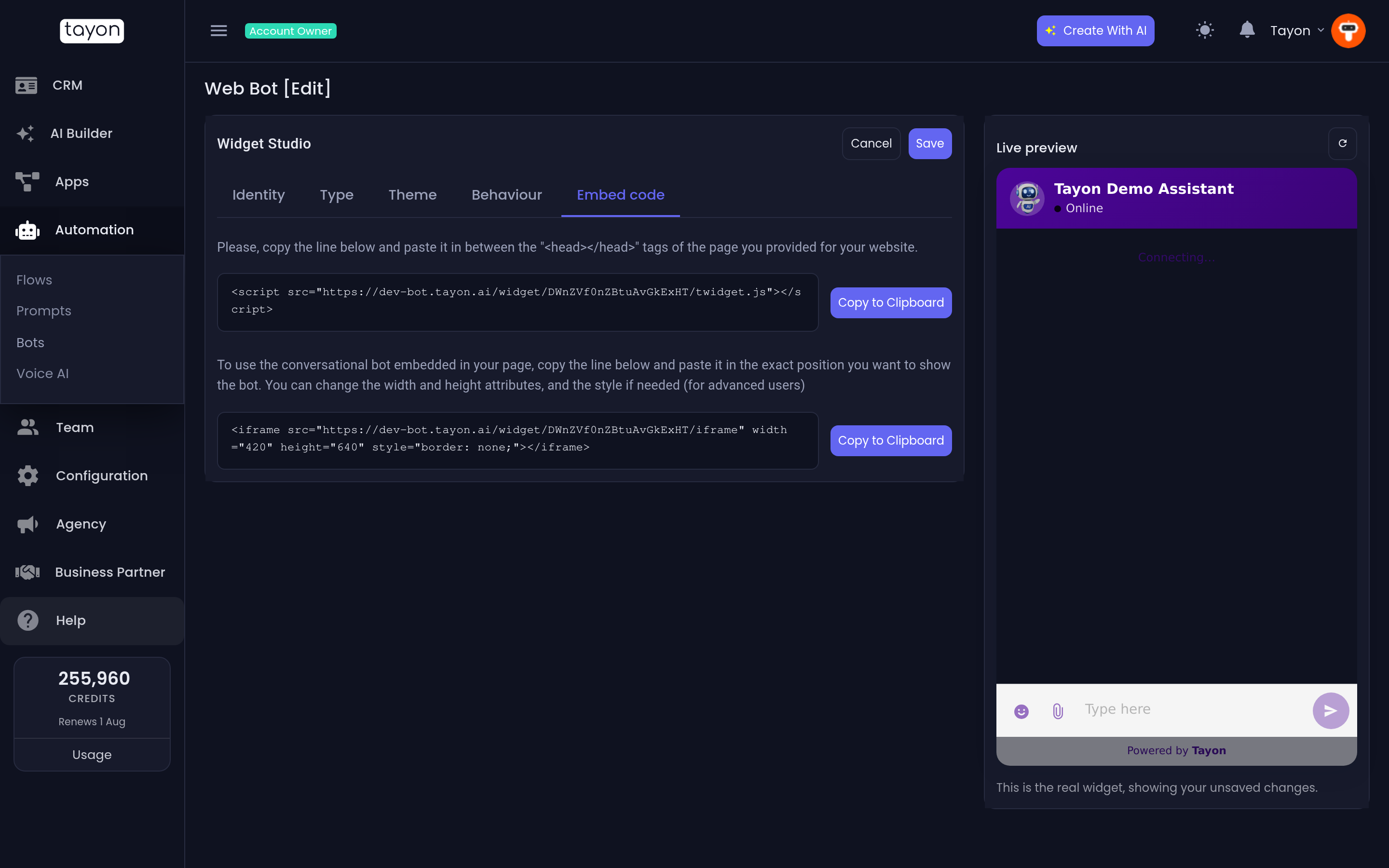
That snippet is a single <script> tag. Paste it between the <head> and
</head> tags of every page you want the bubble on — or, more usually, into
whatever part of your site’s template produces the <head> for all pages at
once.
The bubble then appears in the bottom-right corner of those pages.
#Embed the chat inline instead
The second snippet on the same tab is an <iframe>. Paste it exactly where you
want the chat to sit — inside a page, in a sidebar, in a section of its own —
instead of floating in the corner. You can change its width and height.
Use the script for a bubble that follows the reader; use the iframe when the chat is the content of that part of the page.
#On a website Tayon built for you
You do not need the code at all.
- Open the site in the website editor.
- Choose the ⚙ button and open the Add-ons tab.
- Under Web bot, add the bot you want.
It goes onto every page of the published site, and it appears in the editor preview too so you can see it before publishing. Removing it there takes it off every page again. See Publish your website.
#Choose how the launcher looks
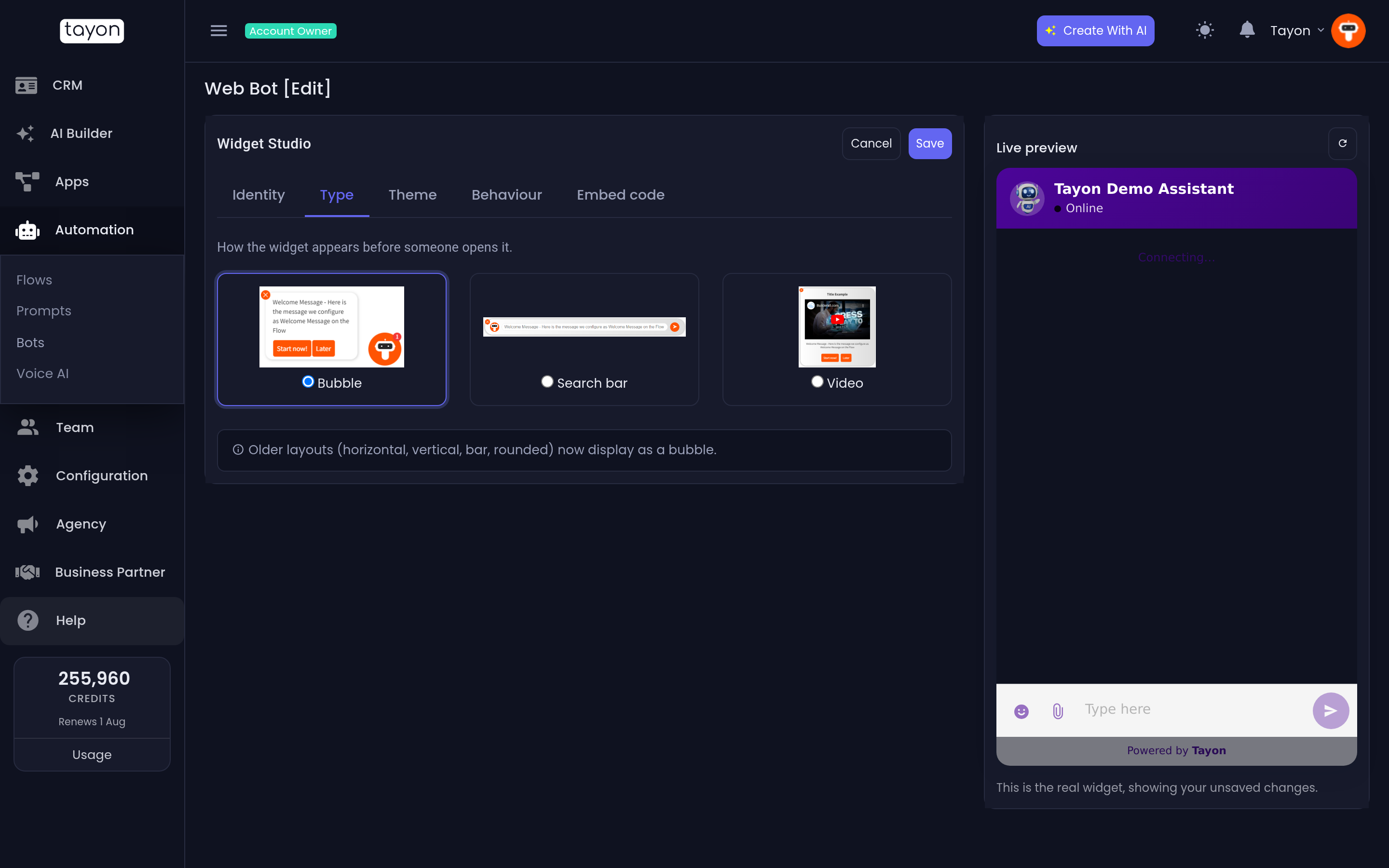
The Type tab decides what visitors see before they open the chat.
| Type | What it looks like |
|---|---|
| Bubble | A round button in the corner. The default, and the right answer nearly always |
| Search bar | A bar inviting a question, for sites where the chat is the main call to action |
| Video | A launcher that plays a video. Needs a Title and a Video URL |
#Choose how it behaves
The Behaviour tab:
- Open chat automatically — the chat is already open when the page loads. Effective on a landing page, irritating on a blog.
- Always start a new chat — every visit begins a blank conversation instead of resuming the last one. Leave this off if you want returning visitors to see their history.
- Wide window — a larger chat panel.
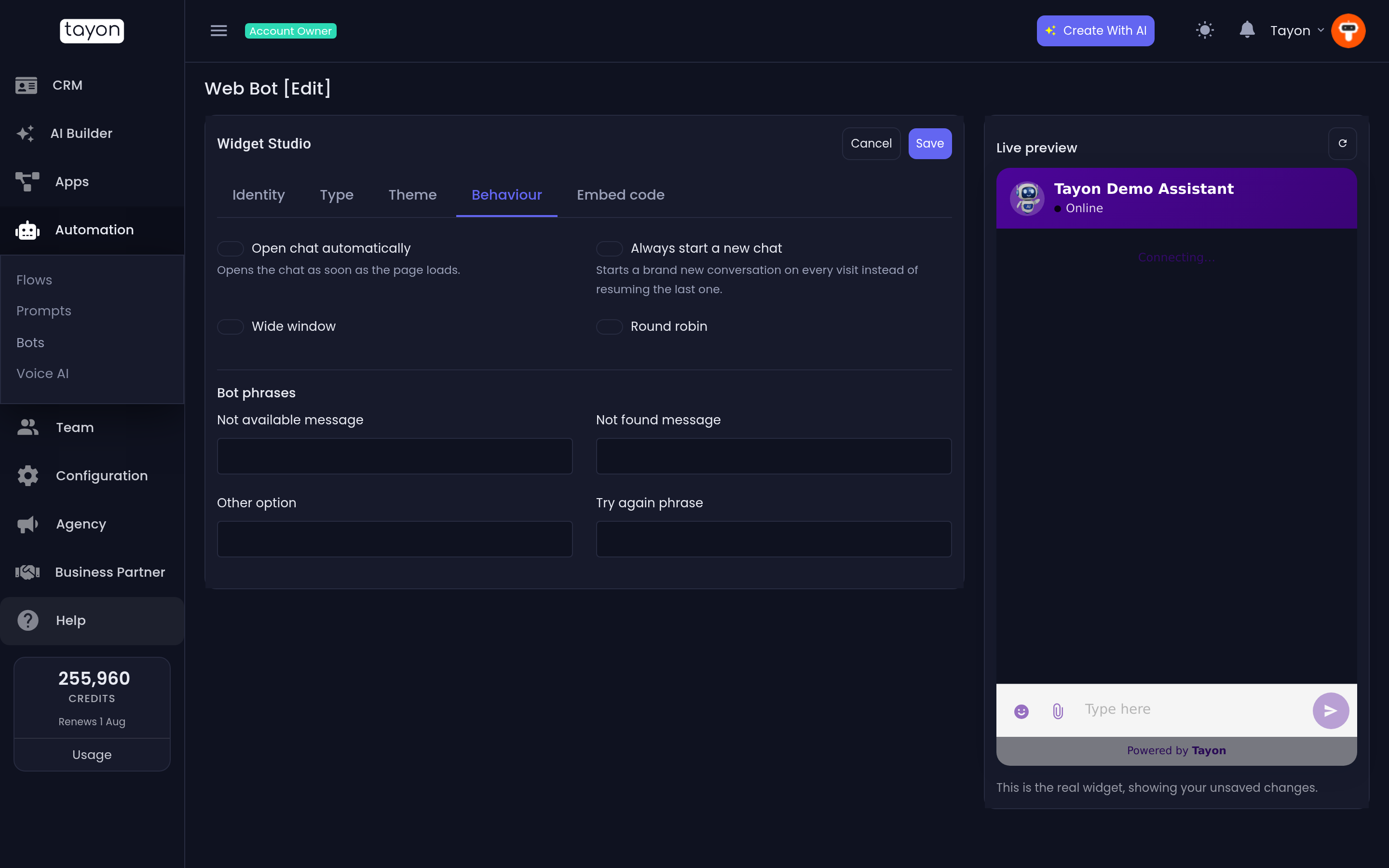
Remember to choose Save. The Live preview on the right shows your unsaved changes, so you can check before you commit.
#Control where the bot may load, and which flow runs
AutomationBotsBot Access
Bot Access opens the Websites List. Register a domain here, add the pages of it you care about, and choose which flow runs on each one — so your pricing page can open a different conversation from your home page.
You do not have to register a domain just to make the widget work. Registering is how you route different pages to different flows, and how you switch a domain off if you ever need to stop the bot loading there.
#Turn a bot off
Every row on the Web Bots List has a status you can toggle between Active and Inactive.
#If the bubble does not appear
- Confirm the snippet is inside
<head>and that you are looking at a page that actually includes it. View your page’s source and search fortwidget.js. - Check the bot’s status is Active on the Web Bots List.
- Check your account is in good standing — an inactive account’s widget stops loading.
- If the bubble appears but the chat says Connecting…, the conversation engine is briefly unreachable. It recovers by itself; reload after a moment.
- If the bubble sits on top of something else in the corner, switch the launcher Type or move your own fixed element.
Updated: