Tell your bot about your business
Use the Prompts screen to set what the AI knows, how it behaves, what it should collect, and which of your websites each prompt applies to.
A bot’s flow decides the shape of the conversation. Prompts decide what it actually knows and how it speaks. This is where you fix “it answered that wrong”.
AutomationPrompts
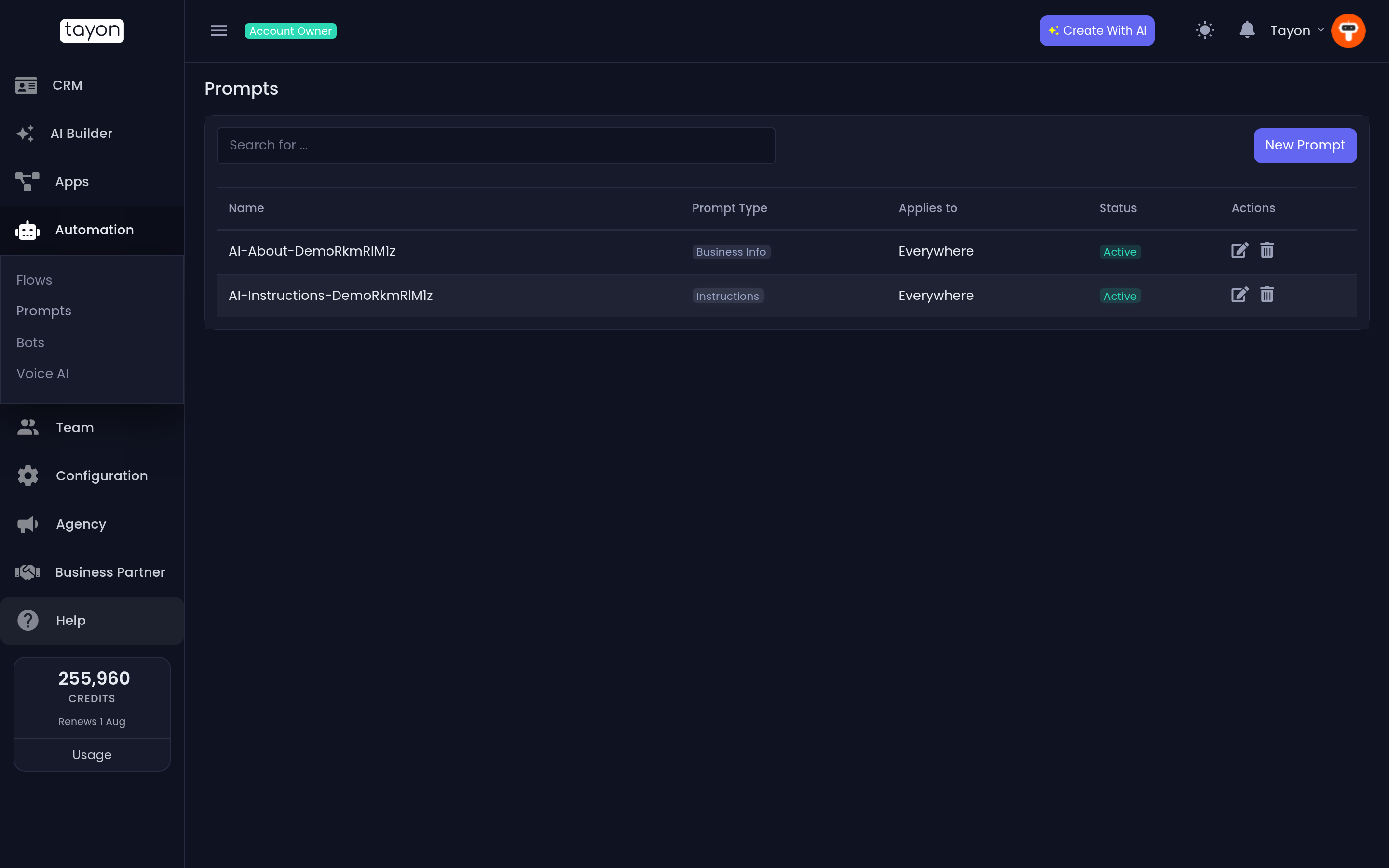
The list shows every prompt on your account with its type, what it applies to, and a status you can switch off without deleting anything.
#The two that matter most
| Type | What goes in it |
|---|---|
| Business Info | What the AI knows about your business, product, or offer |
| Instructions | How the AI should behave, its profile, and its objective |
Keep them separate. Facts in one, behaviour in the other. Mixing them is why a bot starts inventing policy.
Business Info should read like a briefing document: what you sell, what you charge, where you operate, opening hours, what you do not do, the three questions customers always ask and their answers.
Instructions should read like a job description, written to the bot in the second person:
You answer in under 50 words. You are warm but brief. You always ask for an email address before giving a price. You never promise a delivery date. If someone asks about a refund, you tell them a person will follow up and you collect their email.
#Create a prompt
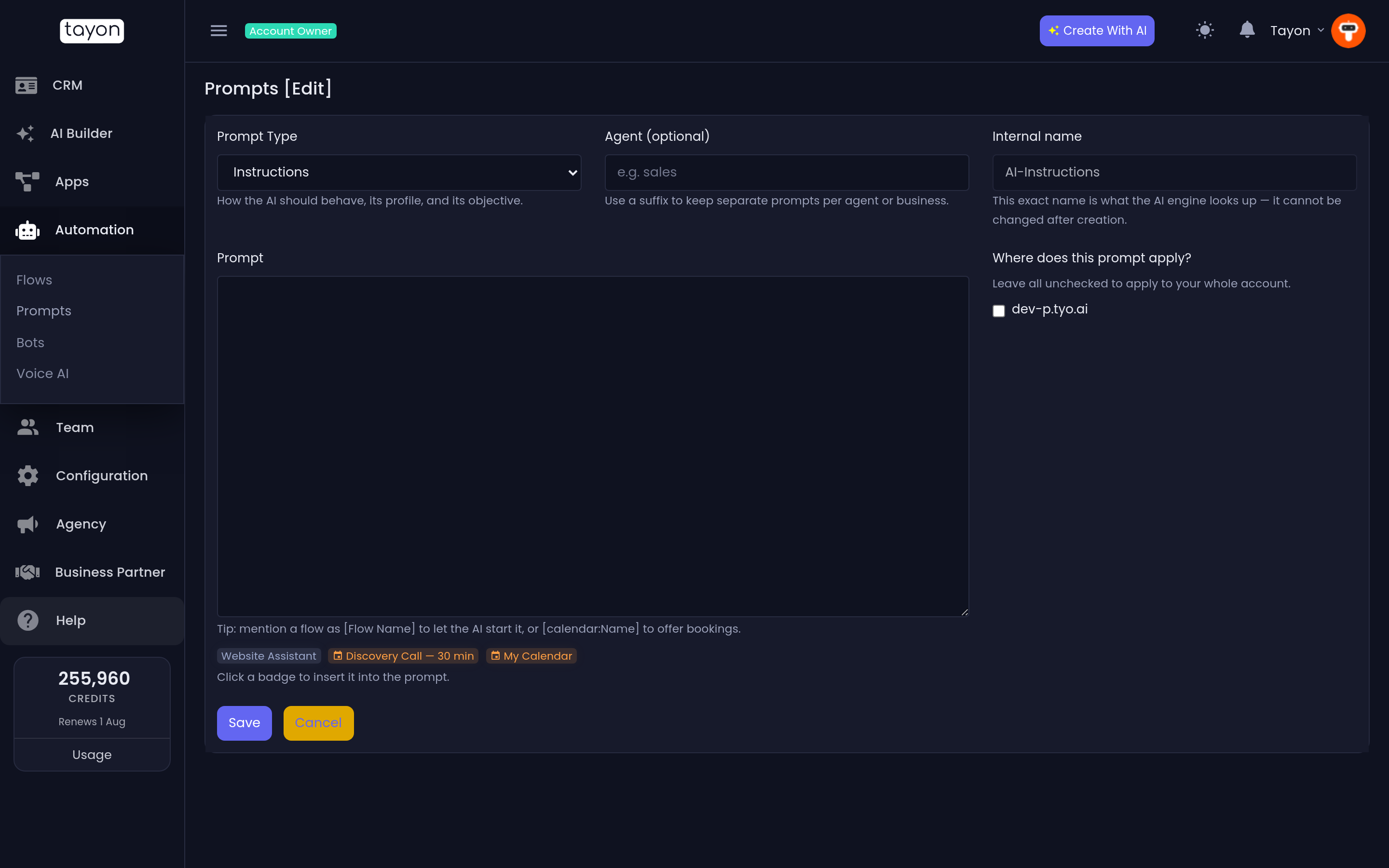
- Choose New Prompt.
- Pick the Prompt Type.
- Leave Agent (optional) blank unless you run more than one agent — see below.
- Write the text in the Prompt box.
- Choose where it applies, and save.
#Agent, and the internal name
Agent (optional) is a short suffix that keeps separate prompts per agent or
per business — sales, support, clinic. Tayon builds the Internal name
from the type and the suffix and shows it to you as you type.
#Where does this prompt apply?
Leave every website unchecked and the prompt applies Everywhere — to your whole account. Tick specific websites and it applies only to those, which is how one account runs different knowledge for different brands.
The list column Applies to shows the result at a glance.
#Insert flows and calendars
The instruction-style prompts show clickable badges above the box. Click one to insert it.
[Flow Name]— lets the AI start that flow mid-conversation. Mention it in a sentence such as “if they want a quote, start [Quote Request]”.[calendar:Name]— lets the AI offer bookings from that calendar.
Only active flows and calendars appear as badges.
#Capture custom information
The Data Capture Fields type tells the AI what to collect beyond the
standard name, email and phone. One field per line, in the format
IDENTIFIER: description:
ROOF_AGE: how many years old the roof is
PROPERTY_TYPE: house, flat or commercial
You can then use those values later in flows and messages as
$CRMDATA.ROOF_AGE. The variable reference
lists the built-in contact fields you can use the same way, such as
$CRMDATA.CITY and $CRMDATA.STAGE.
#The rest of the types
You will not need these for a simple website bot, but they exist:
| Type | Used for |
|---|---|
| Chat/WhatsApp Instructions | Behaviour specific to chat and WhatsApp |
| Email Instructions | Behaviour specific to email |
| First Contact Message | The opening message of a follow-up sequence |
| Follow-Up Message | Every later message in a sequence |
| Email Subject | How subject lines are written |
| Response Instructions | How the agent replies when a lead answers |
| Voice Agent | Managed from the Voice AI screens, not here |
#Switching a prompt off
Use the status toggle on the list rather than deleting. An inactive prompt stops being used immediately but is still there when you want it back.
#Legacy keyword rules
At the foot of the Prompts list there is a link to Legacy keyword rules. That is the older system, where a rule matched specific words a visitor typed and replied with a fixed answer. Existing rules still work. For anything new, write a prompt — the AI handles the wording your visitors actually use, which a keyword list never will.
#If the bot still answers wrong
- Check the prompt is Active and that its Applies to column covers the website the visitor was on.
- Put the correct answer in Business Info as a plain fact, not as an instruction.
- If it is a matter of tone or length, that belongs in Instructions, not in Business Info.
- If you regenerated the agent recently, remember that regenerating rewrites both prompts — your manual edits are gone and need reapplying.
Updated: