Enroll and manage your students
Add students by hand or from a CRM tag, resend their access, revoke or block them, follow their progress, and moderate lesson comments.
probusinessYou’ll need: The Pro plan or above, and the e-Learning permission at Edit level or higher.
Students reach you in different ways — buying, signing up, or being added by you. This article covers the ones you control, and how to look after students once they are in.
#Add a student to one course
- Open the course and go to the Students tab.
- Choose Add student.
- Enter their Email and name, and choose Enroll and send access.
They get an email with a link to start, and to create a password if they are new to your academy.
The tab lists everyone in the course, with a progress bar, Completed once they finish, the date they enrolled, when they were last seen, and how they joined: added by hand, free sign-up, purchase or imported.
#Resend, revoke and restore
- Resend access emails a fresh access link. Use it when someone lost the email or the link expired.
- Revoke removes their access to this course, after you confirm with Revoke access.
- Restore access gives a revoked student their access back.
#See every student
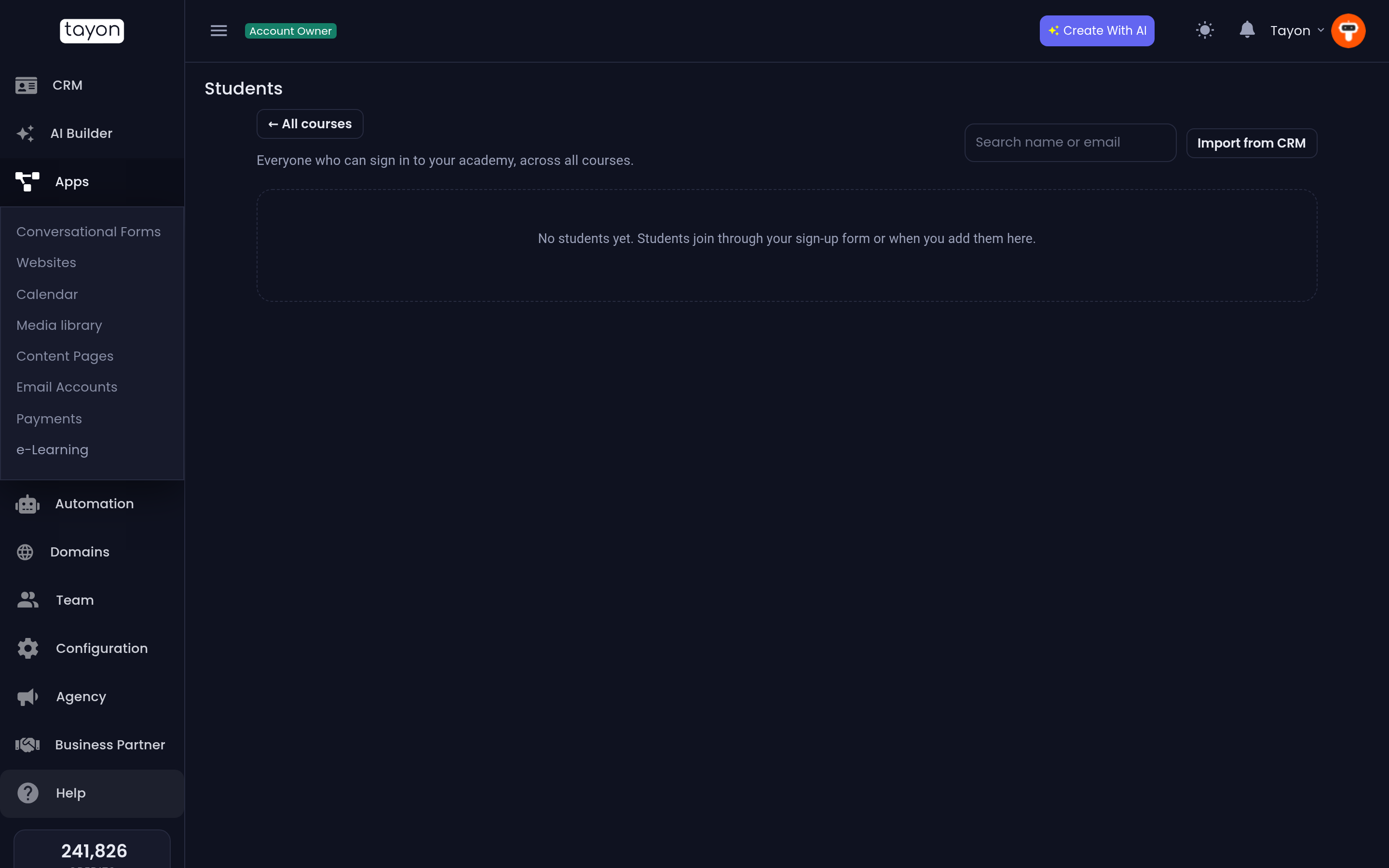
Students, on the e-Learning home, lists everyone who can sign in to your academy, across all courses. Search by name or email, and see each student’s courses and their linked CRM contact.
#Enroll a whole CRM tag
- On Students, choose Import from CRM.
- Pick the CRM tag and the Course.
- Leave Email each new student their access link ticked, unless you will tell them yourself.
- Choose Start import.
Students appear in the list as they are enrolled. Contacts with no email address are skipped, and people already in the course are not emailed again.
#Link students to the CRM
Students who joined without a CRM contact can be linked to one. When the button Link … to CRM appears, choose it to match those students to contacts.
#Block a student
Block stops a student from signing in to your academy at all, for every course. Unblock lets them back in.
#Moderate lesson comments
Students can leave questions and comments under each lesson. Unless you changed it in Academy settings, a comment waits for you before other students see it.
Open Comments on the e-Learning home. The tabs Waiting, Approved and Rejected sort them. For each comment, choose Approve or Reject, or answer it in Reply as the academy (approves the comment) and choose Reply. Your answer is posted under your academy’s name.
#Grade essays
Essay answers from quizzes wait in Grading. See Add quizzes and a final exam.
Updated: