Move leads through your pipeline
Use the board view to see your pipeline as columns, drag leads between stages, and read the value sitting in each one.
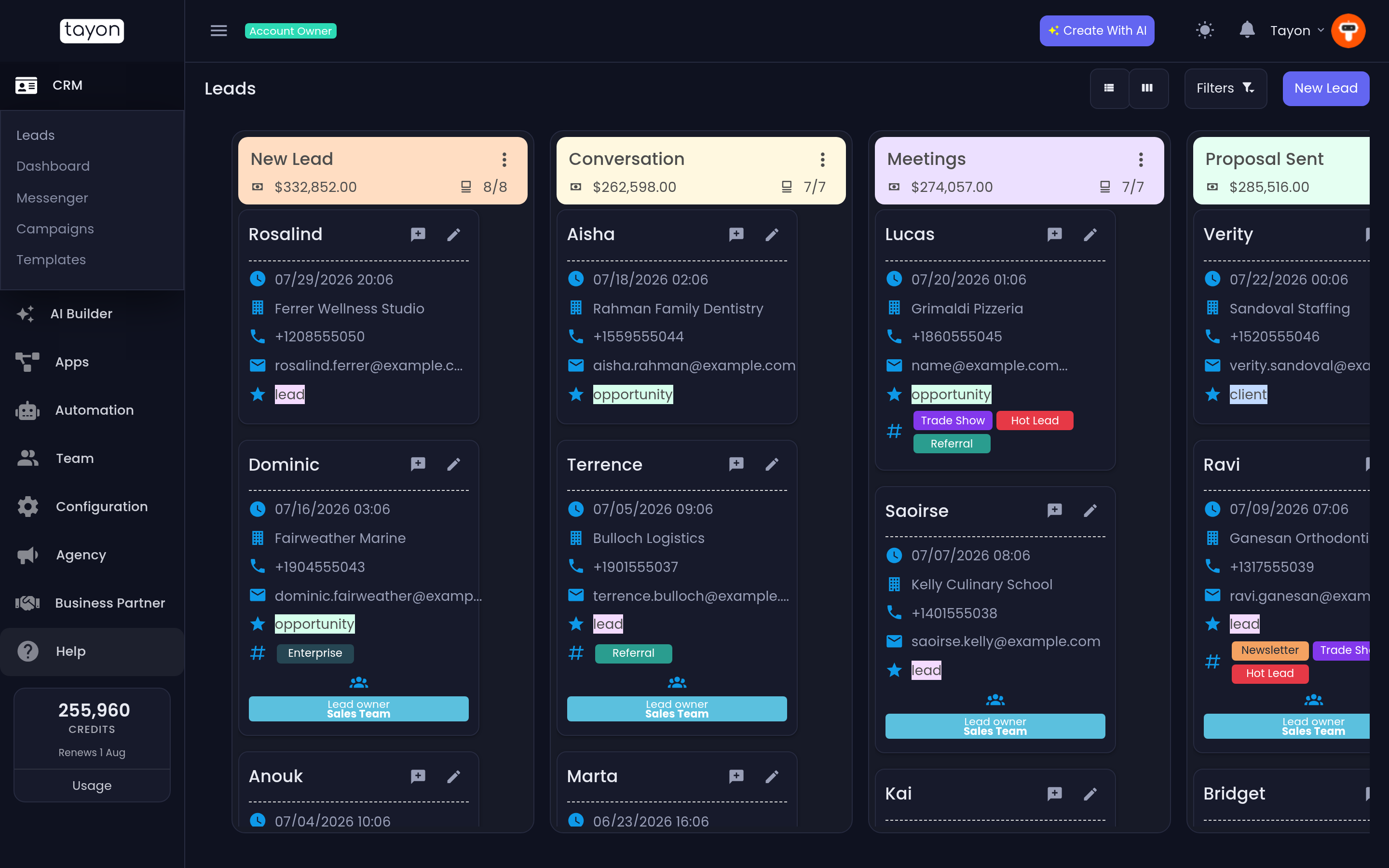
The board shows the same leads as the list, arranged as one column per stage. It answers a different question: not who is this lead but where is the work piling up.
Switch to it with the Stage View button at the top right of the Leads list, and back with List View. Tayon opens whichever you used last.
#Move a lead
Drag the lead’s card into another column. The lead’s stage changes as soon as you drop it, and any automation you have built on stage changes fires from there.
You can also drag a whole column sideways to reorder your board. The order you set is yours — it does not change the stages themselves or what anyone else sees.
#Reading a column header
Each column header carries three things: the stage name, the Total of projected value of every lead in it, and a count in the form Showing N items from M.
That total is the reason to keep Projected value filled in on your leads. Without it the board tells you how many deals are in play; with it, how much.
#Column menu
The menu on a column header gives you:
- Order by Date — sort that column by when leads were created.
- Order by Name — sort it alphabetically.
- Rename Column — change the stage’s name.
Sorting applies to one column at a time, so you can keep your negotiation column newest-first while the rest stay alphabetical.
#Loading more cards
Each column starts with ten leads. The chevrons at the foot of a column load another ten, or fold them back down. A busy column never renders in full at once, which is deliberate — it keeps the board fast.
#Filters
Filters opens the same filter row as the Leads list: search, Quality, tags, Team members and Registration date. There is no stage filter here, because the columns already are the stages.
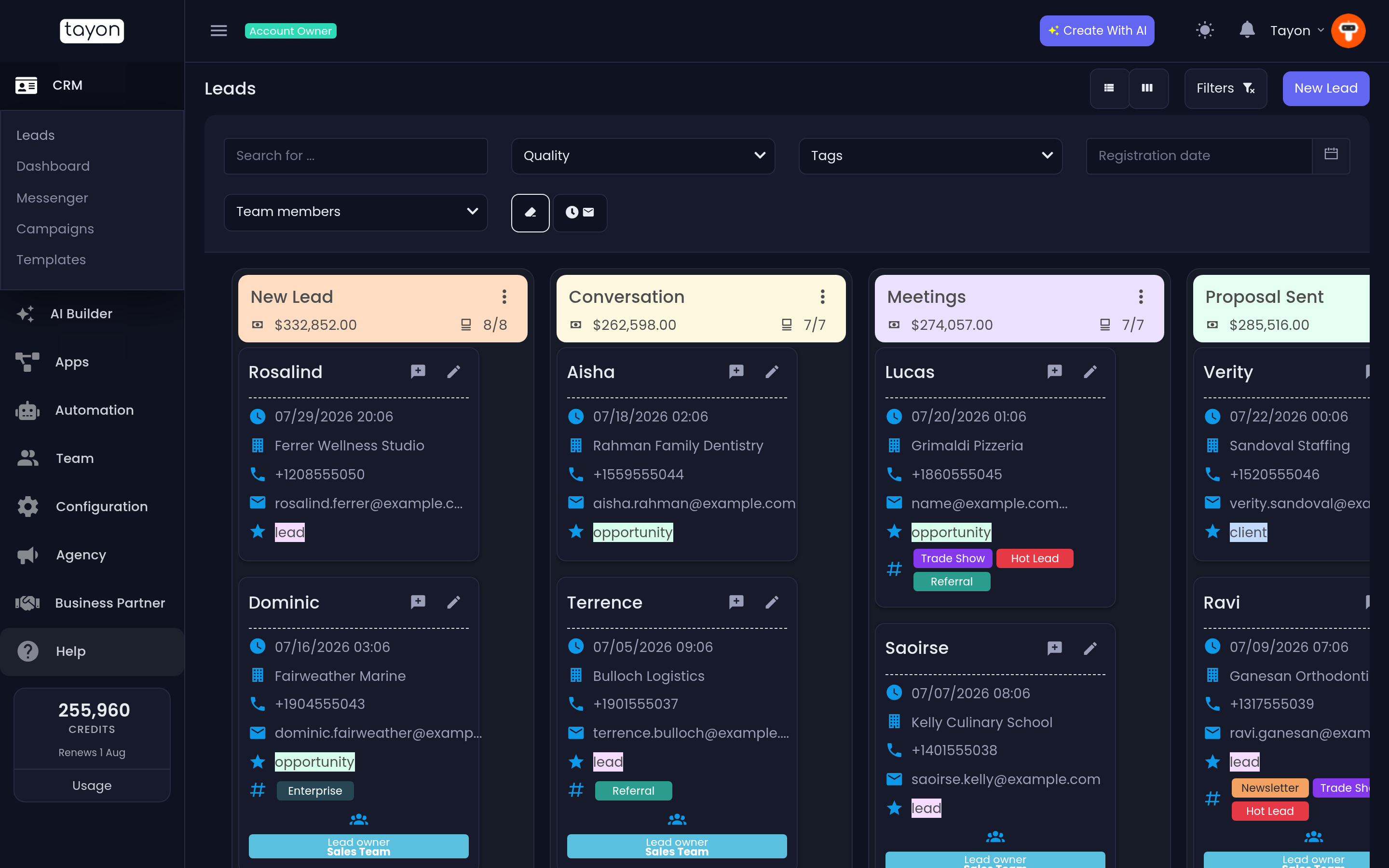
Filtering the board is the fastest way to answer “what does Andre have in negotiation”: tick him under Team members and read the column.
#What is on a card
Each card shows the lead’s name plus, as space allows, Created In, Company Name, Phone, Email, Quality, the Tags List, a Scheduled event marker, and the Lead owner — a person or a group.
Two buttons sit on every card: one opens the lead for editing, the other is Open on Messenger and takes you straight to that person’s conversation.
#If a drag does not stick
If a card snaps back to where it started and you see Something went wrong, the change was not saved. Reload the board and try again. The usual cause is a lead that someone else moved or deleted while your board was open.
Updated: