Manage your AI Builder projects
Reopen a half-finished build, rename a project, share a live site, duplicate or hand a website to another account, and discard what you no longer want.
Everything you have ever started in the AI Builder is kept — finished or not. This article is about finding it again and doing something with it.
#Your Projects
The AI Builder screen lists your projects under Your Projects. Each card shows the name, its status, when you last touched it, and how many credits it has used.
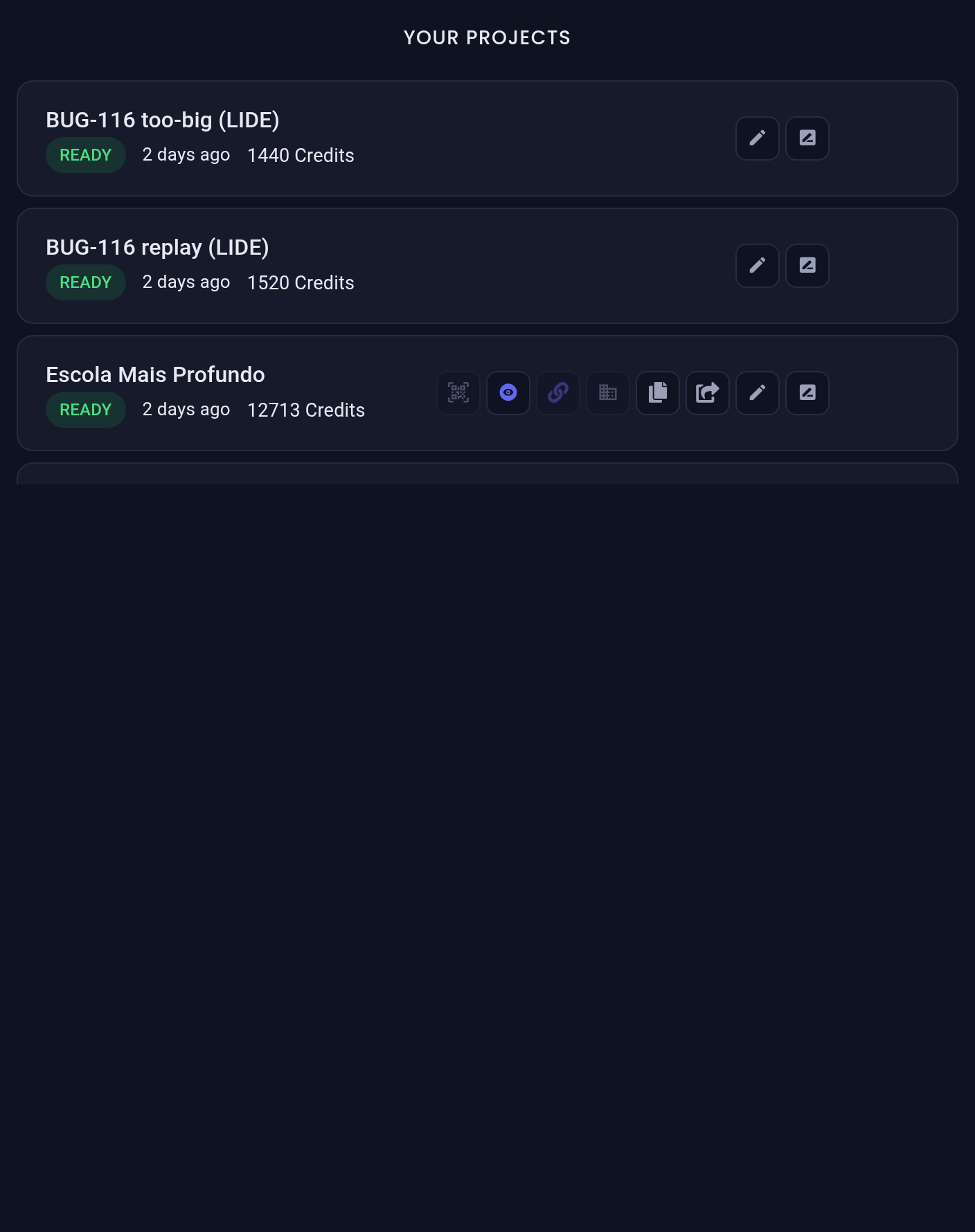
Click a card — or the pencil on it, Open project — to reopen it. A half-finished conversation picks up exactly where you left off; a finished project opens in its editor or preview.
A finished online course opens its summary, with Open the course to edit it in e-Learning. If you have since deleted the course in e-Learning, the card stays but says This course has been deleted from e-Learning.
#How projects are named
Projects are named for you as soon as there is enough of a conversation to name them from. When the build runs, the name is replaced by your business’s name, taken from everything you told the chat — so a site is called Padaria Estrela, not a date. Parts built together as a set or funnel share that name. A project that never got far enough shows as Untitled Project.
#Rename a project
- On the project card, choose the rename icon — its tooltip reads Rename project. On the Websites list, the same icon reads Rename website.
- Type the new name — between 2 and 80 characters.
- Confirm.
Renaming works for every kind of project. A website’s new name shows in both lists and becomes its title wherever you have not set your own Site title. The published address does not change, so links you have already shared keep working. Once you have renamed a project, Tayon never renames it automatically again.
#A funnel appears three times
A funnel produces two things, so it leaves three cards in the list: the funnel itself, plus the landing page and the conversational form it generated. The two children are marked as generated as part of their funnel, so you can tell them from projects you started yourself.
That is what lets each half be opened, edited and published exactly like any other project — the landing page in the website editor, the flow in the Flow Designer. Everything below about website projects applies to a funnel’s landing page too.
#Actions on a website project
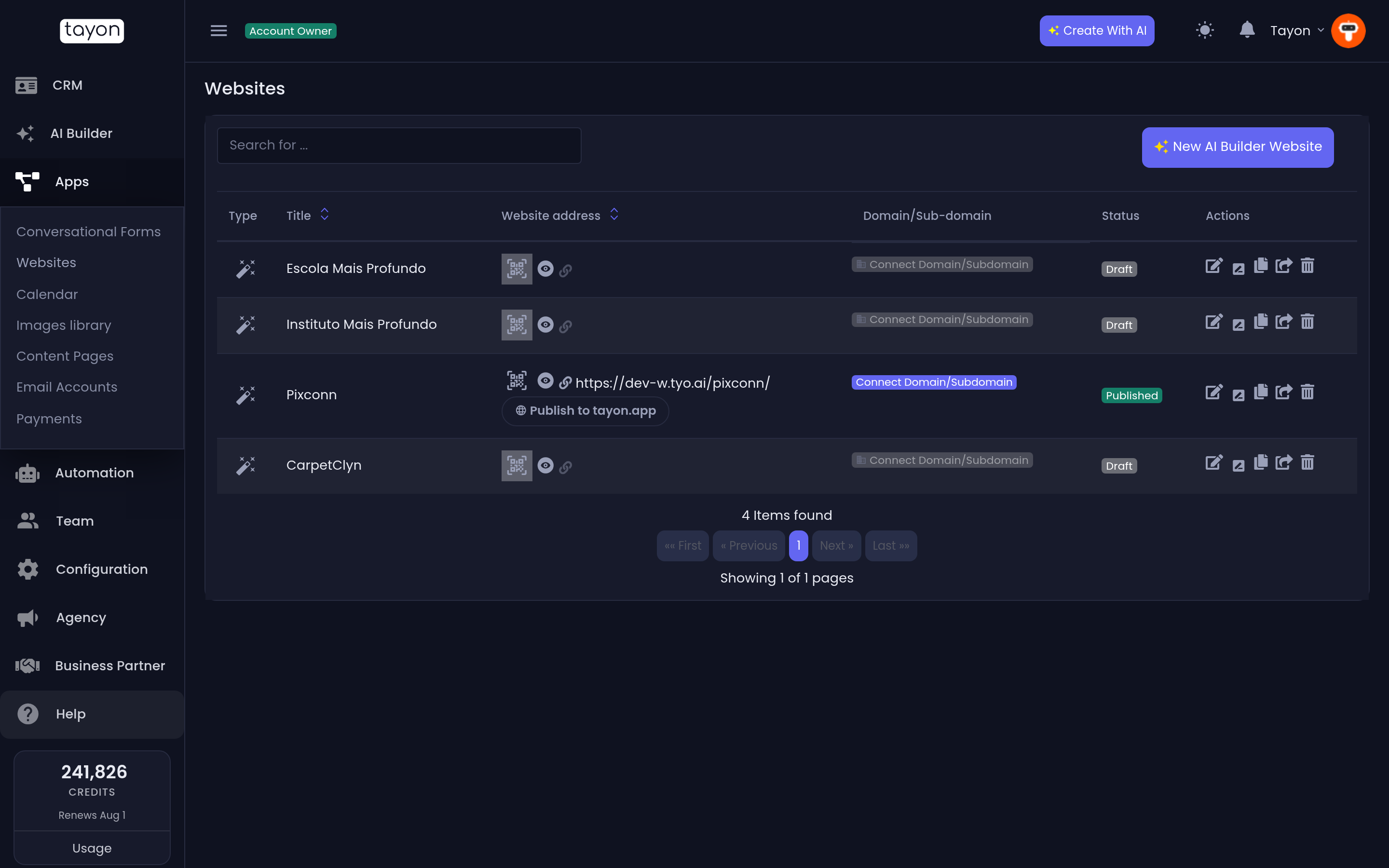
Website projects carry a row of actions on their card, and the same six appear on the Websites list.
| Action | Needs the site published |
|---|---|
| Generate QR Code | Yes |
| Show website / Preview | No — preview works on a draft |
| Copy URL | Yes |
| Connect Domain/Subdomain | Yes |
| Rename website (Websites list) | No |
| Duplicate website | No |
| Transfer website | No |
The sharing actions stay visible while a site is unpublished but are inert, with a Publish your website first tooltip. That is deliberate: it stops a private editor address ever being handed out as if it were the public site.
#Duplicate a website
Duplicate website makes a full copy — every page, every section — as a fresh draft.
- Choose the duplicate action on the project card or the Websites row.
- Leave the email box blank to keep the copy in your own account, or enter an account’s email address to send the copy there.
- Confirm.
The copy is always unpublished, gets its own address, starts with a clean credit count and a fresh undo history. The original is untouched. This is the right tool for “same site, different city” or for trying a redesign without risking the live one.
#Transfer a website
Transfer website is a move, not a copy. Administrators only.
Both duplicate and transfer only accept the email address of an active account owner, not a team member.
#Stop a project being edited
Administrators can lock a project’s AI chat with Block AI Chat. A blocked project shows a Blocked for editing pill and its chat becomes read-only for everyone else; Unblock AI Chat reverses it. Use it to freeze a finished build that people keep “improving”.
#Discard a project
Discard Project removes it from your list.
Discarding a project does not take a published website offline by itself. If you are finished with a site, Unpublish it first — that is what stops the daily hosting charge.
#Two lists, two jobs
It is worth knowing which list you are on:
- Websites — the sites you have built. Publish status, sharing, rename, duplicate, transfer, delete.
- Websites List, reached from Bots → Bot Access — the domains where your chat bot is allowed to load, and which flow runs on which page. Nothing to do with the sites you built here.
Updated: