Give your bot a face, a name and a look
Set the name visitors see, pick or generate an avatar, choose a colour scheme, and write the phrases the bot falls back on.
You’ll need: A web bot on your account.
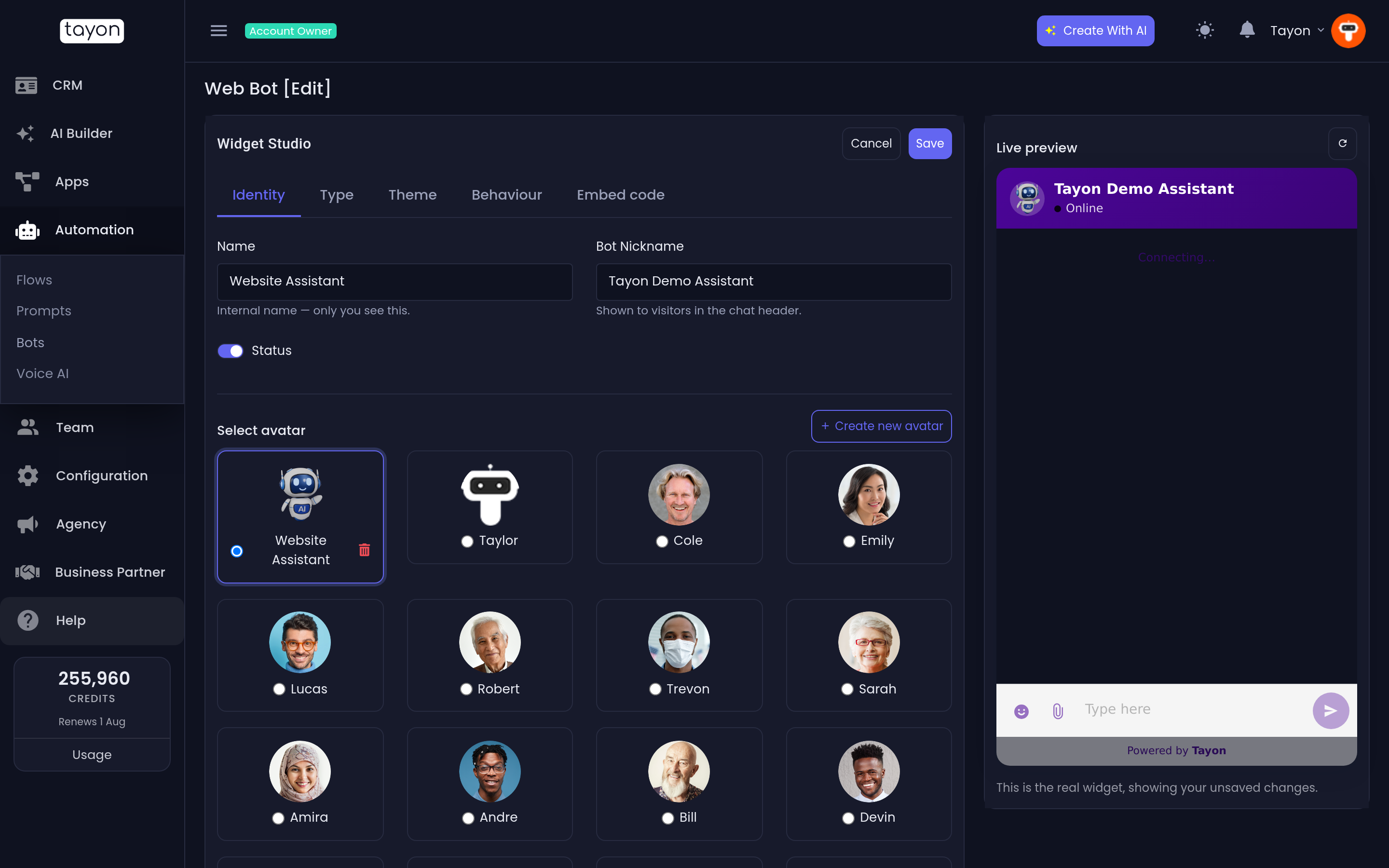
Everything about how a bot looks and sounds lives in one screen: the Widget Studio. Open it from Bots → Bot Configuration, then choose a bot from the Web Bots List.
The right-hand side is a Live preview running the real widget with your unsaved changes in it, so you can see every choice before saving.
#Name it
The Identity tab has two names, and mixing them up is the most common mistake here:
| Field | Who sees it |
|---|---|
| Name | Only you. It is how the bot appears in your own lists |
| Bot Nickname | Your visitors. It is what the chat header says |
So a bot can be Pricing page bot — v2 to you and Ana to the world.
Status on the same tab switches the bot between Active and Inactive.
#Choose an avatar
Under Select avatar on the same tab, pick from the avatars already on your account. There is no separate avatars screen — they live here.
Create new avatar opens a small dialog with two ways to add one:
- Add files — give the avatar a Name and upload an image. Maximum 1 MB, in PNG, JPG, JPEG, GIF or WEBP.
- Generate with AI — give it a Name, then describe the face you want in Describe the image, for example A friendly young woman with dark hair, cartoon style. Choose Generate with AI.
A generated avatar takes a few moments to arrive and is saved to your image library.
#Choose the colours
The Theme tab starts with Colour scheme — eight ready-made schemes: Light, Dark, Ocean, Forest, Sunset, Ruby, Slate and Mono.
Choosing one sets every colour at once. That is the point: picking a dozen colours by hand is how bots end up with a pale bubble on a pale background.
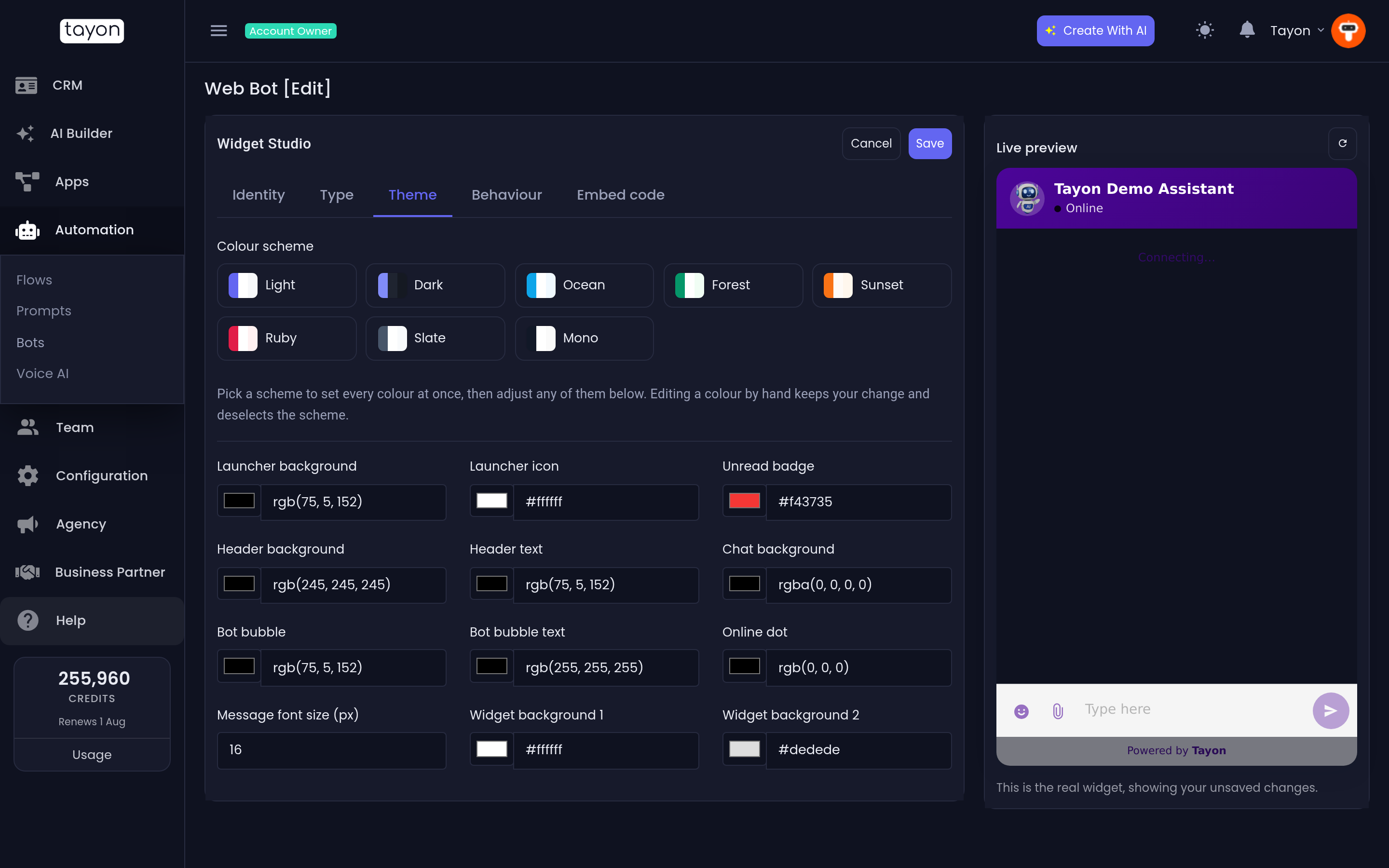
Under the schemes, each colour is editable on its own:
| Colour | Where it shows |
|---|---|
| Launcher background, Launcher icon | The button before the chat opens |
| Unread badge | The counter on the launcher |
| Header background, Header text | The bar with your bot’s nickname |
| Chat background | Behind the conversation |
| Bot bubble, Bot bubble text | The bot’s messages |
| Online dot | The availability indicator |
| Widget background 1, Widget background 2 | The gradient on the larger launcher styles |
Message font size (px) takes a number between 11 and 24.
#Write the fallback phrases
The Behaviour tab ends with Bot phrases — the four lines the bot uses when the conversation goes off-script. They are worth writing yourself, because the defaults sound like software:
| Phrase | When it appears |
|---|---|
| Not available message | Nobody is available to take the conversation |
| Not found message | The bot has no answer for what was asked |
| Other option | The label on the “none of these” choice |
| Try again phrase | The prompt to have another go |
#Save
Choose Save at the top of the studio. Nothing takes effect on your live pages until you do — but you never have to re-paste your embed code, because the pages read the bot’s current settings each time they load.
#Where personality actually comes from
The look is here. What the bot says — its tone, its answer length, what it must always ask, what it must never claim — is not. That lives on the Prompts screen, in the Instructions prompt. See Give your bot knowledge.
Updated: