Build a customer service agent with AI
Describe your business, point the builder at your website, and get a chat agent with its own page, knowledge base and behaviour rules.
You’ll need: An account with credits available. For the WhatsApp channel, a connected WhatsApp number.
A Customer Service Agent answers your visitors’ questions in a chat and hands the hot ones to your team as leads. The builder writes both halves of it: what the agent knows about your business, and how it is supposed to behave.
#Describe the agent
- From AI Builder, choose Customer Service Agent.
- Tell it about your business and what the agent should help with.
- Share your website address. This is the single biggest thing you can do for the result.
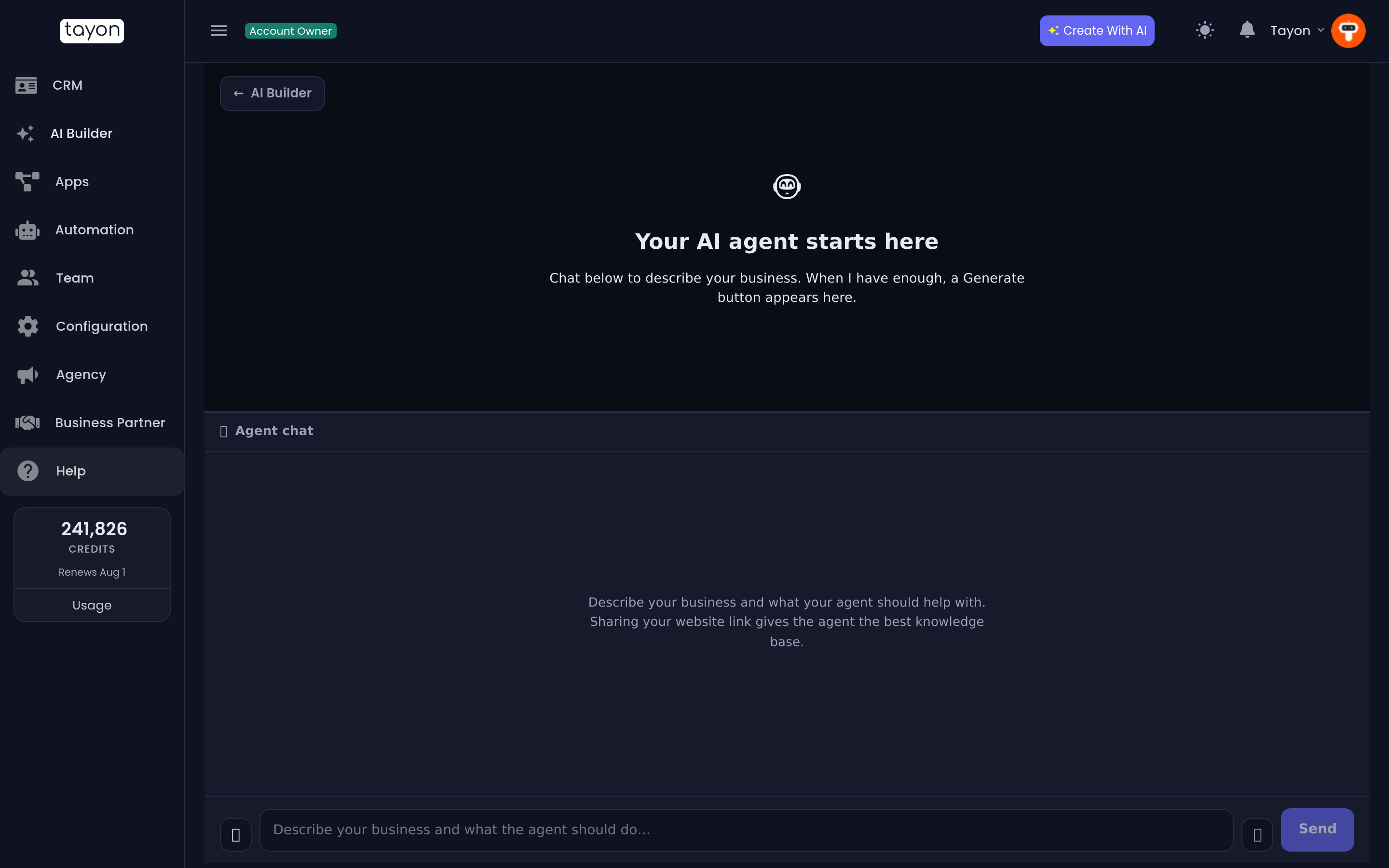
Given a website, Tayon reads it and builds the agent’s knowledge base from what it finds. Without one, the agent knows only what you typed in the chat — which can be enough, but you have to type a lot more.
The generate button will not appear until the website question has been asked and answered. “We do not have a website” is a valid answer and unblocks it.
#Choose where the agent lives
When the panel reads Ready to create your agent, pick a channel:
| Channel | What it means |
|---|---|
| Website chat | A chat bubble for your site, plus a shareable page of its own |
| The agent answers on your connected WhatsApp number |
Choosing WhatsApp adds a WhatsApp trigger phrase box — the word or phrase that starts a conversation with the agent. If no number is connected the card says so and offers a link to connect one.
Then choose Create my agent. It takes about a minute.
#What gets created
One generation produces a working set of parts, all of them yours to edit:
- A web bot with its own chat page at a public address you can share.
- A widget carrying the agent’s name and colour, ready to embed on your site.
- An avatar for the agent — a fresh one per agent, so a second agent never inherits the first one’s face.
- Two entries on the Prompts screen: Business Info (what the agent knows) and Instructions (how it behaves).
- A conversation that opens with two buttons — one to ask a question, one to talk to a person. The question branch answers from the knowledge base; the other branch collects name, email, phone and what they need, then thanks them.
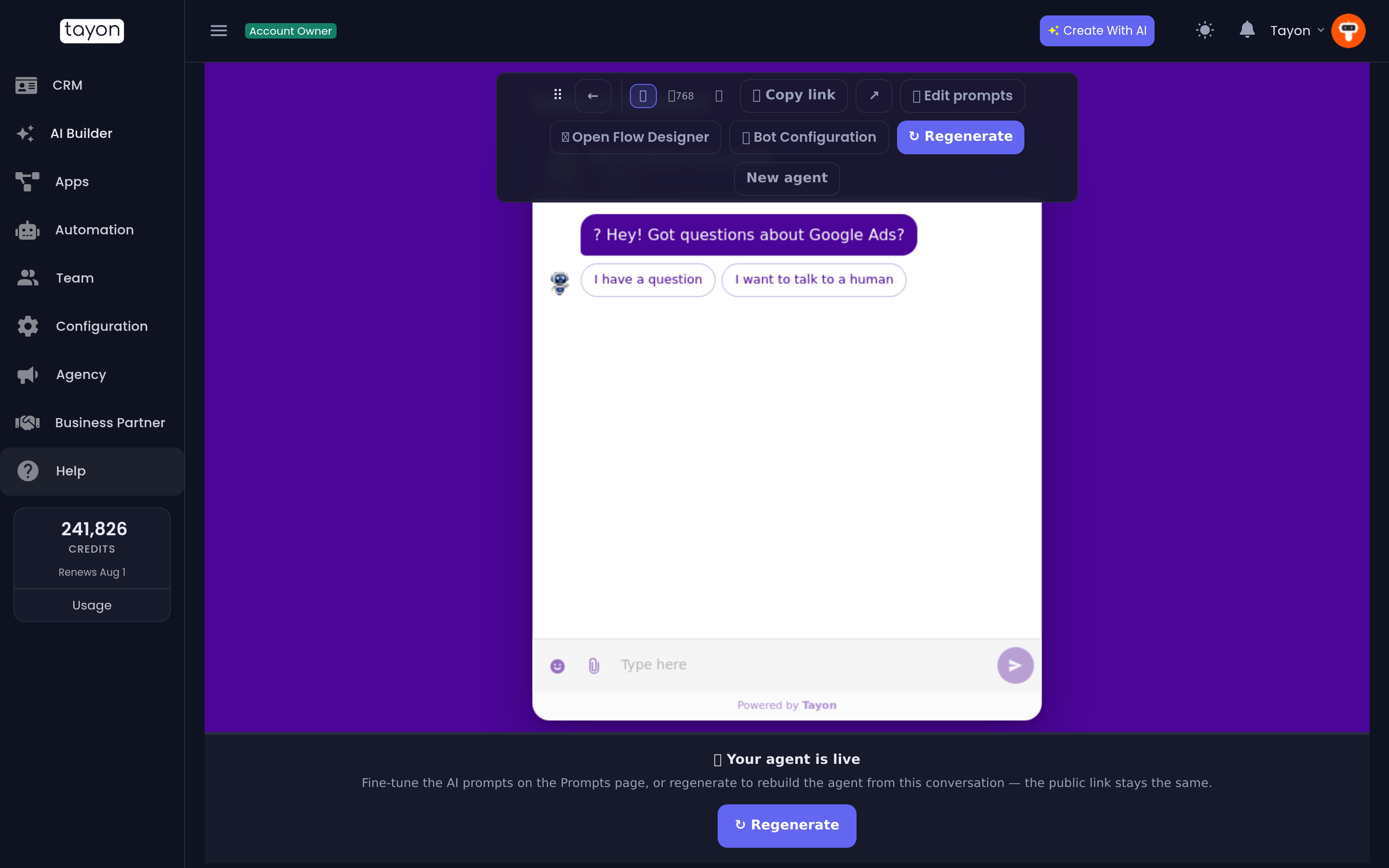
#The toolbar after it builds
| Control | What it does |
|---|---|
| 🔗 Copy link | The agent’s public chat page |
| ↗ | Opens that page |
| 🧠 Edit prompts | Opens Prompts, where you rewrite what it knows and how it behaves |
| 🛠 Open Flow Designer | Edits the conversation step by step |
| ↻ Regenerate | Rebuilds the agent from this conversation |
| New agent | Starts a fresh agent; this one stays in your list |
The chat locks once the agent is live and reads Your agent is live.
#Tuning the agent afterwards
Most of the time you do not want to regenerate — you want to change one thing. That lives on the Prompts screen:
- Business Info — facts. Prices, hours, service area, what you do and do not do.
- Instructions — behaviour. Tone, answer length, what to always ask, what to never say, when to hand over to a human.
#If you already have an agent
Creating a second agent on the same account warns you first: You already have an agent. Two agents can end up answering the same visitors. If that is what you want, choose Create anyway — each agent keeps its own prompts, widget and page.
#Putting the agent to work
- On your website — embed the widget. See Add the chat widget to your website.
- As a link — share the agent’s own page. See Bot pages and bot links.
Conversations from both show up in your Messenger, where you can take over from the bot at any point.
Updated: