Find your way around the canvas
Add steps, move around the map, copy and delete boxes, and understand why you cannot drop a step just anywhere.
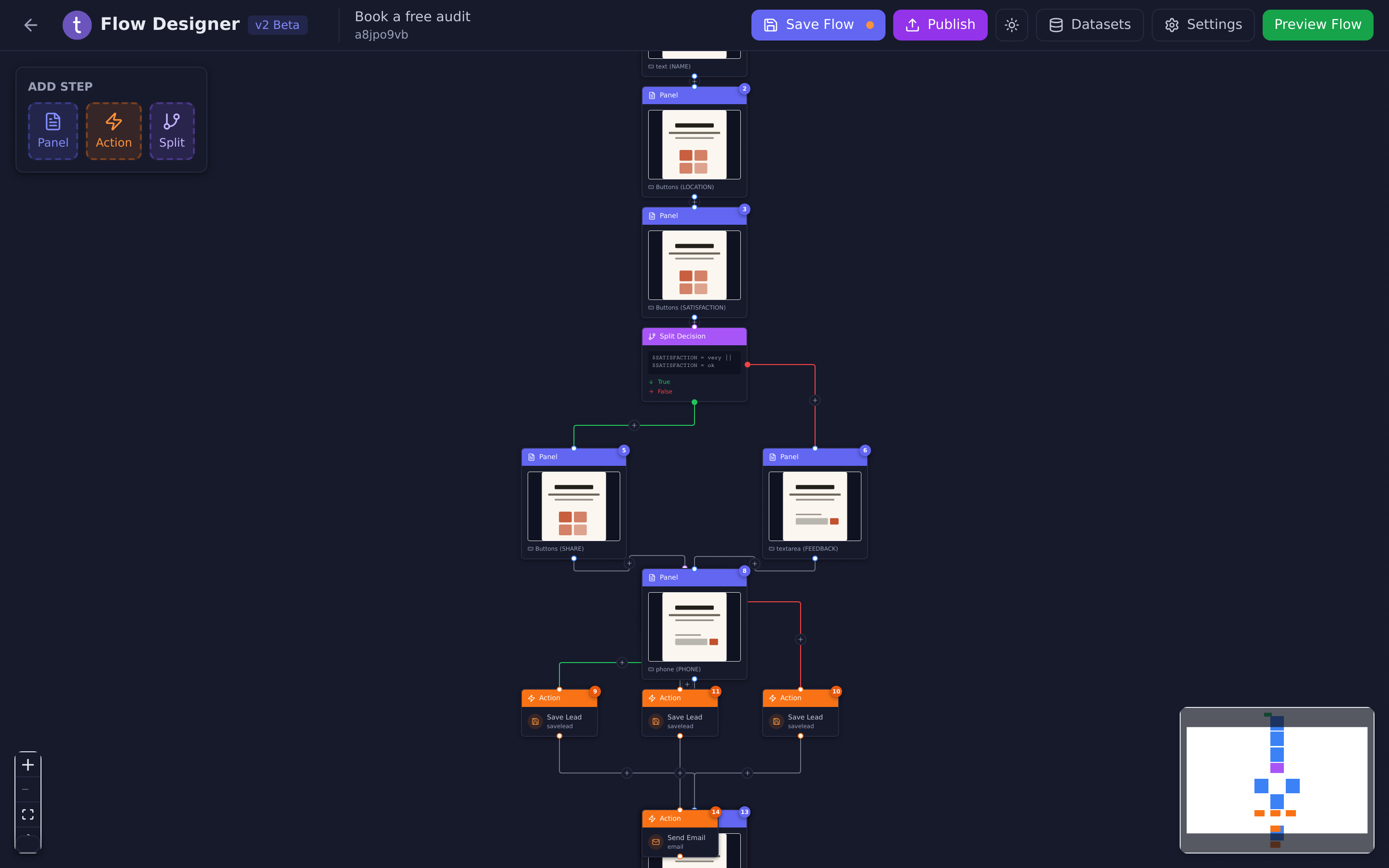
The Flow Designer is a map. Each box is a step, the lines show the order they happen in, and the whole thing reads from the green Start box downwards.
You get here from Edit Flow on a conversational form or a bot flow. The designer opens with the flow already zoomed to fit.
 1234
1234- Add Step palette
- The map overview
- Zoom controls
- Save status
#The header
| Button | What it does |
|---|---|
| Save Flow | Stores your work. An orange dot on the button means there is something unsaved. |
| Publish | Pushes the saved work live. |
| Datasets | Opens your data tables. |
| Settings | Site-wide settings — name, address, branding, tracking. |
| Preview Flow | Opens the live published version in a new tab. |
The arrow at the far left takes you back to your list of flows.
#Adding a step
The Add Step palette sits in the top-left corner with three items: Panel, Action and Split. You drag one onto the flow.
There are two kinds of +:
- On a line between two boxes — drops the new step between them.
- Under a box with nothing after it — adds the new step at the end of that branch.
Select a + without dragging anything and you get the same three choices as a small menu, plus Paste if you have something on the clipboard.
#Getting around
- Move the map — drag any empty part of the canvas.
- Zoom — scroll, or use the zoom controls in the bottom-left corner. Those controls also have a button that fits the whole flow back into view, which is the fastest way to recover when you get lost.
- The overview map in the bottom-right corner shows the whole flow in miniature, colour-coded by step type. Green is the start, blue a panel, orange an action, purple a split. On a long flow it is the quickest way to jump to the far end.
Boxes snap to a grid as you drag them, so a flow you have tidied stays tidy. Moving a box is saved for you automatically — it is only the position that saves itself, not the contents.
#Editing a step
- Select a box to open its properties.
- Right-click a box for Copy, Cut and Delete.
Keyboard shortcuts work on the selected box:
| Keys | Action |
|---|---|
| Ctrl/Cmd + C | Copy |
| Ctrl/Cmd + X | Cut |
| Delete or Backspace | Delete |
The Start box cannot be copied, cut or deleted. Every flow needs somewhere to begin.
#Reading the save indicator
A small panel in the bottom-left corner tells you where you stand:
| It says | Meaning |
|---|---|
| Unsaved changes | Something is different and not stored yet. |
| Saving… | In progress. |
| All changes saved | Everything is stored — but not necessarily published. |
#Things the designer does not do
Worth knowing so you do not go hunting:
- No undo. There is no Ctrl+Z. Deleting a step is immediate and permanent. Copy a step before you experiment on it.
- No test simulator. You cannot walk through a draft inside the editor. To try something, publish and open the live page.
- No version history. There is no way to roll back to yesterday’s version.
Updated: