Connect and manage WhatsApp numbers
Link a WhatsApp number by scanning a QR code, give it a label, decide who sends from it, and keep it from being blocked.
You’ll need: A paid plan, administrator access, and a phone with the WhatsApp account you want to connect.
Connecting a WhatsApp number lets Tayon receive messages sent to it and reply from it — in the Messenger, from your bots, and from campaigns. You can connect more than one and point each at a different team or purpose.
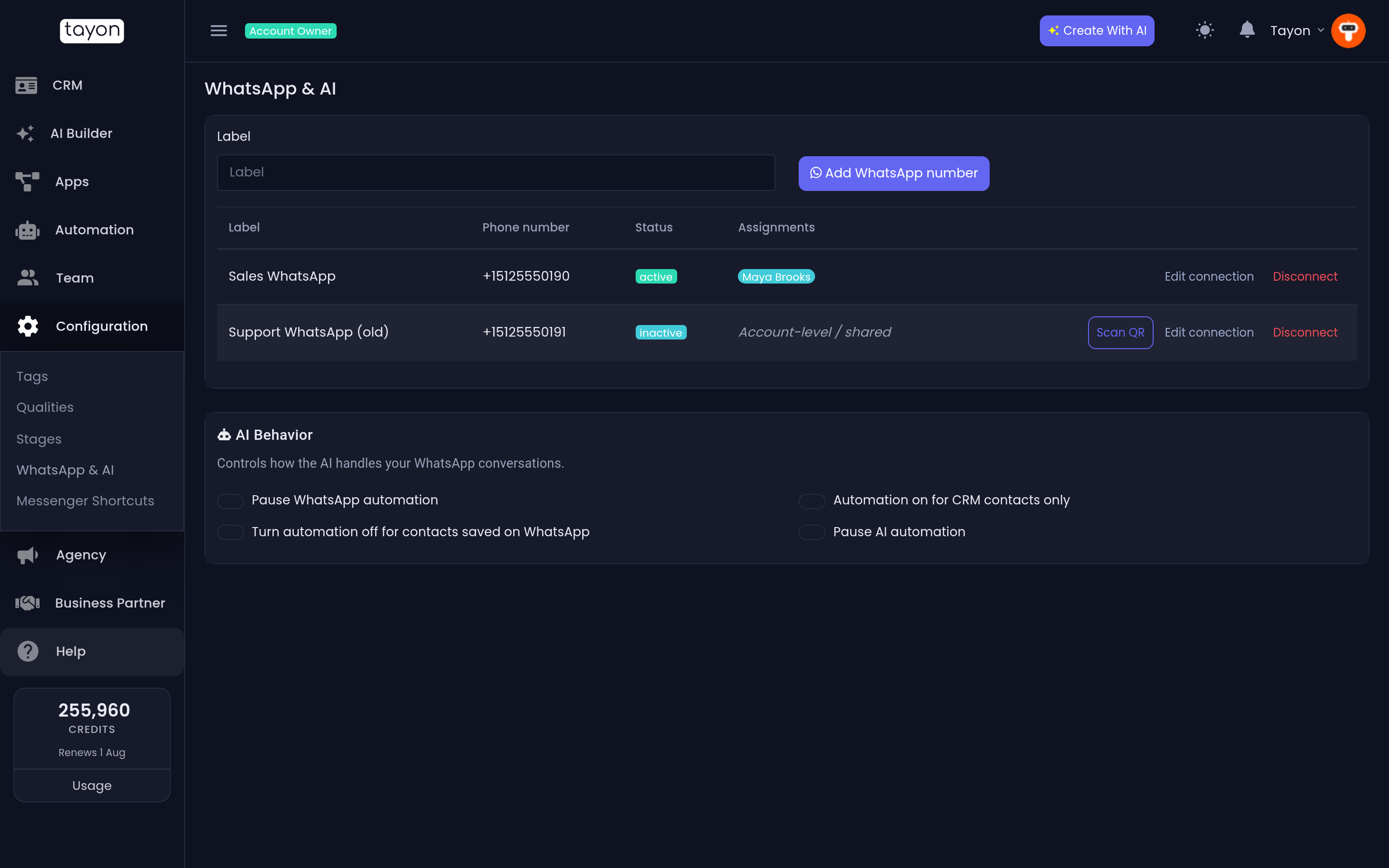
ConfigurationWhatsApp & AI
#Before your first connection
The first time you connect a number, Tayon shows Before you connect WhatsApp and asks you to accept it. It is worth reading rather than clicking through, because it describes real risk:
- WhatsApp may block or ban your number for behaviour it considers abusive. That is enforced by WhatsApp and cannot be undone from inside Tayon.
- Use the connection to answer conversations, not to start them. Messaging people who never contacted you is the fastest way to get blocked.
- Do not send in volume from a brand-new number. Build up over days.
- Only message people who agreed to be contacted, and honour opt-outs.
Tick I understand and accept these conditions and choose Accept and connect.
#Connect a number
- Type a Label — a short name such as Sales or Support.
- Choose Add WhatsApp number.
- Choose Scan QR on the new row.
- On the phone, open WhatsApp and use its linked-devices screen to scan the code shown.
The dialog reports what it is doing: Please start your WhatsApp Session, then Loading…, then Connected successfully! if it worked, or Error connecting, close your session and start again! if it did not.
#The list
| Column | Meaning |
|---|---|
| Label | Your name for the number |
| Phone number | The number itself, filled in once connected |
| Status | active in green, connecting in blue, failed in red |
| Assignments | Who sends from it, or Account-level / shared |
A number that is not active shows a Scan QR button so you can reconnect
it. Edit connection opens its settings. Disconnect unlinks it, after a
confirmation.
Reconnecting an existing row keeps everything about it — its label, its settings, and its assignments. Reconnect the row rather than adding a new one.
#Settings on a connection
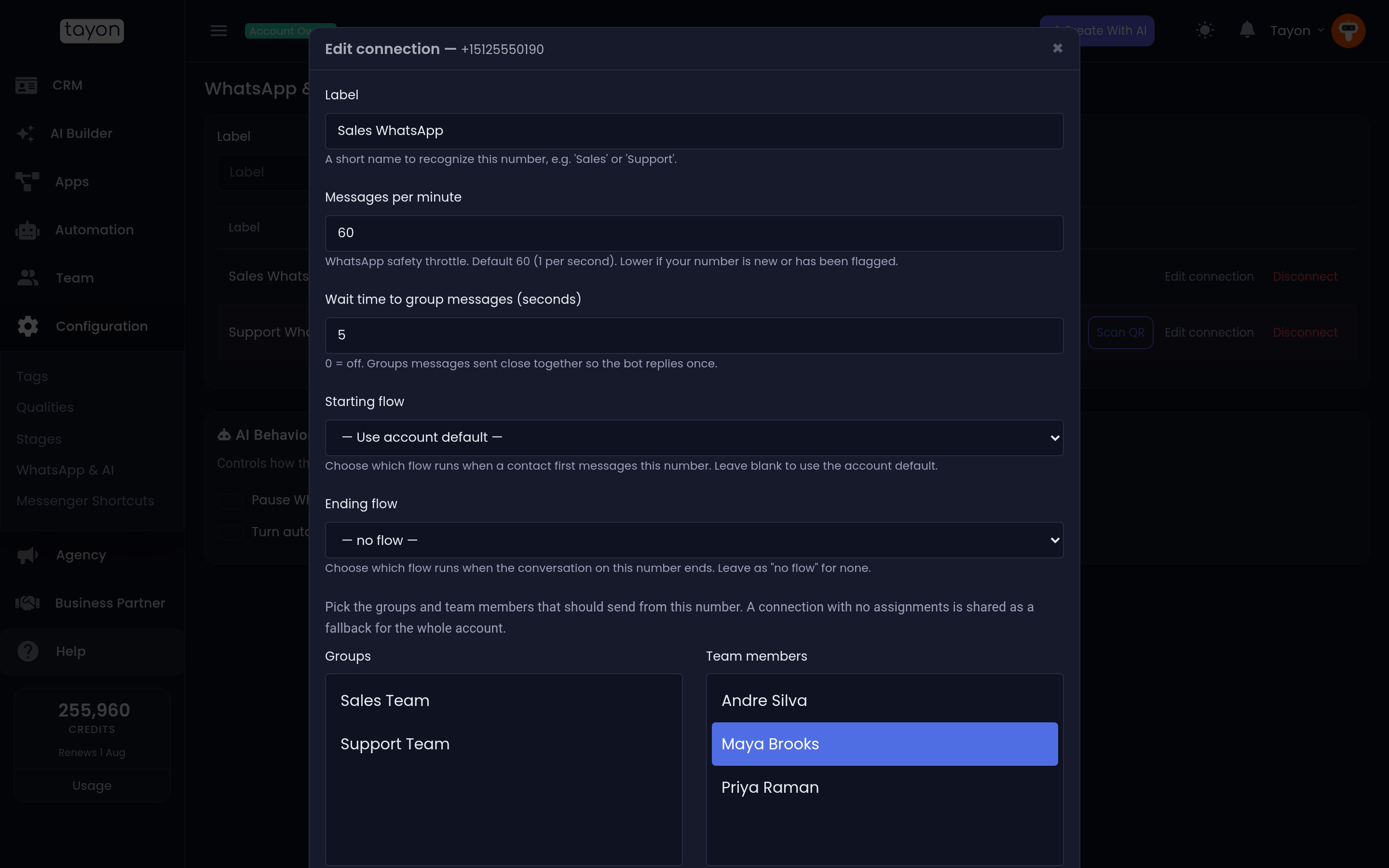
Label — A short name to recognize this number, e.g. ‘Sales’ or ‘Support’. It is what you see in the Messenger next to each message when you have more than one number.
Messages per minute — the WhatsApp safety throttle. The default is 60, one a second. Lower it if your number is new or has been flagged.
Wait time to group messages (seconds) — 0 turns it off. It groups messages sent close together so the bot replies once instead of three times. Anyone who types in short bursts is a reason to set this.
Starting flow — which flow runs when someone first messages this number. Leave it as — Use account default — unless this number needs its own greeting.
Ending flow — which flow runs when a conversation on this number ends. Leave it as — no flow — for none. This is what fires when someone uses End Chat in the Messenger.
#Who sends from which number
The Assignments section decides routing. Pick Groups and Team members who should send from this number.
A connection with no assignments is shared as a fallback for the whole account. That is what Account-level / shared means in the list.
When Tayon needs to choose a number for an outgoing message, it works down this order:
- The number the customer last messaged you on. If they wrote to your Support number this morning, your reply goes out from Support — whoever is answering. This keeps a thread on one number even when the customer moves between them.
- A number assigned to the person replying.
- A number assigned to the lead’s group.
- A shared, account-level number.
Campaigns are the exception: a bulk send picks one number when it is scheduled and uses it for every recipient.
#AI behaviour
Below the list, AI Behavior controls how automation treats WhatsApp conversations across the account:
- Pause WhatsApp automation
- Automation on for CRM contacts only
- Turn automation off for contacts saved on WhatsApp
- Pause AI automation
The second and third are the useful pair. CRM contacts only stops your bot answering strangers. Contacts saved on WhatsApp stops it answering people in your own phonebook — colleagues, suppliers, your family.
#Credits
A connected WhatsApp number costs 5 credits an hour for as long as it stays connected. That is charged whether or not it carries any traffic, so disconnect numbers you are not using.
#When something goes wrong
- Status is
failed. Choose Scan QR and link the phone again. WhatsApp drops linked devices that go too long without the phone coming online. - Messages fail with WhatsApp connection is not active. Please reconnect it. Same fix. Reconnect first, then use Retry on the failed messages in the Messenger.
- Replies go out from the wrong number. Check the routing order above. The first rule — the number the customer last wrote to — outranks assignments on purpose.
- The number was blocked by WhatsApp. It cannot be recovered. Connect a different number, and look hard at what was being sent from the old one.
Updated: