Store and look up data with datasets
Build a small table of your own — a price list, a stock list, a log of entries — and read from it or write to it while a visitor is answering.
A dataset is a small table that belongs to you — columns and rows, like a spreadsheet. A flow can read from it, add to it, change it and do sums on it while a visitor is part way through answering.
Typical uses:
- A price list you look up based on what the visitor chose
- A stock list, so the flow can say what is actually available
- A log of every submission, in your own column layout
- A leaderboard for a quiz
#Create one
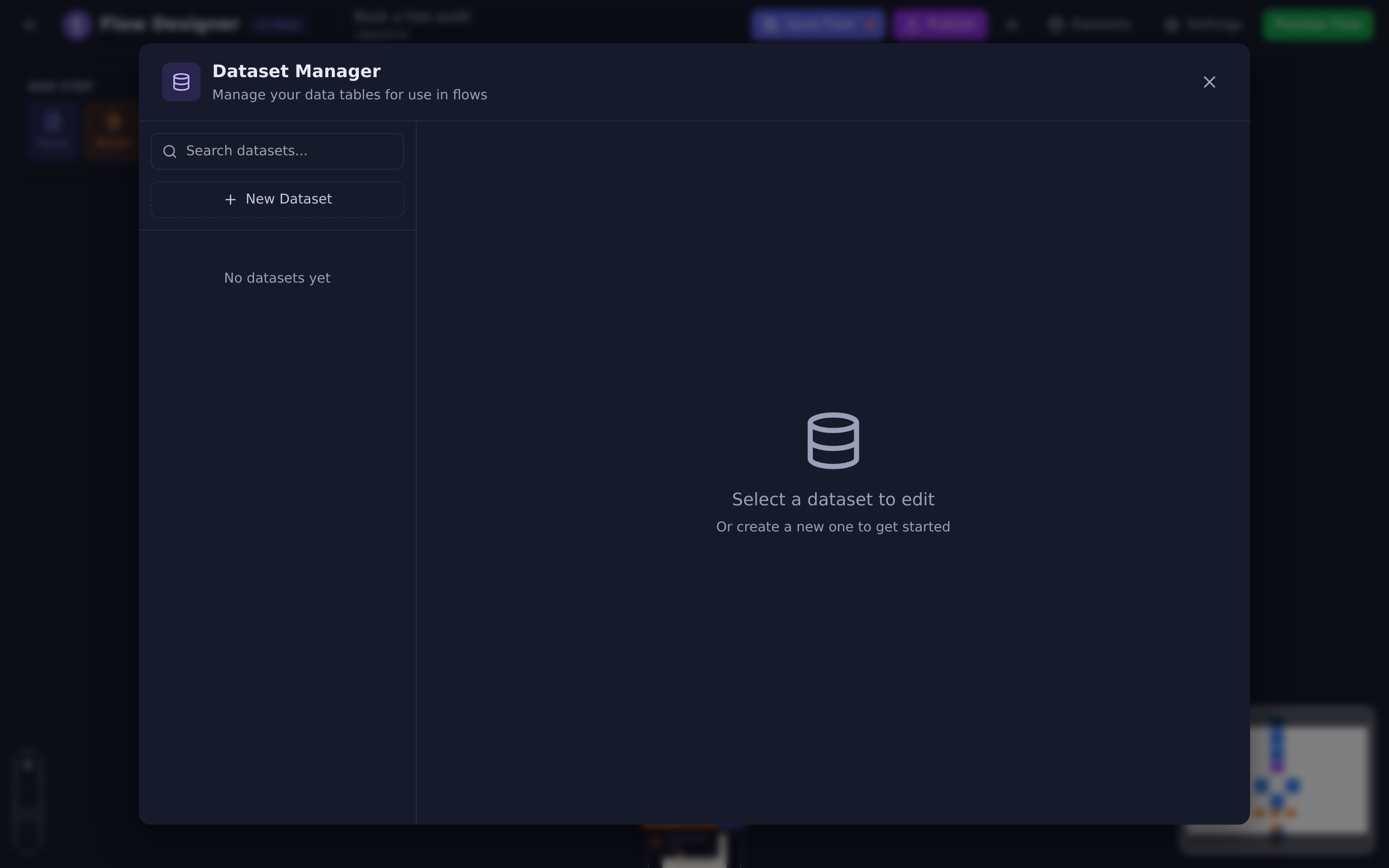
Datasets live behind the Datasets button in the Flow Designer header.
- Choose Datasets.
- Choose New Dataset, type a name, and choose Create.
- On the Columns tab, add each column: a Column Name and a Data Type.
- Switch to the Data tab and choose Add Row to type entries in.
Column names are stored in capitals, so Price becomes PRICE. Use that form
when you refer to a column later.
Data types available: text, number, email, phone, date and url. The type changes the kind of box you get when editing a cell — and it is worth setting properly, because a number column sorts and totals as a number while a text column does not.
The dataset list shows how many columns and rows each one has. The three-dot menu on a dataset offers Rename and Delete.
#Editing the table
Select a cell to edit it. Enter or Tab saves, Escape cancels. Rows have a delete button; large tables are paged, with Showing 1-50 of 300 under the table.
#Import and export
Import CSV brings a spreadsheet in. You can have Tayon create the columns from the file’s header row, and tell it whether the first row is a header or real data.
Export CSV downloads the table. Do this before any bulk change — it is the only backup available.
#Using a dataset in a flow
Six action types work with datasets. Add an Action step and pick one.
#Recording what a visitor answered
Two actions work as a pair:
- Early in the flow, add New DataSet Item and pick the dataset. This opens a blank row for this visitor.
- Ask your questions as normal.
- At the end, add Save DataSet on the same dataset. Answers are matched to columns by name and written in.
The matching is the important bit: an answer stored under the identifier
EMAIL goes into the column named EMAIL. If nothing lands in a column, the
usual cause is that the identifier and the column name are not the same word.
#Looking something up
Filter DataSet finds the rows that match a condition. You build the
condition the same way as a split — a column, a comparison, and a value, which
can be a variable such as $REGION. You can also set an Order By and a
Max Items limit.
After a filter you can read the results:
| Variable | What it holds |
|---|---|
$DATASETFILTER |
How many rows matched. |
$[Prices].PRICE[1] |
The PRICE column from the first matching row. |
$[Prices].PRICE[2] |
The second, and so on. |
$[Prices].ID[1] |
The ID of the first matching row. |
$FLOWDATASET |
The ID of the row the last filter selected, or 0 when there is none. |
The name in square brackets is the dataset’s name, and the column name is written in capitals.
To print a whole list rather than one row, wrap the layout in a list block. The
block repeats once per matching row, and [*] becomes the row number:
[li]
$[Prices].NAME[*] — $[Prices].PRICE[*]
[/li]
Each repeat goes on its own line. Only the first list block in a text is repeated, so put everything you want listed inside one block.
#Changing or removing rows
Update DataSet and Delete DataSet both act on whatever the last filter found. So they always come in pairs:
- Filter DataSet — narrow down to the rows you mean.
- Update DataSet or Delete DataSet — act on them.
Update DataSet takes the fields to change, and values that can be variables.
#Doing sums
Calculate DataSet works out figures for one column across the filtered rows. The results are then available as:
| Variable | What it holds |
|---|---|
$DATASET.SUM |
The total. |
$DATASET.AVERAGE |
The average. |
$DATASET.MIN |
The lowest value. |
$DATASET.MAX |
The highest value. |
So a screen can say Your quote comes to $DATASET.SUM after a filter and a
calculate.
#Filing one answer straight into a dataset
There is a shortcut for simple cases. On a question’s Interaction tab, Add to Dataset files that answer into a dataset without needing the new/save action pair. Use the actions when you are collecting a whole row across several questions; use this when you just want one answer recorded.
#A pattern that works
A quote calculator, end to end:
- Ask what the visitor needs, storing answers as
$SERVICEand$SIZE. - Filter DataSet on your price table where
SERVICEequals$SERVICE. - Calculate DataSet on the
PRICEcolumn. - Show a screen reading
Your estimate is $DATASET.SUM. - Ask for their email and add Save Lead.
Updated: