How the AI Builder works
One start screen, one description, and the five stages every AI build goes through — describe, review, generate, edit, publish.
You’ll need: An account with credits available.
Every AI build in Tayon follows the same shape: you tick what you want, describe your business in your own words, press a button, and a few minutes later you have something real that you can edit by hand.
This article covers the shape. Build your first project is the short version if you have not made anything yet.
#One start screen
AI Builder
The same start screen appears on your home screen and in the AI Builder, so it does not matter which one you reach first.
A new account’s home screen may also show Set up your whole business in a few minutes, a guided setup that goes further. See Quick Start.
It asks What would you like to build, with five things you can tick:
| Tick | What you end up with |
|---|---|
| Website | A conventional site of one to five pages (some plans cap it lower), published at its own address |
| Conversational Form | A page that asks one question at a time, branches on the answers, and saves a lead |
| Customer Service Agent | A chat assistant that answers questions about your business and hands hot leads to you |
| Follow-Up Agent | A multi-day sequence of emails, WhatsApp messages, SMS or calls that chases a lead |
| Online course | A complete course, with lessons, quizzes and a certificate, saved as a draft in your e-Learning academy. See Create an online course with AI |
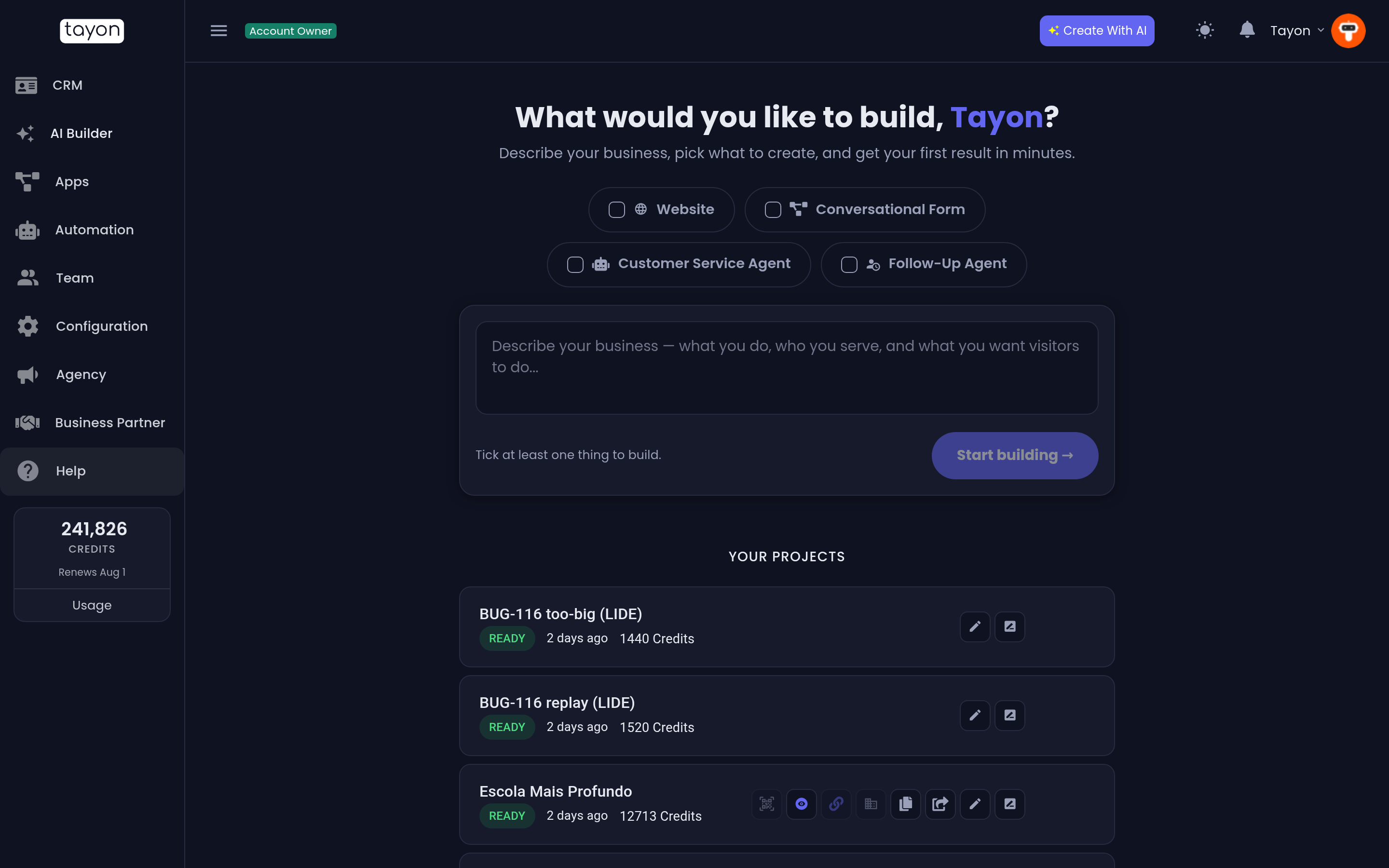
Underneath is a single box for your description, and a Start building button that stays disabled until you have ticked something.
#Starting from what you already have
Under the box, Or start from something you already have offers three options:
| Option | What it does |
|---|---|
| HTML files (ZIP) | Rebuilds your existing site from its files. See Import an existing website |
| Screenshots | Rebuilds your existing site from pictures of it. See Rebuild a website from screenshots |
| A picture of my design | Designs your site from one picture of how its top should look. See Use a picture as your design |
Files and screenshots tick Website for you, and the description becomes optional — your old site already says what the business does.
#Ticking more than one
Tick one thing and you go into that builder. Tick two or more and Tayon builds them together from the same description and wires them into each other — the form becomes the website’s call to action, the agent’s chat widget is embedded in the site. The hint under the box tells you when that is about to happen. See Build everything at once.
Two smaller behaviours worth knowing:
- If your account has not built anything yet, everything that can be combined starts ticked, so the fastest path is to type and press the button. Once you have built something, the boxes start empty.
- Ticking Conversational Form on its own and pressing the button with an empty description opens the template gallery instead of a blank chat.
A padlock on a tick means your plan does not include it. Choosing it on its own takes you to the plan comparison.
#The five stages
#1. Describe
You type. It is a conversation, not a form — Tayon asks follow-up questions, and you can attach images, paste a website address or dictate with the microphone. Nothing is generated while you talk, and nothing is charged. An imported site skips most of this stage: its own pages are the description.
#2. Wait for the go-ahead
Tayon decides when it has enough. Until then the panel above the chat shows a placeholder. Once your answers cover the essentials it changes to a card — Ready to build your website, Ready to build your flow, Ready to create your agent, Ready to write your course — with a generate button and, for agents, sequences and courses, a few settings to confirm first.
You do not have to generate the moment the button appears; the button waits.
#3. Generate
This is the step that spends most of the credits, and it takes a minute or two (a few minutes for a course). A progress card replaces the placeholder and the conversation stays visible underneath it.
If generation fails, nothing is charged and nothing you typed is lost.
#4. Edit
What you get back is fully editable, and where you edit it depends on the type:
- A Website opens in its own visual editor. Click any element in the preview to change it.
- A Conversational Form opens in a preview with a link you can share, and a button through to the Flow Designer for step-by-step changes.
- A Customer Service Agent gets a chat page of its own, plus two entries on the Prompts screen you can rewrite at any time.
- A Follow-Up Agent becomes a sequence of messages you can open in the Flow Designer.
- An Online course becomes a draft course in e-Learning, where you edit its lessons and quizzes, add videos and publish it.
Every builder also offers Regenerate, which rebuilds the whole thing from the conversation and replaces your manual edits.
#5. Publish
Websites are not public until you publish them, and the first time you publish anything you are asked to choose your account address — the address every site, form and chat link you publish lives under.
Conversational forms are live from the moment they are created, and agents publish their chat page as part of generation.
#What it costs
Forms, agents, follow-up sequences and courses are charged by how much AI work the build took, plus a 20-credit build fee. The ready card shows the usual range, such as Usually 120–400 credits, before you generate.
| Build | A typical cost |
|---|---|
| Conversational Form | 165 credits for a 9-step form |
| Customer service agent | About 76 credits |
| Online course | 335 credits for 6 lessons and 3 quizzes, including 75 for the cover image |
| Website | Varies with the number of pages and sections, plus 75 per AI image if you ask for them |
Every one of these is charged on success only. When you build several at once, Tayon checks the total against your balance before starting.
Your balance and the full breakdown live on the Usage screen — see Plans and credits.
#Everything you build stays in one list
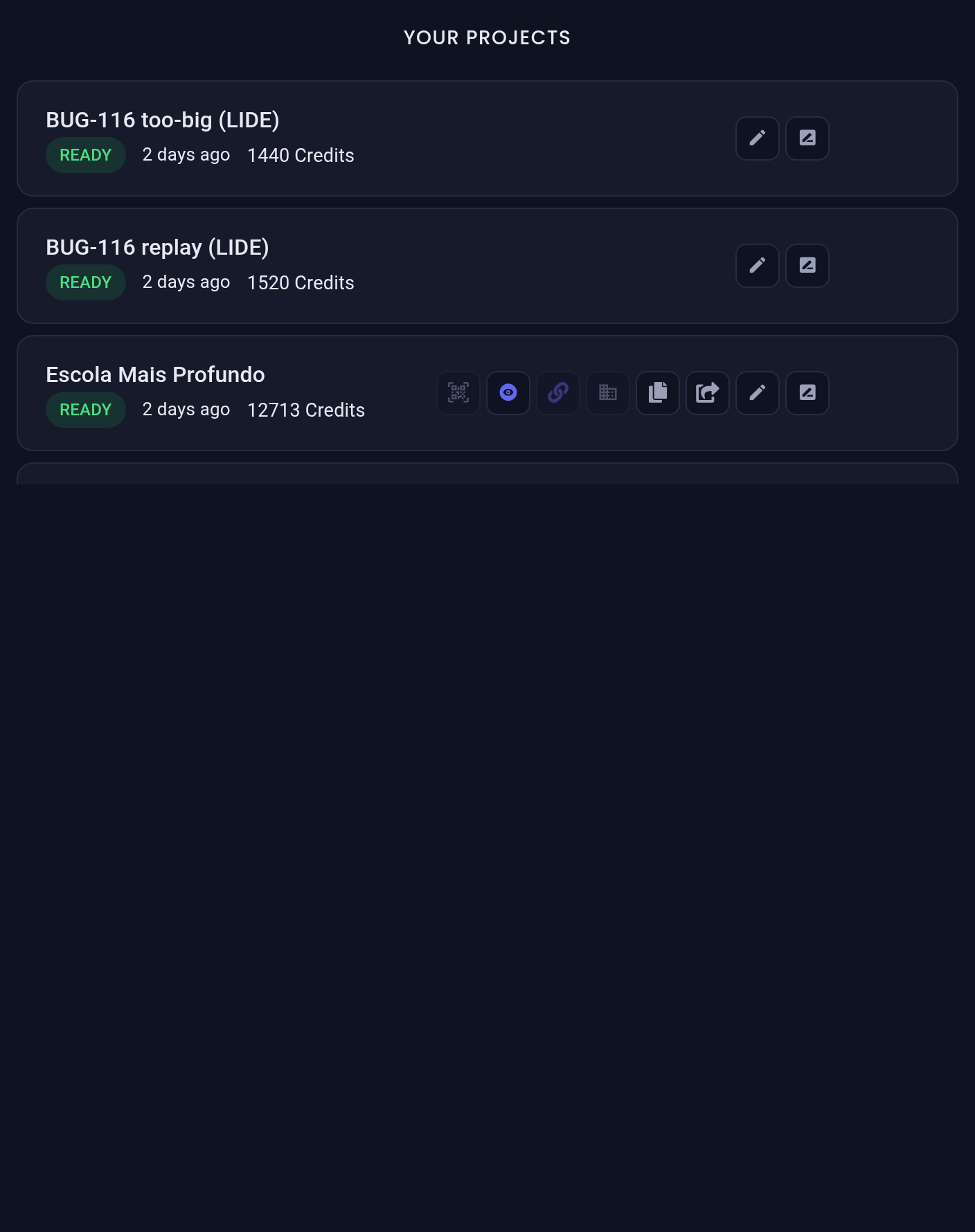
Finished and half-finished projects both appear under Your Projects on the AI Builder screen. A set built together is one card, not several. See Manage your projects.
Updated: