Schedule a message or run a campaign
Send one message later, or the same message to a filtered set of leads — on a date, every week, or a set time after a lead is created.
You’ll need: Editor access. Email campaigns need a confirmed email sender; WhatsApp campaigns need a connected number.
A campaign is one message going to more than one person, or to one person at some point in the future. Both live on the same screen and use the same editor.
CRMCampaigns
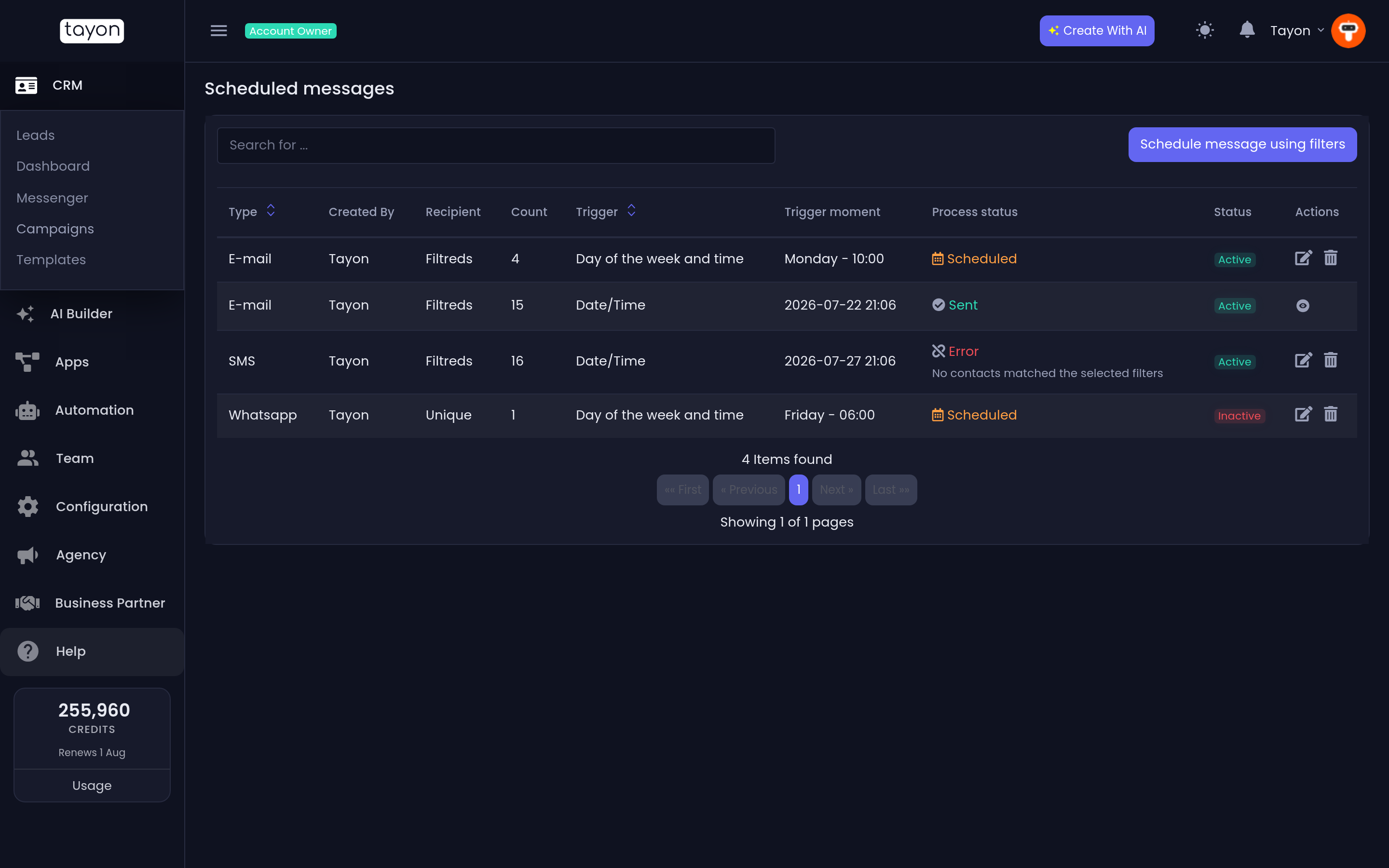
#Reading the list
| Column | Meaning |
|---|---|
| Type | The channel |
| Created By | Who set it up |
| Recipient | Unique, Filtreds or Multiple — see below |
| Count | How many people it goes to |
| Trigger | What sets it off |
| Trigger moment | When that is |
| Process status | Scheduled, Sent or Error |
| Status | Active or Inactive |
The two status columns answer different questions. Process status is what happened; Status is whether the campaign is switched on. Click the Active / Inactive badge to toggle it — that is how you pause a campaign.
A campaign that failed shows Error in red with the reason printed underneath, in plain language — Account is out of credits. Top up to send this campaign, or WhatsApp connection is not active. Please reconnect it.
Once a campaign has Sent, it can no longer be edited or deleted. The only action left is View Message.
#Three kinds of audience
Unique — one named lead. You get this by scheduling from a lead’s own Messages panel.
Filtreds — a set defined by filters, worked out when the campaign runs. The audience is a description, not a list.
Multiple — an explicit list of leads you ticked.
The two you will use most both start from the Leads list. Filter it down, then use Schedule message using filters for the filtered set, or tick rows and use Schedule message to selected contacts for the explicit one. The button at the top of the Campaigns screen — Schedule message using filters — starts a filtered campaign from scratch.
#Build the message
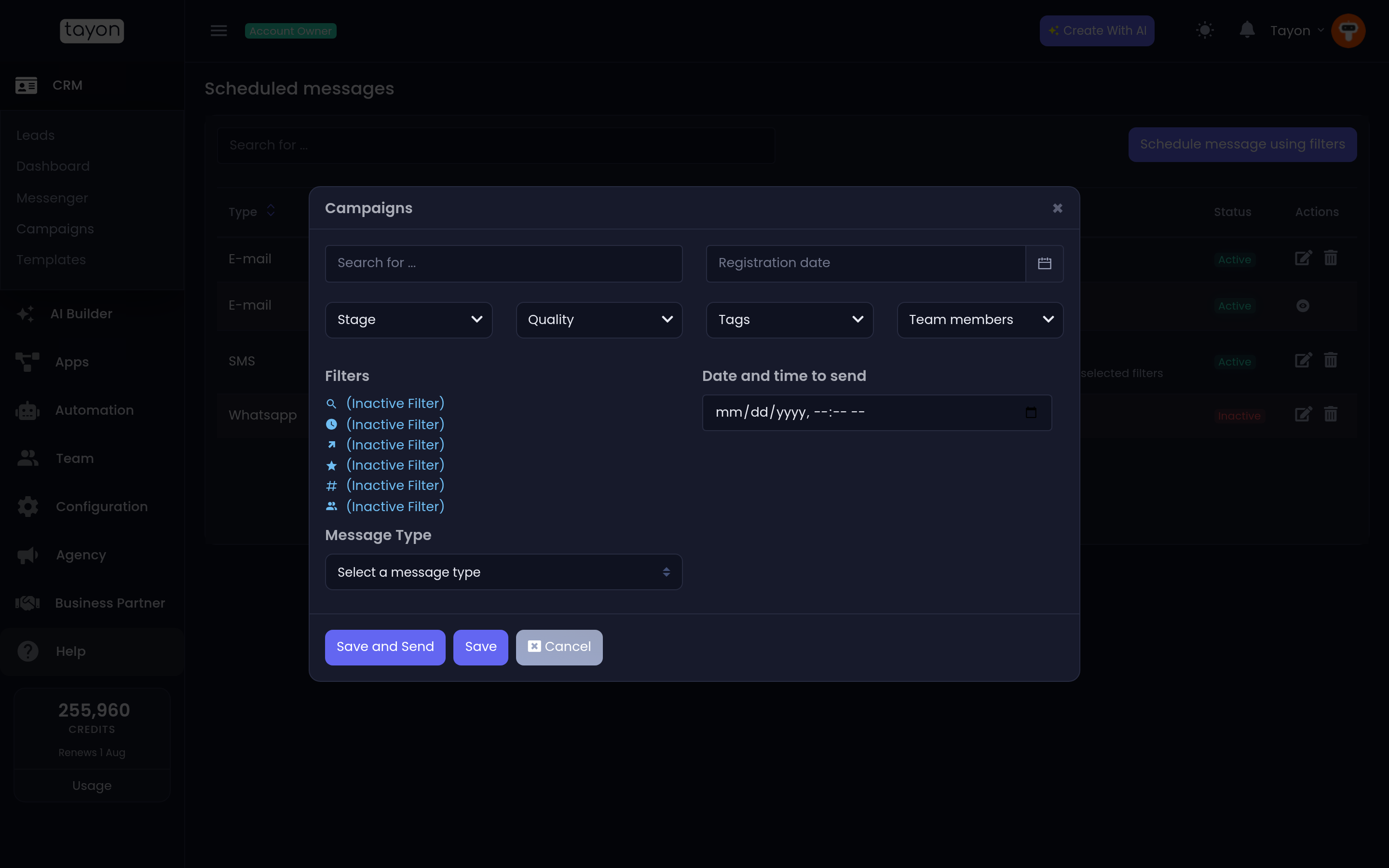
Message Type picks the channel. Load Template (Optional) then lists the templates for that channel, and choosing one fills the message in. If you have no templates yet, the field says so and links you to create one.
Editing the message here does not change the template — see Save messages you send over and over.
For email you also set a Subject and choose an Email Sender. Senders are grouped into Email Accounts and Legacy Senders. If you have no confirmed sender, the field tells you and links you to create one — see Choose the address your messages are sent from.
WhatsApp campaigns take the same Text, Image, Audio, Video and File blocks as a WhatsApp template.
#Choose the audience
For a filtered campaign the editor carries the same filters as the Leads list: a search box, Stage, Quality, tags, Team members and a Registration date range. Inactive Filter turns filtering off entirely so the campaign covers everyone.
#Choose when it sends
Trigger Type offers three shapes:
| Trigger | What it means |
|---|---|
| Date/Time | Once, at a moment you pick |
| Day of the week and time | Every week, on that day at that time |
| Send after include | A set delay after the lead was created |
Send after include takes a Value and a Type — Minute(s), Hours or Day(s). With Day(s) you can also choose a specific Time of day, or tick At the time of registration to send at the same clock time the lead arrived.
That third trigger is the one that turns a campaign into onboarding: two days after a lead is created, send them the welcome guide.
#Sending limits
When you pick an email sender, the editor shows its Sending limits — Up to N per day, Up to N per hour, and N remaining today.
If your audience is larger than the sender’s daily allowance, you are warned: Your campaign has N recipients but the selected sender only allows N per day. The rest will be queued. Nothing is lost; it takes longer.
#Send it
Save and Send stores the campaign and sets it running on its trigger.
#Which WhatsApp number it sends from
If you have more than one WhatsApp number connected, a campaign picks one number when it is scheduled and uses that number for every recipient. It does not pick a different number per person.
If no number can be resolved, the campaign is saved but fails at send time with a reason on the row.
#When a campaign misbehaves
- It shows Error. Read the reason under the status. Credits, an inactive WhatsApp number and invalid recipient addresses cover most of them.
- It never sent. Check the Status column — an Inactive campaign waits forever.
- It went to the wrong people. The audience was a filter, and the filter matched more than you expected. Export the same filter from the Leads list to see exactly who it covers before you schedule the next one.
- You cannot edit it. It has already sent. Build a new one.
Updated: