Plan the messages your agent sends
The AI Tasks flow is the outbound sequence an AI agent runs for every lead you assign to it. Here is how to build and change it.
You’ll need: An AI agent on your team. See Create an AI agent.
The AI Tasks flow is the plan your agent follows for each new lead: what to send, on which channel, and how long to wait between messages.
#Create the flow
If the AI Builder made your agent, the flow already exists. It carries the name of the sequence. Open it from Automation → Flows.
To start one yourself:
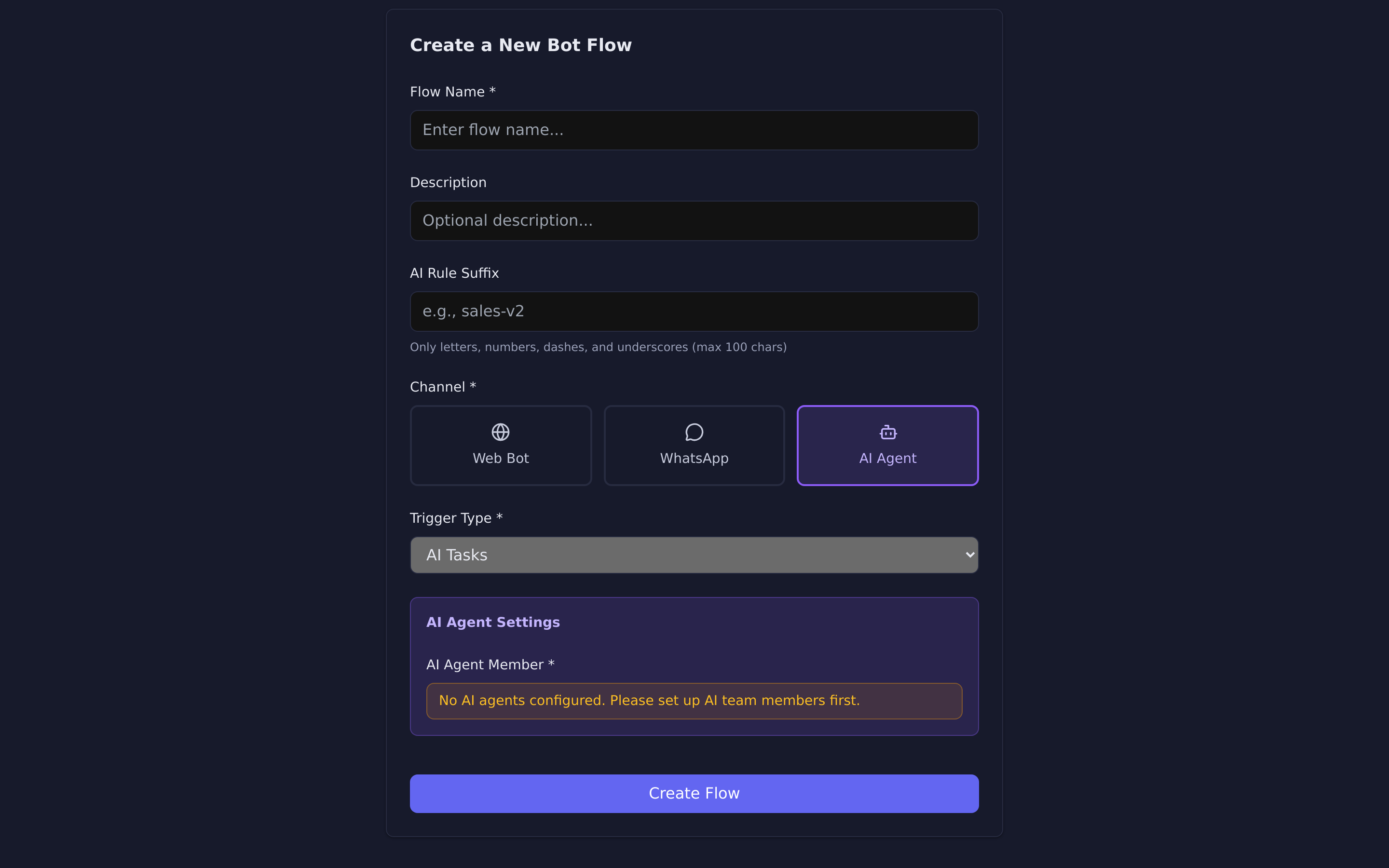
- Open Automation, then Flows, and create a new bot flow.
- Set Channel to AI Agent.
- Set Trigger Type to AI Tasks.
- Under AI Agent Settings, pick the AI Agent Member.
- Create the flow.
#Build the sequence
An AI Agent flow has no chat window, so the palette offers no Message item. You build the sequence from Action and Split steps.
A typical sequence alternates sends and waits:
- Send Email to Send to the lead, with a subject and body.
- Wait two days.
- Send WhatsApp to Send to the lead.
- Wait three days.
- Send Email again.
- Change Stage to mark the lead as not responding.
#Let the AI write the message
A message can be fixed text, or written by the AI for each lead. Put one of these variables in the message box and the AI writes the whole message there:
| Variable | Writes |
|---|---|
$EMAILDATA.AIFIRST |
A first email, following First Contact Message |
$EMAILDATA.AIFOLLOWUP |
A follow-up email, following Follow-Up Message |
$EMAILDATA.AISUBJECT |
A subject line, following Email Subject |
$IMDATA.AIFIRST |
A first WhatsApp or SMS message |
$IMDATA.AIFOLLOWUP |
A follow-up WhatsApp or SMS message |
Use one AI variable per box. More on each in Variables for incoming messages.
You can mix in contact details too: $CRMDATA.FNAME, $CRMDATA.BUSINESS and
the other contact variables work here.
#Timing comes from Wait steps
The gap between messages comes only from Wait steps. Set a Wait Duration and a unit, from Seconds to Months. The count starts when the previous step ran.
Send steps in an AI Agent flow always go out immediately, from the agent’s own address or number. Leave their When to Send and Sender (From) settings alone; the agent does not use them.
#What you can use
| Step | Works in AI Agent flows |
|---|---|
| Send Email, Send SMS, Send WhatsApp | Yes |
| AI Phone Call | Yes. The agent needs a Voice AI number. |
| API/Webhook Call, AI Prompt | Yes |
| Add Tag, Remove Tag, Change Stage, Change Quality | Yes |
| Assign Lead | Yes. It hands the lead over, see below. |
| Jump to Step, Wait, Split | Yes |
Redirect URL, Meta Pixel, Save Lead and starting another flow are not offered on this channel. Leave out Set Automation and Restart Session; they do nothing in an AI Agent flow. To stop automation for a lead, turn off its Automation disabled/enabled switch.
#When it runs
- A lead starts the flow within about 15 minutes of being assigned to the agent, as long as its automation switch is on.
- If you have set availability hours on the agent’s member profile, new leads start only within those hours.
- Each lead goes through the flow once. A reply from the lead ends it for good, and the matching response flow takes over. See Handle replies.
- To run a lead through again, open the lead and choose Restart AI flow.
#Test it
- Publish the flow.
- Create a lead with your own email address or phone number.
- Assign it to the agent.
- Wait up to 15 minutes, then check the lead’s message history.
Use short waits, in minutes, while you test. Set the real gaps before you assign real leads.
Updated: