Add a lead by hand
Create a single lead yourself — the two fields that matter, and what Tayon does when the person is already in your list.
You’ll need: Editor or administrator access to leads.
Most leads arrive on their own. This is for the ones that do not — the person who called, the card you were handed, the name a colleague passed you.
For more than a handful at a time, use Import contacts from a spreadsheet instead.
#Create it
- Open the Leads list.
- Choose New Lead.
- Fill in at least a name and either an email address or a phone number.
- Choose Save & Return.
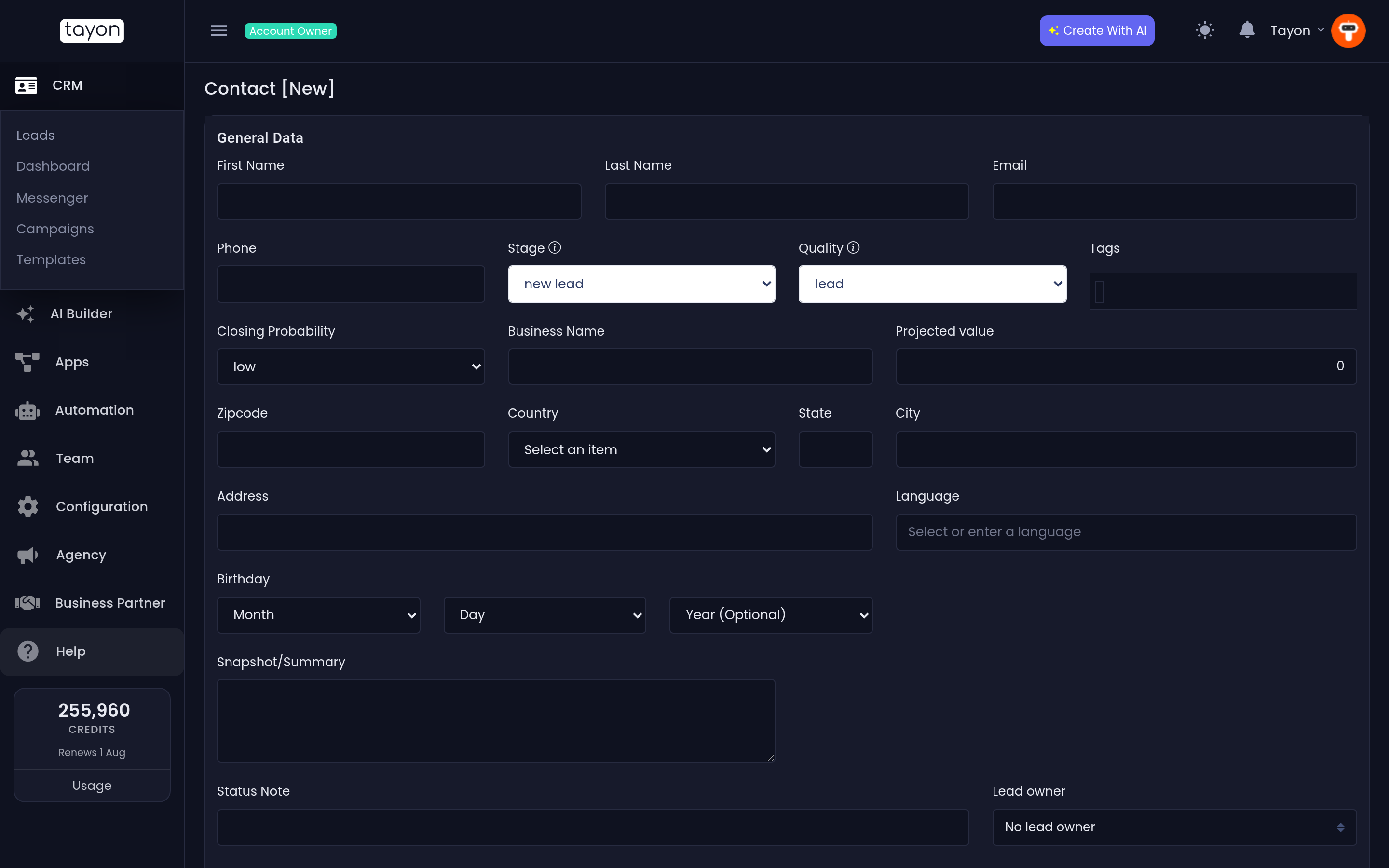
Every other field can wait. A lead you cannot reach is not a lead, so treat email or phone as the real requirement.
#Fields worth setting straight away
Stage and Quality default to whatever your account uses for new leads. Change them now if you already know better — it saves a second pass later.
Lead owner decides who is responsible. Leave it as No lead owner if you are not sure; unassigned leads are easy to find later by filtering the Leads list on No Member Linked.
Tags, Projected value and Closing Probability are all worth a moment if you have the information in front of you. Every one of them feeds a filter or a chart later.
#If the person is already in your list
Tayon checks the email address and the phone number against your existing leads while you type, and shows a small link under the field if it finds one. If you save anyway, a Duplicate contact found message stops the save and names the lead that already exists.
- Cancel — go back and change what you typed.
- Edit existing contact — drop this new record and open the existing lead instead.
The check only looks inside your own account. The same person being a lead of another business on Tayon is not a conflict and is never reported as one.
#What happens next
A new lead starts with automation switched on, so your bots and AI can talk to them. If this is someone you intend to handle personally, open the lead and turn Automation disabled/enabled off before anything sends.
Updated: