Find the leads you need
Read the Leads list, search it, and narrow it with filters until only the people you care about are left.
Every person Tayon captures — from a website form, a conversational form, a bot, a WhatsApp message or your own typing — lands in the same place: the Leads list. This article is about getting from “all my leads” to “the twelve I want”.
CRMLeads
#What each column tells you
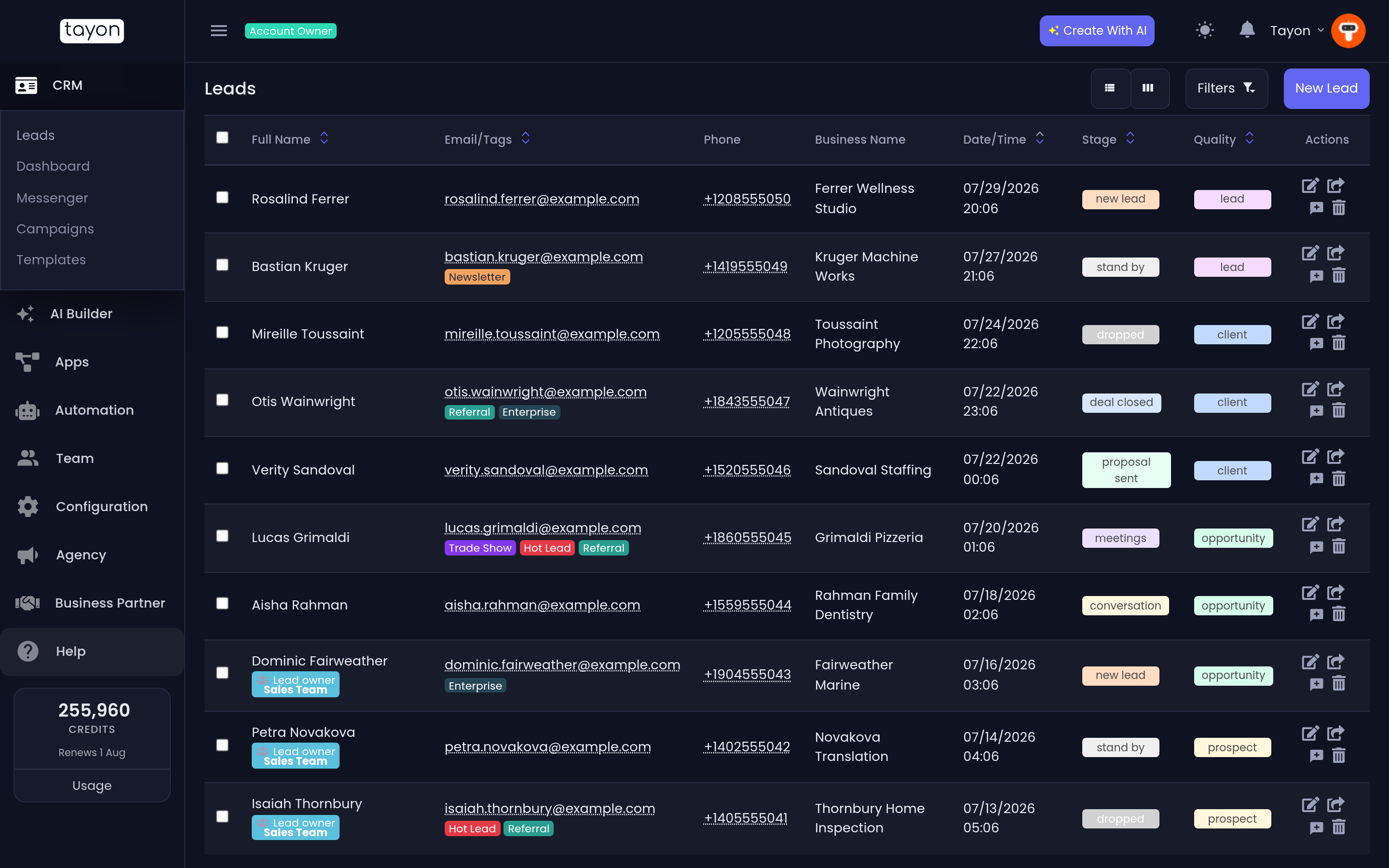
| Column | What it holds |
|---|---|
| Full Name | The lead’s name. Click it to open the lead. |
| Email/Tags | The email address, with the lead’s tags underneath |
| Phone | The phone number |
| Business Name | The company |
| Date/Time | When the lead was created |
| Stage | Where the lead sits in your pipeline |
| Quality | How good the lead looks |
| Actions | The per-row buttons |
Under the name you may also see a badge reading Lead owner with a person’s name, or a blue one with a group name — that is who the lead belongs to. A lead with no badge belongs to nobody yet.
Two more things can appear next to the name: a circled exclamation mark, which holds the lead’s status note, and a calendar icon when the lead has a Scheduled event booked.
#Sort the list
The small up and down arrows in a column header sort by that column. Full Name, Email, Date/Time, Stage and Quality can all be sorted. Phone and Business Name cannot.
#Search
The search box matches on first name, last name, phone, email and business name at the same time, so you can type a fragment of any one of them.
#Filter
Choose Filters to open the filter row above the table.
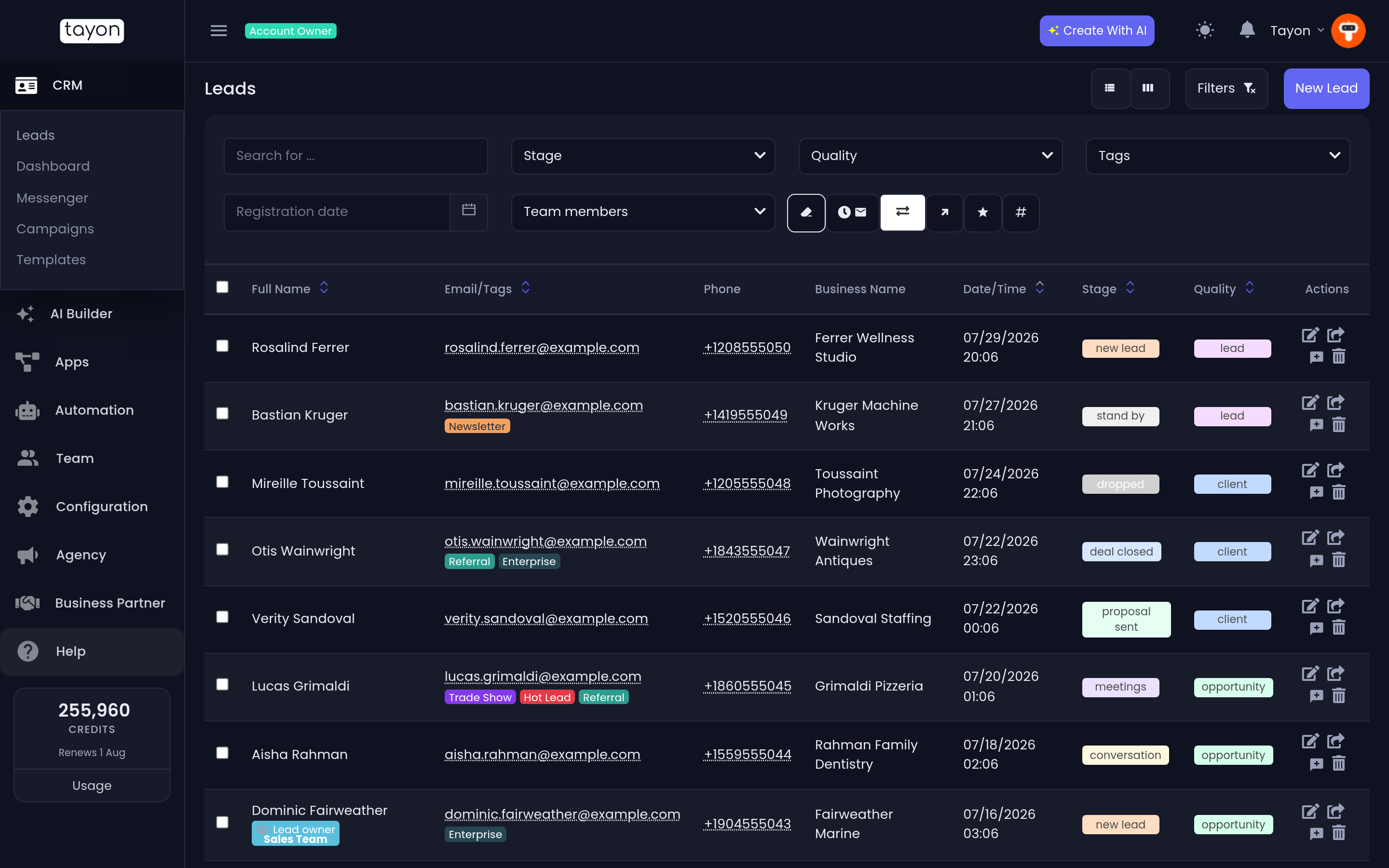
You get five filters plus a date range, and they all narrow the list together:
- Stage — tick one or more stages.
- Quality — tick one or more qualities.
- Tags — tick the tags a lead must have. No Tag Linked finds leads with no tags at all.
- Team members — tick the owners whose leads you want. No Member Linked finds unassigned leads.
- Registration date — a date range on when the lead was created, with shortcuts for Today, Yesterday, Last 7 Days, Last 30 Days, This Month and Custom.
Each dropdown has a Clean link at the bottom that clears just that filter. The eraser button clears them all — its label is Clear Filters.
#Excluding a tag
The tag dropdown does something the others do not. Next to each tag there is a second, red-accented checkbox labelled Without this tag. Ticking it removes every lead carrying that tag from the results.
You can combine both directions: tick Hot Lead on the include side and Customer on the exclude side to get hot leads who have not bought yet. Adding more than one excluded tag removes leads that have any of them.
#Switch to the board
The two buttons at the top right flip between List View and Stage View. Stage View is the pipeline board — same leads, same filters, laid out as columns. See Move leads through your pipeline.
Tayon remembers which of the two you used last and opens there next time you choose Leads in the menu.
#From the list to the lead
The Actions column gives you, per row:
- Edit lead — opens the lead’s full record.
- Open on Messenger — jumps straight to that person’s conversation.
- Send Lead to other user — moves the lead to another Tayon account.
- Delete lead.
The email cell and the phone cell are also live. Click the email address for Copy to Clipboard and Send Email; click the phone number for Copy to Clipboard, Call, and WhatsApp.
#When the list looks wrong
- A lead you know exists is missing. Check the filters first — they persist while you stay on the screen. Then check ownership: if you are a team member rather than an account owner, you only see leads assigned to you, to people you supervise, or to a group you belong to.
- The list is empty and the filter row is closed. Filters still apply when hidden. Open Filters and choose Clear Filters.
Updated: