Label leads with tags
Create tags, put them on leads one at a time or in bulk, and use them to slice your list — including finding leads that do not have a tag.
A lead has one stage and one quality. It can have as many tags as you like. That is what tags are for: everything true about a lead that is not a position in your process — the product they asked about, the event you met them at, the fact that they never answer the phone.
ConfigurationTags
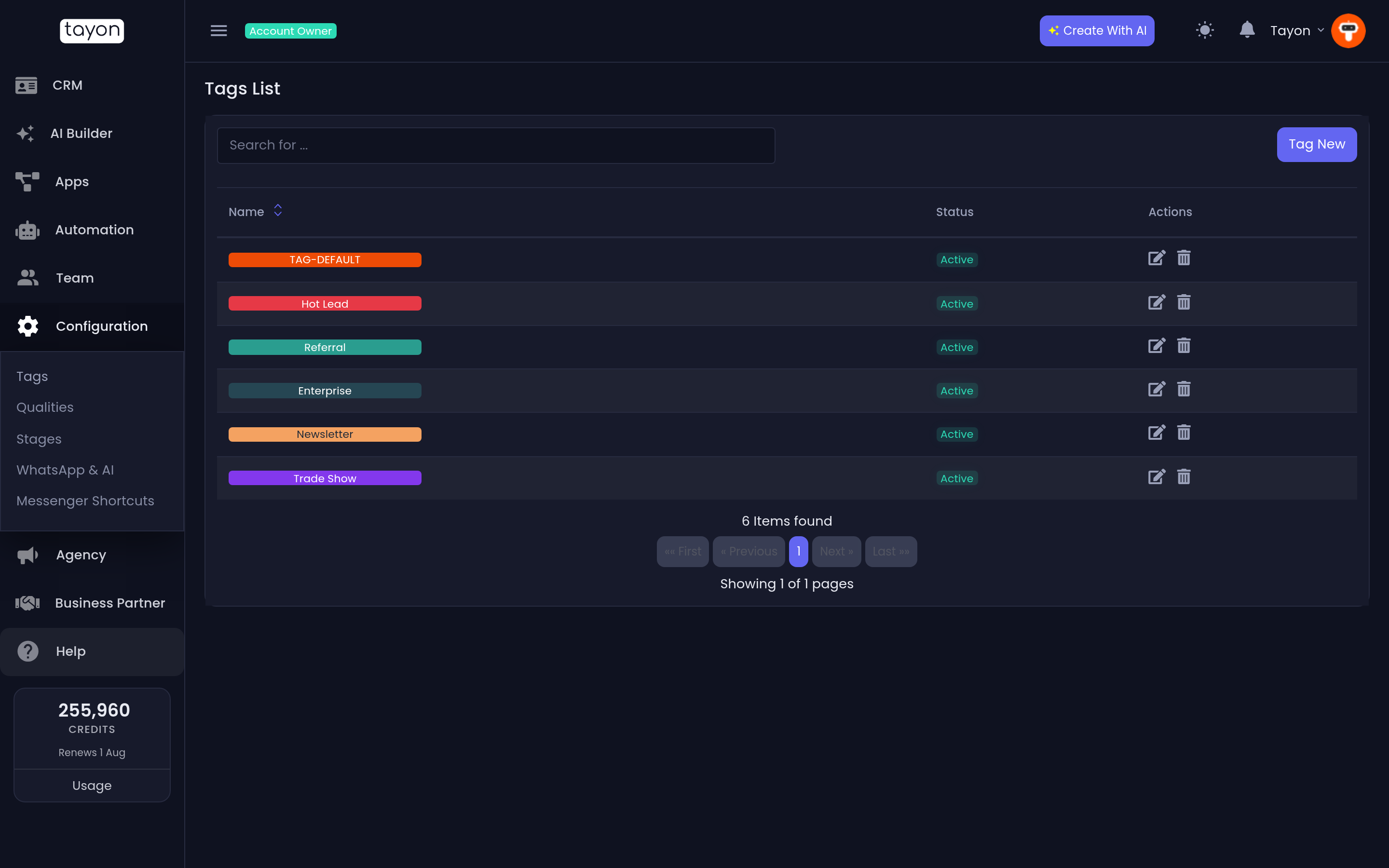
#Create a tag
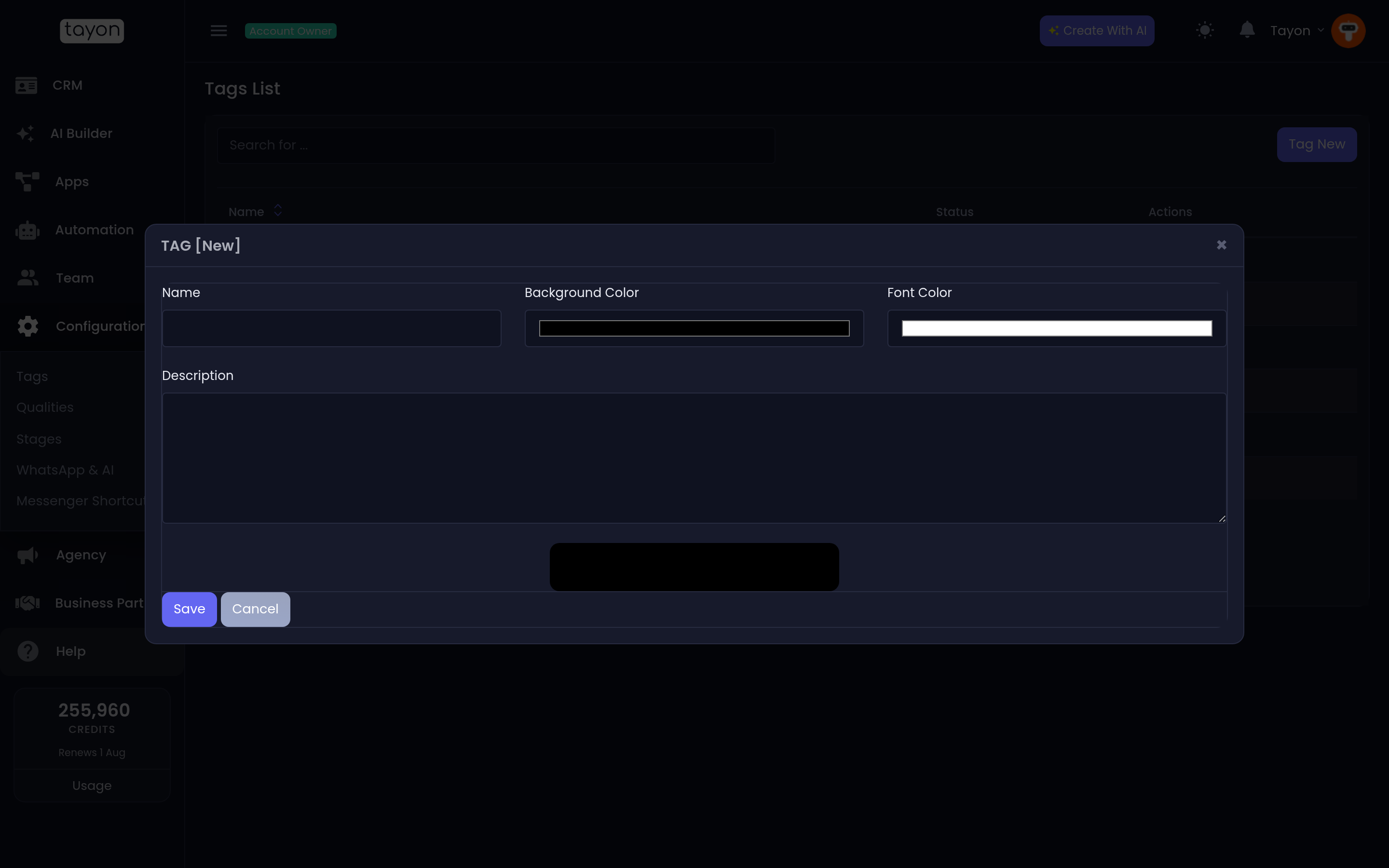
- Choose Tag New.
- Type a Name.
- Pick a Background Color and a Font Color.
- Add a Description if the name is not self-explanatory.
- Choose Save.
The Status switch controls whether the tag is offered when someone tags a lead. Set it to Inactive to retire a tag without disturbing the leads that already carry it.
#Put a tag on a lead
Open the lead and use its Tags box. Start typing to filter, click to add, and save.
#Tag many leads at once
Open the Leads list, filter it down to the group you want, then use the tag button in the action row. Every tag is listed with a + and a − beside it:
- Add tag puts that tag on every lead.
- Remove tag takes it off every lead.
There are two of these controls. One acts on all leads in the current list — everything your filters match, including the pages you have not looked at. The other appears once you tick some checkboxes and acts on all selected leads. Both ask you to confirm first, and the confirmation text tells you which one you are about to run.
See Change many leads at once for the rest of the bulk actions.
#Filter by tag
The tag dropdown in Filters does three things:
- Tick a tag to keep only leads that have it.
- Tick Without this tag — the red-accented box beside it — to remove every lead that has it.
- Tick No Tag Linked to find leads carrying no tags at all.
That last one is how you find the leads nobody has ever categorised. It is usually a bigger number than people expect.
Tags are also a filter on the CRM dashboard and inside campaigns, so a tag you apply today is a mailing list tomorrow.
#Tags on imported contacts
When you import a spreadsheet you can apply tags to the whole batch, and you can
map a column in the file to become tags. Names coming from a file are
upper-cased and have punctuation replaced with hyphens, so Trade show / 2026
arrives as TRADE-SHOW-2026.
#Naming them
Tags multiply. A few habits keep them usable:
- Prefix families of tags —
SRC-for where a lead came from,INT-for what they were interested in. They then sort together in every dropdown. - Do not create a tag that duplicates a stage or a quality. If it describes progress it is a stage; if it describes how good the lead is it is a quality.
- Retire rather than delete. Inactive keeps the history readable.
Updated: