Upload and host your own videos
Upload videos to the Media library and play them on your websites, forms and courses, and see what storing and streaming them costs in credits.
You’ll need: A paid plan for website and form videos; the Pro plan or above with e-Learning for course videos. Team members need the Conversational Forms permission.
Upload a video to Tayon once, and you can play it on your websites, your conversational forms or your courses. You don’t need a YouTube or Vimeo account, and visitors never see anyone else’s ads or suggested videos.
AppsMedia libraryVideos
#Two kinds of video
Every video you upload is one of two kinds, shown as a badge on its card.
| Badge | Plays on | Protection | Plan |
|---|---|---|---|
| Sites & forms | Your websites and conversational forms | Plays only on your own sites and forms. Pasted anywhere else, it won’t play. | Any paid plan |
| Courses (protected) | Your e-Learning course lessons | Protected for enrolled students only | Pro and above, with e-Learning |
A video can’t change kind later. A course lesson won’t take a Sites & forms video, and a website or form won’t take a course video. If you need the same video in both places, upload it twice.
YouTube and Vimeo links still work everywhere, on every plan, free of charge.
#Upload a video
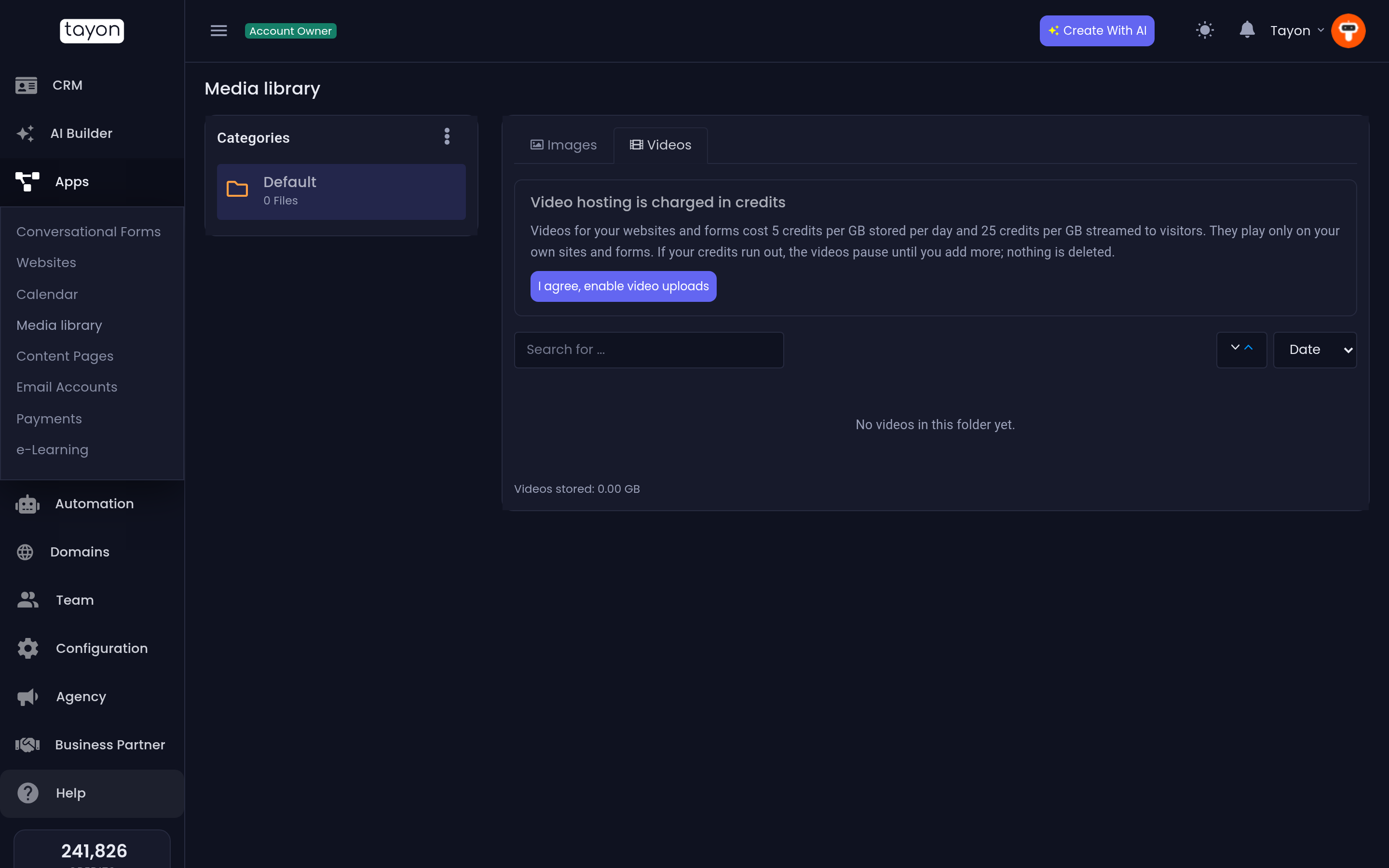
- Open Media library and choose the Videos tab.
- Select the folder the video should go in. Folders are shared with your images.
- The first time, read the costs and choose I agree, enable video uploads.
- If your account also has e-Learning, pick Where the video will be used: Sites & forms or Courses (protected).
- Pick the file and choose Upload.
- Keep the tab open until the upload reaches 100%.
MP4, MOV and most other video formats work, and large files are fine. If your connection drops, the upload carries on from where it stopped.
After the upload, the video is processed before it can play. The badge shows where it is:
| Status | Meaning |
|---|---|
| Waiting | The upload hasn’t started yet |
| Uploading | The file is on its way |
| Processing | Tayon is preparing it for every screen size; the percentage shows progress |
| Ready | It can be played |
| Failed | The file couldn’t be processed. Delete it and upload it again |
Processing usually takes a few minutes. The very first video on an account can take longer, sometimes up to half an hour.
#Organise your videos
The Videos tab works like the image side of the library:
- Search for … finds a video by name. Order by sorts by Name, Date or Size.
- Use the pencil to rename a video.
- Tick several videos to move them to another folder or delete them together.
- Each card says where the video is used: in how many course lessons, on how many website pages, or Not used yet.
- Videos stored under the list shows how much space your videos take.
Details, on every ready video, sets its thumbnail, captions and chapters, and shows its viewing stats. See Thumbnails, captions and chapters for your videos.
#Deleting a video
- A video used in a course lesson can’t be deleted. Remove it from the lesson first.
- A video shown on a website can be deleted, after a warning: This video is on your website. Those pages will no longer show it.
#What it costs
Videos are charged in credits from your balance, the same way for both kinds:
| Credits | |
|---|---|
| Storage | 5 per GB, per day |
| Streaming | 25 per GB that visitors or students watch |
| Thumbnails, captions you upload, chapters | Free |
| Captions written by AI | 250 per language-minute (see video details) |
On your credit statement these appear as Video hosting for website and form videos, and e-Learning video storage and e-Learning video streaming for course videos.
#Where to use your videos
- Websites: click a picture or an empty box in the editor and choose Video. See Edit your website by clicking it.
- Conversational forms: on a screen whose template has a video, choose Choose from my videos or Upload video on the Content tab. See The panel properties tabs.
- Courses: pick the video in a lesson. See Create a course.
Updated: