Change many leads at once, and export them
Re-stage, re-rate, tag, reassign, delete or export a whole filtered set of leads without opening a single one.
You’ll need: Editor access for some actions, administrator access for others.
Anything you would do to one lead, you can do to hundreds. The trick is knowing which set of leads you are about to change, because Tayon gives you two different ones.
The action row lives in the same panel as the filters, so choose Filters first to reveal it.
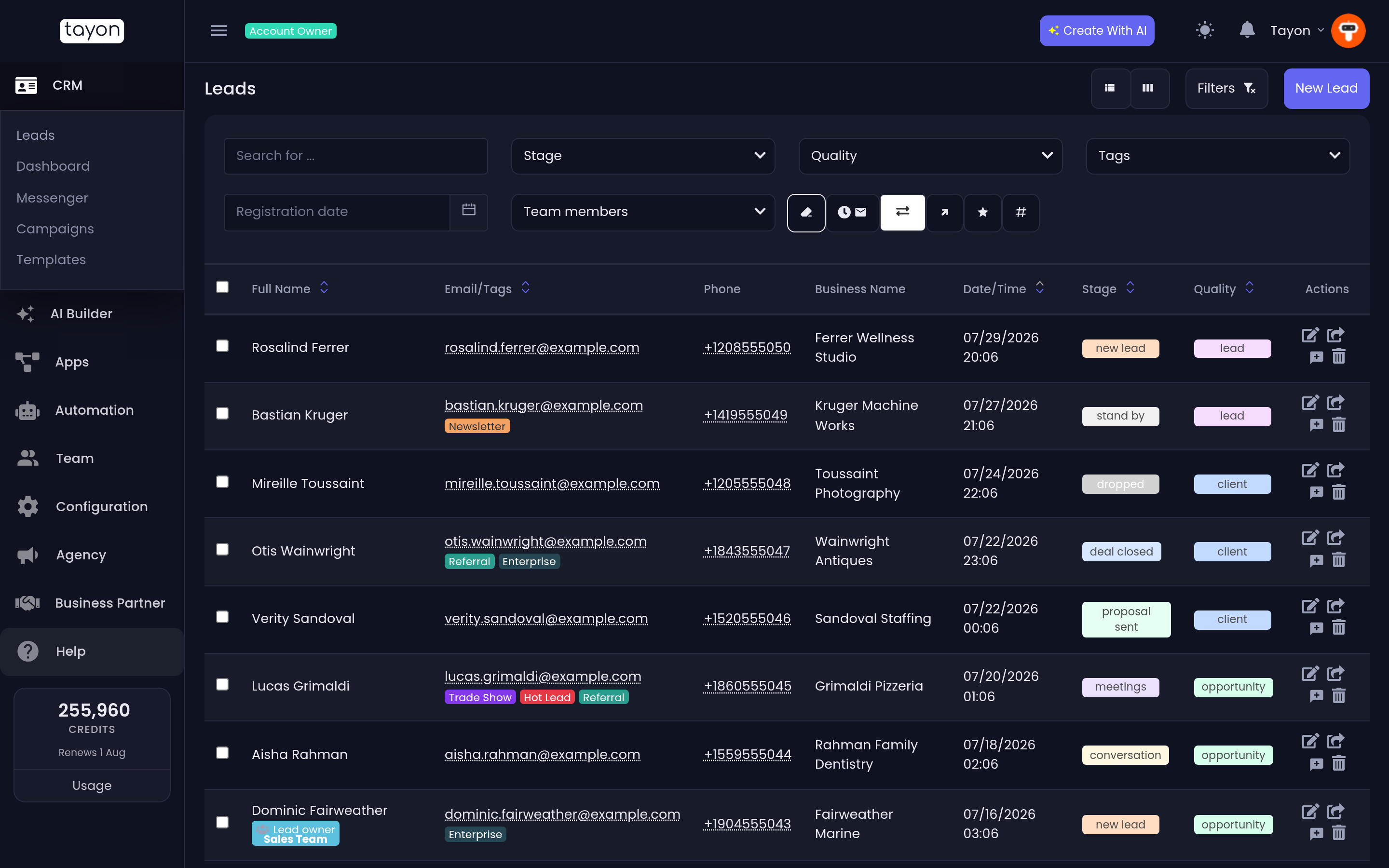
#The two scopes
All leads in the current list — everything your filters currently match, across every page, whether or not you have looked at it. These buttons are always available.
All selected leads — only the rows whose checkbox you ticked. These buttons appear as soon as you tick something. The checkbox in the header row selects everything on the page you are looking at.
Both always ask you to confirm. Read the confirmation text: This action will change all leads in the current list, confirm? is the wide one, This action will change all selected leads, confirm? is the narrow one.
#What you can do
| Action | Scope |
|---|---|
| Set the stage | Current list, or selected |
| Set the quality | Current list, or selected |
| Add tag / Remove tag | Current list, or selected |
| Change leads owner | Selected only |
| Send leads to other user | Selected only |
| Delete leads | Selected only |
| Schedule message using filters | Current list |
| Schedule message to selected contacts | Selected only |
| Export to CSV | Current list |
The buttons are icons; hover any of them to read the label above.
Setting a stage or a quality in bulk fires the same automation that changing one by hand does — so does adding or removing a tag. If you have flows listening for stage changes, a bulk re-stage will set them all running.
#Delete leads
Delete leads works on selected rows only, and it is deliberately the hardest one to reach. Deleted leads stop appearing anywhere in the CRM and their scheduled messages go with them.
#Send leads to other user
Send leads to other user is a move, not a copy. Give it the email address of another Tayon account owner, pick the stage and quality the leads should land in, and they are transferred: created there, removed from here.
Any messages scheduled for those leads are cancelled as part of the move.
#Message the whole set
Two buttons hand your current selection straight to the campaign builder: Schedule message using filters takes everything your filters match, and Schedule message to selected contacts takes just the ticked rows. Either way you land in the same editor — see Schedule a message or run a campaign.
#Export to CSV
Export to CSV lives in the two-arrow button on the action row, alongside Import Contacts.
- Filter the Leads list down to what you want to export.
- Open the two-arrow button and choose Export to CSV.
- Under Choose the columns to export, tick the columns you want.
- Choose Apply.
Eight columns are available: Full Name, Email, Phone, Business Name, Date/Time, Stage, Quality and Tags. If your account renamed Stage or Quality, your own titles appear here too.
The export follows your filters exactly — it is the current list, not the current page. Choosing no columns does nothing and tells you so.
Updated: