The bot flow editor
How building a chat conversation differs from building a conversational form, and what each kind of bot step does.
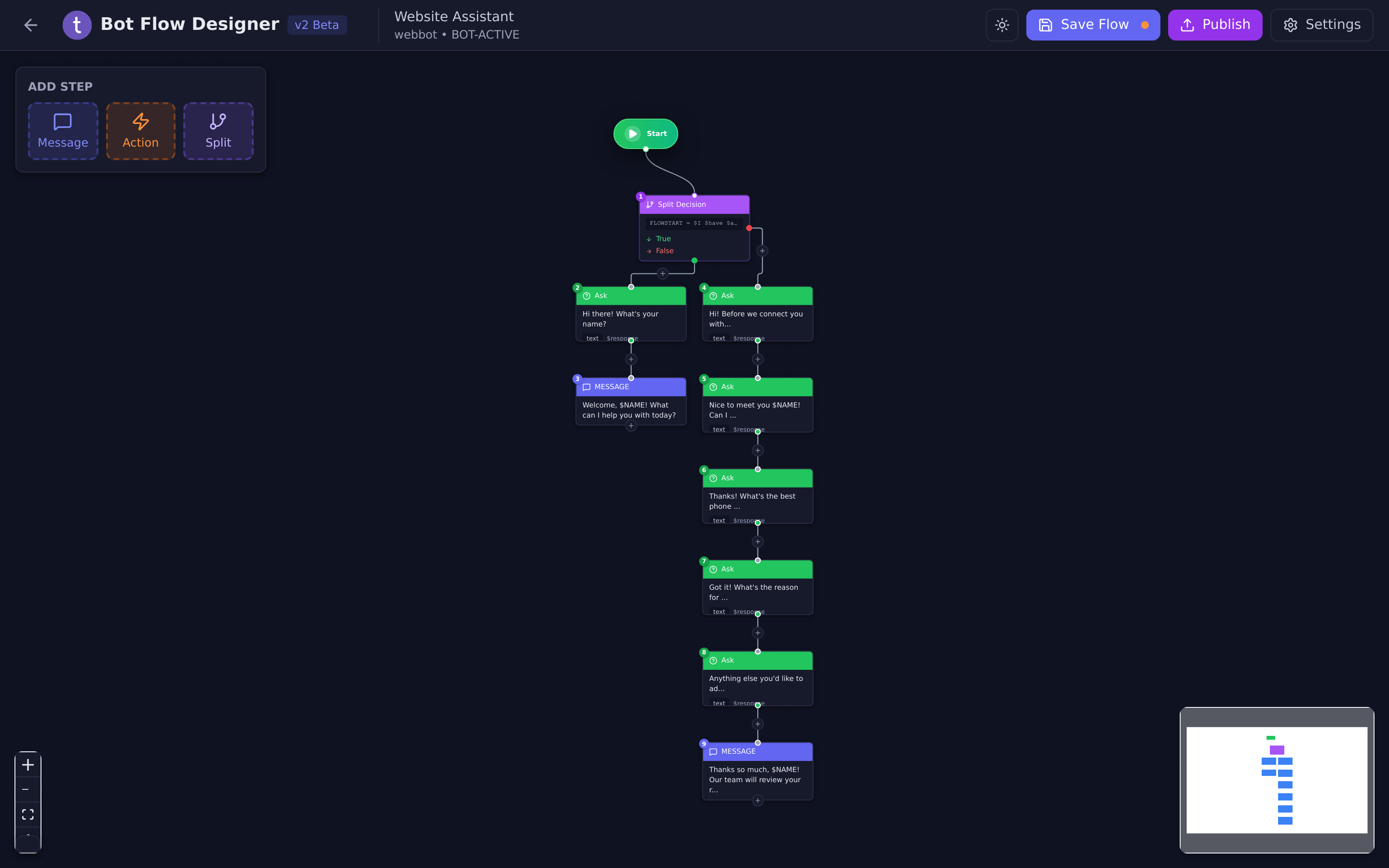
The same canvas builds two different things. A conversational form is a web page you send people to. A bot flow is a conversation that happens inside a chat — your website widget, WhatsApp, or an AI agent working leads in the background.
You reach bot flows from Automation → Flows, and open one with Edit Flow.
AutomationFlows
#What is the same
Almost all of the canvas. Steps are boxes, lines show the order, you add a step by dragging from the palette onto a + button, you right-click for copy, cut and delete, and the same keyboard shortcuts work. There is still no undo.
Save Flow and Publish mean exactly what they mean for a site.
#What is different
| Conversational form | Bot flow | |
|---|---|---|
| Where it runs | A web page of its own | A chat — widget, WhatsApp, or an AI agent |
| Look and feel | Set in the flow: templates, colours, fonts | Set on the widget or bot page, not in the flow |
| Palette | Panel, Action, Split | Message, Action, Split |
| Step editing | A seven-tab properties window | One form per step type |
| Datasets | Available | Not available |
| Preview | Preview Flow opens the published page | No preview button |
| Channel and trigger | Not applicable | Fixed when the flow is created |
The biggest practical difference: a bot flow has no design. There are no templates, colours or fonts here, because the conversation is drawn by the chat widget or the bot page it appears in. You are writing messages, not designing screens.
#Choosing a step
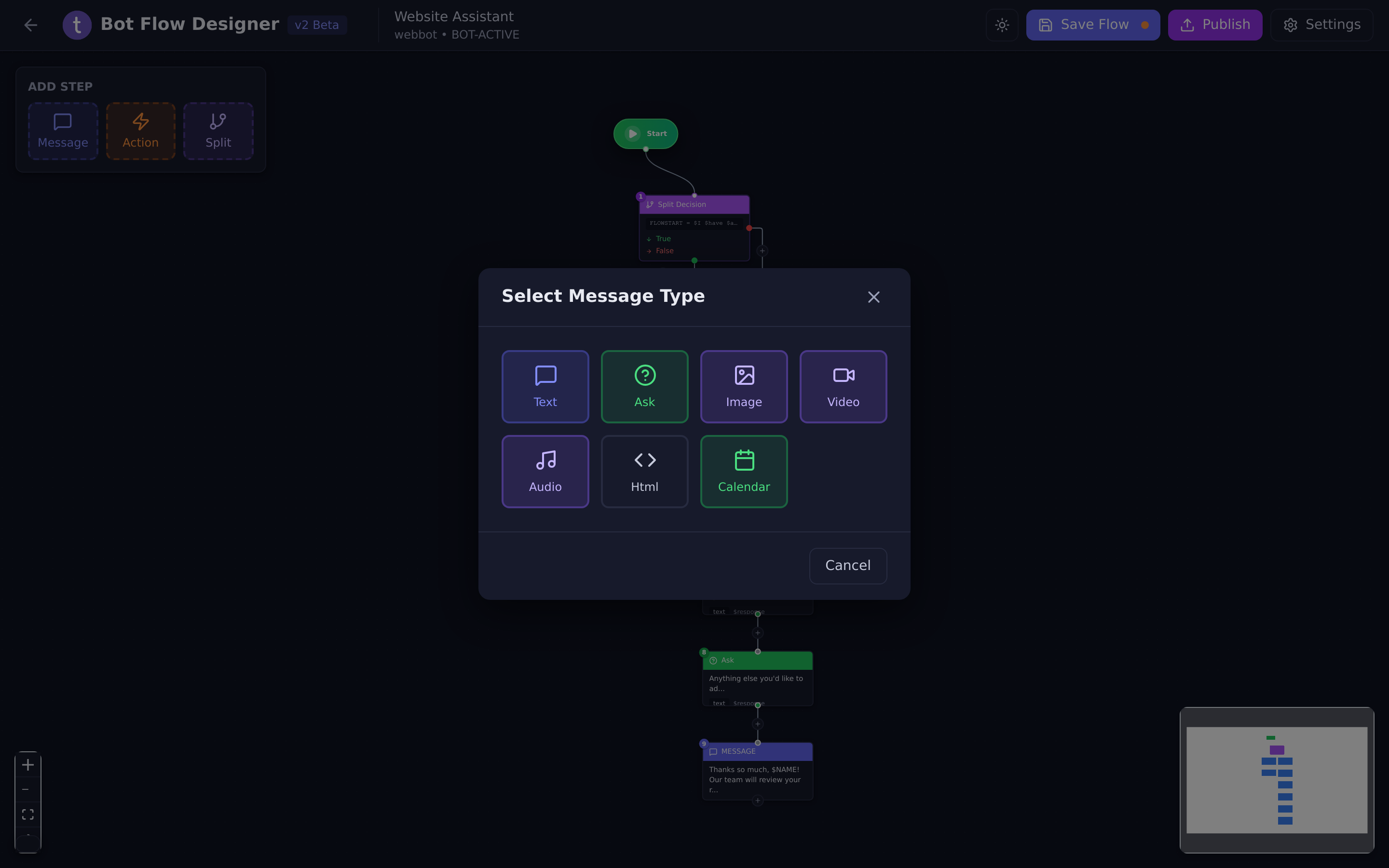
The palette has three items — Message, Action and Split — but Message and Action are categories, not step types. Drag one onto a + and you get a second window asking which kind you want.
#Message types
| Type | What the visitor gets |
|---|---|
| Text | A chat message. |
| Ask | A question that waits for a reply. |
| Image | A picture, with an optional caption. |
| Video | A video — MP4, YouTube or Vimeo links are supported. |
| Audio | An audio clip — MP3, WAV or OGG. |
| Html | Formatted content rendered inside the chat. |
| Calendar | A booking step. |
#Action types
Actions do things without saying anything: Email, SMS, WhatsApp, Webhook, AI, Add Tag, Remove Tag, Stage, Quality, Jump, Wait, Redirect, Meta Pixel, Save Lead, Assign Lead, Start Flow, Restart, AI Call and Set Automation.
Which of these you are offered depends on the flow’s channel — see Bot flow channels.
#Split
A Condition step, working the same way as in a conversational form: a test, a True branch and a False branch.
#Asking a question
An Ask step is the bot equivalent of a question screen. It has a
Question, an Information Identifier (the name the answer is stored
under, used later as $ plus that name), and an Input Type: Text, Email,
Phone, Number, Date, Time, Multiple Choice or URL.
Messages in a bot flow can also use the variables Tayon fills in for you, such
as $CRMDATA.NAME or $FLOWASSIGNED.FNAME. The variable
reference shows which ones work in bot
flows.
For Multiple Choice you type the options one per line.
Validation works the same as on a site: no validation, the default for the type, an input mask, a min/max length, a list of allowed values, or a check against your own webhook.
#Delaying a message
This is the one rule that catches people out.
That differs from a conversational form, where the message action itself carries a delay. Same words on the screen, different behaviour — so if you are moving a design from one to the other, check the timing.
Bot flow Wait takes a value and a unit, from seconds up to months, and is not capped the way the conversational-site wait is. It is the right tool for a follow-up sequence: message, wait two days, message again.
#Flow settings
Settings in the header opens four tabs:
| Tab | What is in it |
|---|---|
| General | Name, description, language, status, and the channel and trigger — shown but locked. |
| Start | How the conversation begins: the welcome message, the start buttons, how long to wait before starting. |
| Home | The greeting and shortcut cards shown when the chat widget opens. |
| Advanced | The AI rule suffix and related behaviour. |
Updated: