Withdraw your commissions
Add the account you want to be paid into, request a withdrawal from the Partner Portal or the app, and follow it until it is paid.
Commissions you earn are not paid automatically — you ask for them. This article shows you when money becomes yours to withdraw, how to add the account it goes to, and how to request it.
You can do all of this in two places. Use whichever you have:
- the Payouts tab of your Partner Portal, if the Tayon team sent you a portal link;
- the Business Partner menu in the Tayon app, if you activated the Partner Program from your account.
#When a commission can be withdrawn
Each commission waits a retention period after the client’s payment before you can withdraw it. That gives time for a refund or a failed payment to be sorted out first.
| You see | It means |
|---|---|
| Available to withdraw / Available USD for Withdrawal | Past the retention period — you can request it |
| In retention period / Waiting for Retention Period | Earned, still waiting |
| Withdrawal requested / Requested | In a request that has not been paid yet |
| Paid to you / Paid | Paid |
USD and BRL commissions are kept apart, and you withdraw each currency separately. The withdrawal panel in the app shows your Retention Period and Minimum withdrawal. Below the minimum, a request is refused with The minimum withdrawal is… — keep earning and try again once you reach it.
#In the Partner Portal
#Add a payout account
- Open the Payouts tab and, under Payout accounts, choose + Add account.
- Give it a Name you will recognise, such as My checking account.
- Choose a Type: Bank, PayPal, Payoneer or Zelle.
- Fill in the details. For a bank, that is the Bank Name, Routing Number and Account Number — or, in Brazil, a Pix Key Type and Pix Key.
- Tick Default Bank if this is the account you usually want paid into.
- Choose Save, then enter the six-digit code Tayon sends you and choose Confirm.
For your security, Tayon also emails you a notice that a payout account was added. If you did not add it, contact the Tayon team straight away.
#Request a withdrawal
- On the Payouts tab, find the Withdraw panel for the currency you want.
- Under Pay to, choose the account.
- Choose Request withdrawal.
- Enter the six-digit code Tayon sends you, and choose Confirm.
The portal confirms Your withdrawal request was received, and the amount moves to Withdrawal requested.
#Confirmation codes
Adding an account and requesting a withdrawal each need a six-digit code. If you have both an email and a phone number on file, choose under Send my confirmation code by — Email or SMS — before you start.
| Length | Six digits |
| Valid for | 10 minutes |
| New codes | Up to 5 in 15 minutes, then Too many codes requested. Please wait 15 minutes. |
If you see That code has expired. Please start again., choose Request withdrawal (or Save) again for a fresh code.
#In the Tayon app
#Add a bank
- Open Business Partner › Banks, and choose New Bank.
- Choose the Type — Bank, Paypal, Payoneer or Zelle — and fill in the details.
- Tick Default Bank if it should be used first, and save.
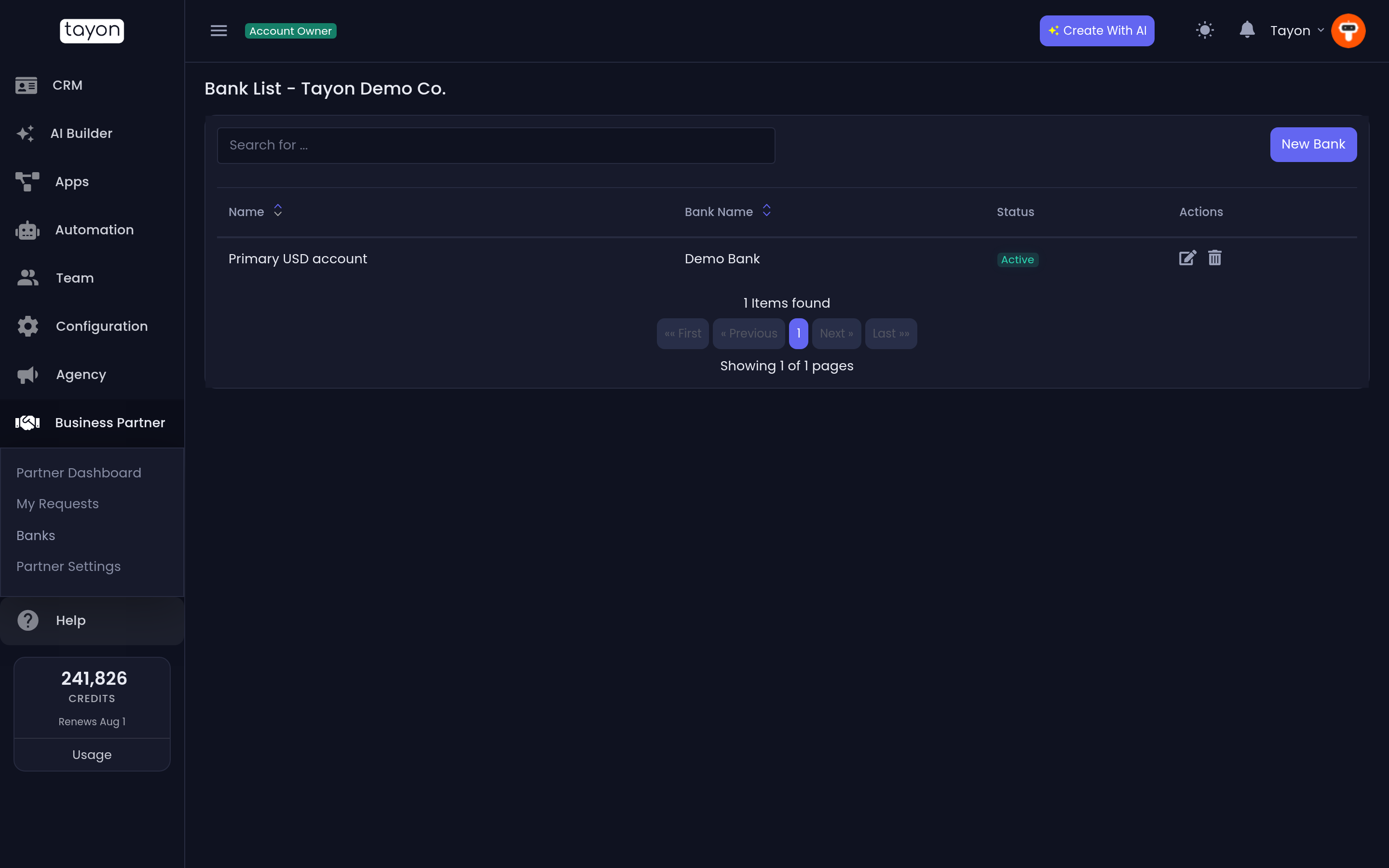
As the form says, Tayon’s finance team validates the account and confirms by email. You can only request withdrawals after the account is validated.
#Request a withdrawal
- Open Partner Dashboard.
- On the USD Withdrawal or BRL Withdrawal panel, choose Withdrawal Request.
- Pick the bank and check the Withdrawal Amount.
- Choose Request USD (or Request BRL).
If you have no active bank yet, Tayon takes you to Banks with You do not have an active bank account. Register a bank account.
#Follow your request
Requests are paid on the 5th of each month after the request. In the app, My Requests lists every one with its Amount, Currency, Request Date and Status:
| Status | Meaning |
|---|---|
| New | Received, waiting to be processed |
| On Hold | Paused — usually something needs checking |
| Paid | Sent to your account |
| Canceled | Not paid. The commissions return to your available balance |
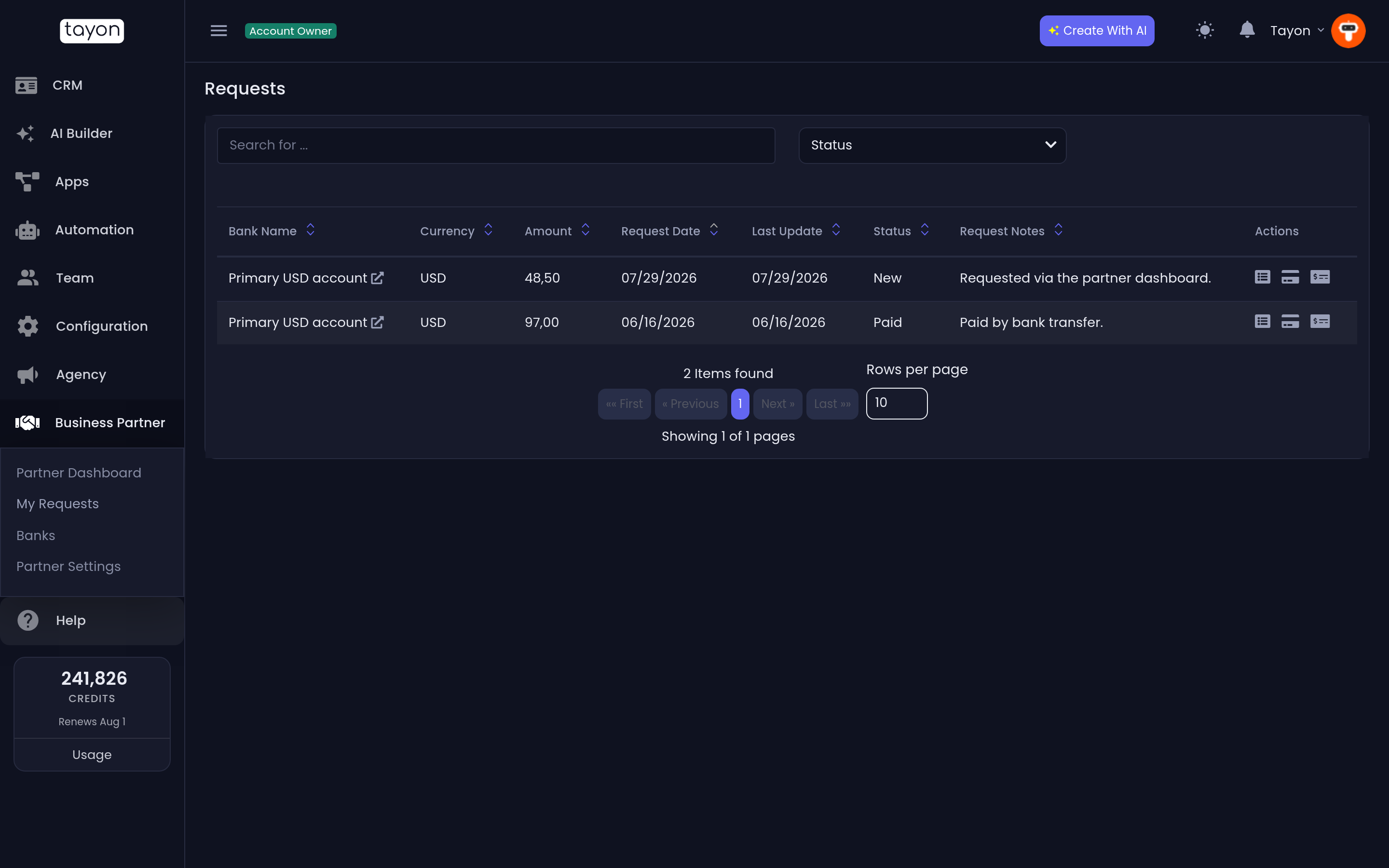
In the Partner Portal, paid amounts appear under Paid to you.
Updated: