Import contacts from a spreadsheet
Upload a CSV or Excel file, check how Tayon matched its columns to your lead fields, and bring the whole list in at once.
You’ll need: Editor access to leads. Imports over the free allowance need an administrator to approve them.
Import turns a spreadsheet into leads. You upload the file, Tayon works out which column is which, you correct it where it guessed wrong, and it loads the rows in the background while you get on with something else.
Open it from the two-arrow button above the Leads list — the entry is Import Contacts.
#Before you start
| Formats | CSV, TXT, XLSX, XLS |
| Maximum file size | 10 MB |
| Required in the file | An email column or a phone column. At least one |
| Separator | Detected for you — comma, semicolon or tab |
The first row must be your headers. They can be in English, Spanish or Portuguese.
#Step 1 — Upload
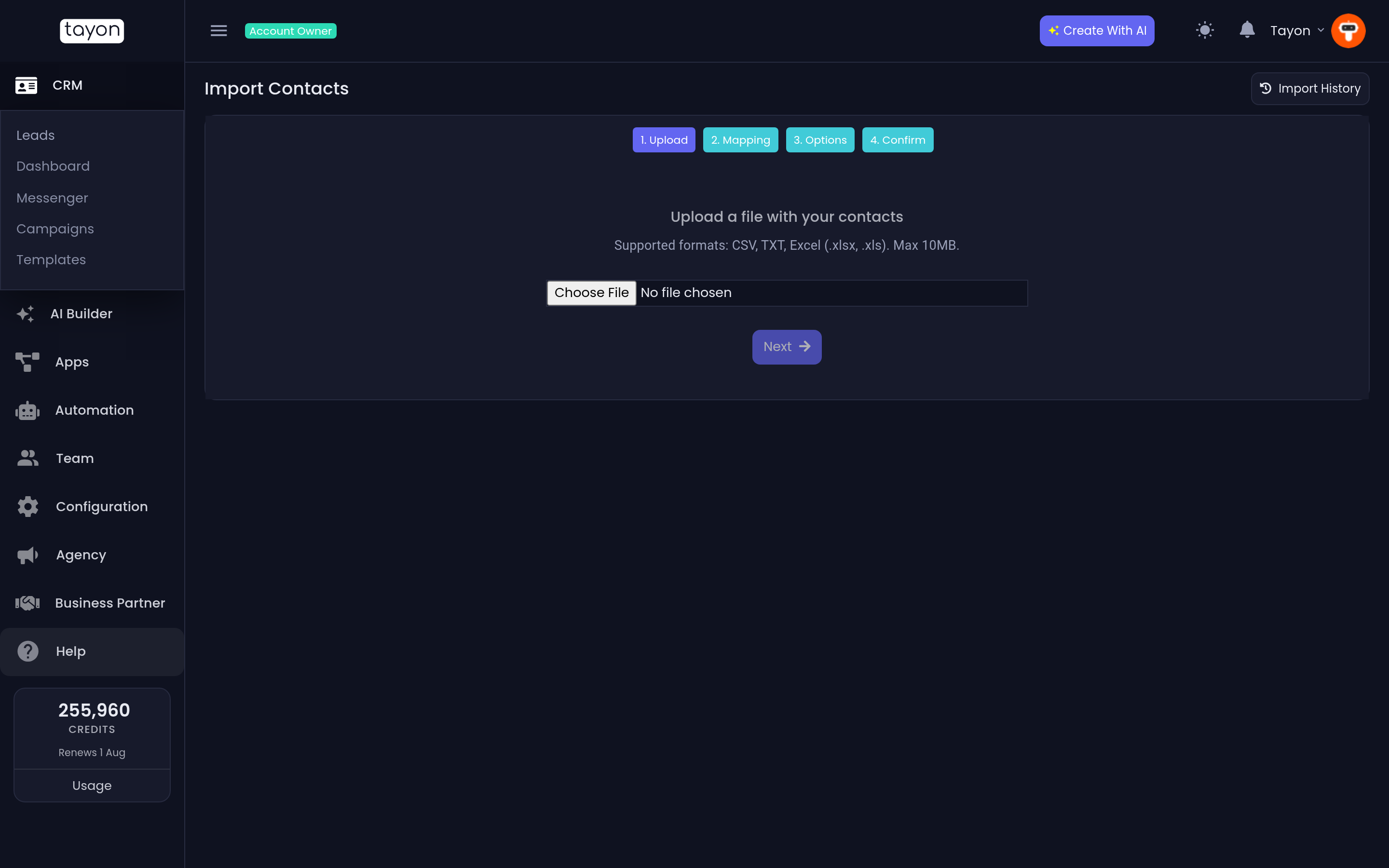
Pick your file and choose Next. The button changes to Analyzing your file… while Tayon reads the headers, takes a sample of the rows, and counts the total.
#Step 2 — Mapping
Tayon reads your headers and your sample data and proposes a mapping. Each row of the table is one column of your file: its header on the left, what it will become in the middle, and three real values from your file on the right so you can check.
Change anything that looks wrong using the Maps To dropdown:
| Choice | Effect |
|---|---|
| First Name, Last Name | The name fields |
| Full Name (will be split) | Split at the first space into first and last name |
| Email, Phone | Contact details — you need one of these |
| Business Name, Address, City, State, Zip Code | The company and location fields |
| Birthday | Read as a date |
| Language | The lead’s language, such as en or pt-br |
| Contact Snapshot | Goes into the lead’s Snapshot/Summary |
| Notes / Extra Info | Extra text kept with the lead |
| Tag | Every value in the column becomes a tag |
| Skip this column | Ignore it |
Under the mapping table, Sample Data Preview shows the first rows of your file exactly as they were read. If that preview looks scrambled, the file itself is the problem — fix it and start over rather than fighting the mapping.
Choose Next when it is right. Back returns you to the upload step.
#Step 3 — Options
When a duplicate contact is found decides what happens when a row matches a lead you already have, by email or by phone number:
- Skip (keep existing contact) — leave the existing lead untouched.
- Update existing contact with new data — overwrite it with what is in the file.
Tags to apply to all imported contacts puts the tags you pick on every lead
in the batch. This is worth doing every time. A tag like IMPORT-2026-08 is how
you undo an import that turns out to be wrong.
Origin of contact list is a description of where the data came from. It is optional for small imports and required for large ones.
#Step 4 — Confirm
The summary repeats the file name, the row count, your duplicate choice, the tags you picked and the final mapping. Read the mapping table once more — this is the last point at which a wrong column is free to fix.
Start Import begins it.
#Approval on larger imports
Tayon auto-approves imports until your account has brought in 100 contacts in total. Past that, a submitted import goes to Pending Approval and an administrator has to release it. The screen tells you: This import requires admin approval because it exceeds the automatic limit. You will receive a notification with the decision within 48 hours.
This is why Origin of contact list becomes required — it is the information the approver reads.
#Step 5 — Results
The import runs in the background. The screen shows Processing your contacts… and updates itself; you can close it and come back through Import History. A notification tells you when it is done either way.
When it finishes you get four numbers:
| Imported | New leads created |
| Duplicates | Rows that matched an existing lead and were skipped |
| Updated | Rows that matched and were overwritten |
| Errors | Rows that could not be read |
An Error Log lists the failures with the row number, the data and the reason. New Import starts another.
#What Tayon tidies up for you
- Names, business names, cities and states are title-cased.
- Email addresses are lower-cased.
- Phone numbers are stored as you wrote them, and matched on their digits.
- Dates are read in several common orders, including
Y-m-d,m/d/Yandd/m/Y. - Tag values from a column are upper-cased, and punctuation becomes hyphens.
- Over-long values are trimmed to fit.
Every imported lead arrives with your account’s default stage and quality, no owner, and automation switched on.
#Import History
Import History lists every import with its file name, date, row count, status and results, and links through to the detail of each. It is the record of what entered your CRM and when.
#When something goes wrong
- Import Failed — the file could not be processed. Re-export it from your spreadsheet as a plain CSV and try again.
- Import has been rejected — an administrator declined it. If they left a note, it appears underneath.
- Everything landed as duplicates — the leads were already there. Run it again with Update existing contact with new data if you wanted to refresh them.
Updated: