Assign leads to people and groups
Give a lead an owner — one team member or one group — and understand what that changes about who can see it.
You’ll need: Editor access to reassign one lead; administrator access for some bulk options.
Every lead can have an owner. The owner is either one team member or one group — never both, and it is fine for a lead to have neither.
Ownership is not just a label. It decides who can see the lead at all.
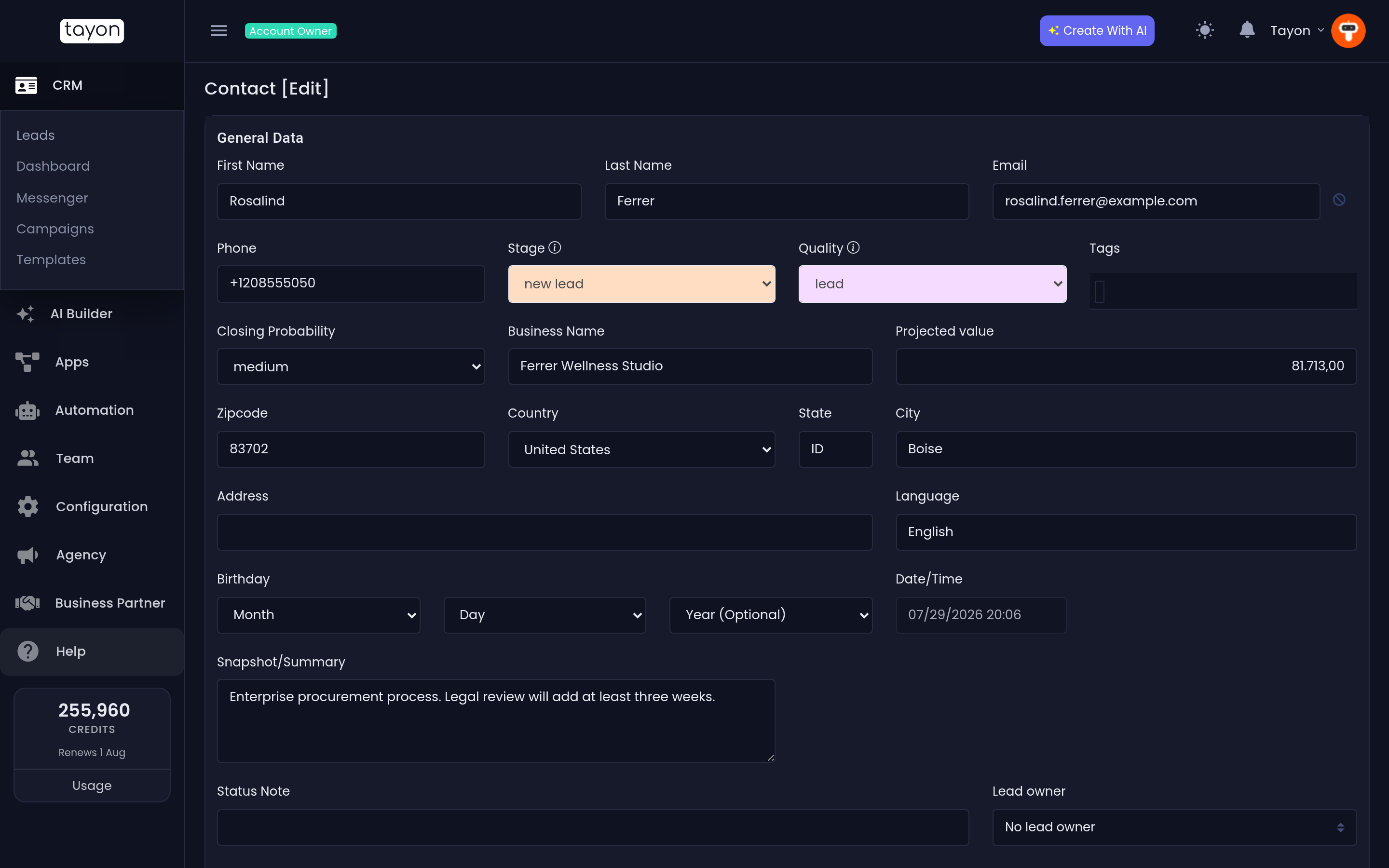
#Assign one lead
- Open the lead.
- Open the Lead owner dropdown.
- Pick a name under Members, or a group under Groups, or choose No lead owner.
- Save.
Choosing a group replaces any individual owner, and choosing a person replaces any group. There is no way to set both, and you do not need to clear one before setting the other.
#Assign many leads
- On the Leads list, tick the leads you want.
- Choose the button whose tooltip reads Change leads owner.
- The dialog confirms how many leads you selected.
- Pick the new Lead owner and choose Save.
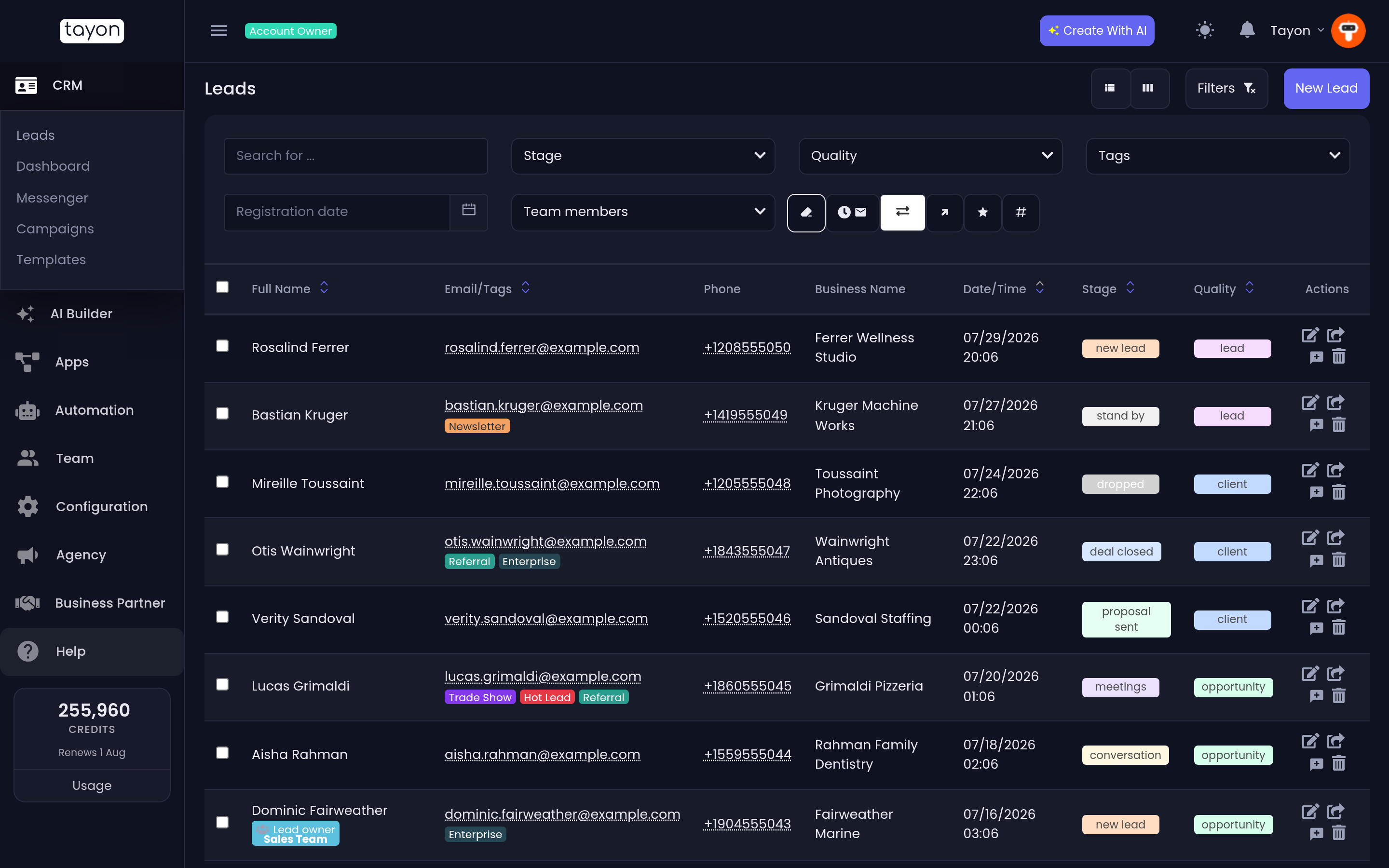
The same dropdown appears, with Members, Groups and No lead owner.
#Assign from the Messenger
The person icon in a conversation’s header — its tooltip reads Change lead owner — reassigns without leaving the inbox. It offers No owner, Members and Groups, the same as everywhere else.
There is also Assign to me to reply, which appears in place of the message box when the open conversation belongs to somebody else. It hands you the lead so that you can answer. See Take over a conversation from the bot.
#Member or group?
Assign to a member when one named person is responsible and you want to be able to ask them about it.
Assign to a group when responsibility is shared — an inbox rather than a person. A group-owned lead stays with the group. Nobody is quietly picked to own it, and every member of that group sees it, in the Leads list and in the Messenger alike. It stays that way until somebody reassigns it.
Leave it unassigned when you genuinely do not know. Unassigned leads are easy to find later: filter the Leads list on No Member Linked.
#Who sees what
| You are | You see |
|---|---|
| The account owner | Every lead in the account |
| A team member with administrator access to leads | Every lead in the account |
| A team member with editor or view-only access | Leads assigned to you, to members you supervise, and to any group you belong to |
| A team member with no lead access | No leads |
The same rule governs the Messenger. A lead assigned to the group Sales Team is visible in both the Leads list and the inbox to every member of Sales Team, and to nobody else outside it.
#Reading ownership at a glance
In the Leads list, a badge under the lead’s name reads Lead owner with the person’s name in the member’s own colour, or in blue with a group icon when the owner is a group. A lead with no badge has no owner.
On the pipeline board, the same badge sits on the card.
To see everything one person owns, open Filters and tick them under Team members. To see what nobody owns, tick No Member Linked.
Updated: