Action types
Every action a conversational form can run behind the scenes — messaging, CRM updates, flow control, payments, course enrollment, integrations and data tables — and what each one needs.
An action step does something without showing the visitor anything. Drop one onto the canvas, open it, choose an Action Type, and fill in its settings.
Actions run in the order they appear, in between panels. A visitor who answers a question and then meets three actions before the next screen simply sees the next screen — the three actions happened in the gap.
#Messaging
| Action | What it does |
|---|---|
| Send Email | Sends an email. |
| Send SMS | Sends a text message. |
| Send WhatsApp | Sends a WhatsApp message. |
All three ask who to send to:
- Send to the lead — the person filling in the site
- Send to account contact — you
- Send to specific recipient(s) — addresses or numbers you type, one per line
Email also takes a Sender (From), a Subject and the message body. SMS and WhatsApp take the message text; WhatsApp can also carry an image or audio attachment.
Use variables freely — New enquiry from $NAME ($EMAIL) in the subject of the
notification you send yourself is the single most useful line in most sites.
#Sending later
When to Send offers four choices:
| Choice | What happens |
|---|---|
| Send immediately | Goes out as the visitor passes this step. |
| Send with delay | Goes out after a wait you set — a value plus a unit (Seconds, Minutes, Hours, Days, Weeks, Months). |
| Send on specific day/time | Goes out at the next matching weekday and time. |
| Send on specific date | Goes out at a date and time you fix. |
#CRM
| Action | What it does | What it needs |
|---|---|---|
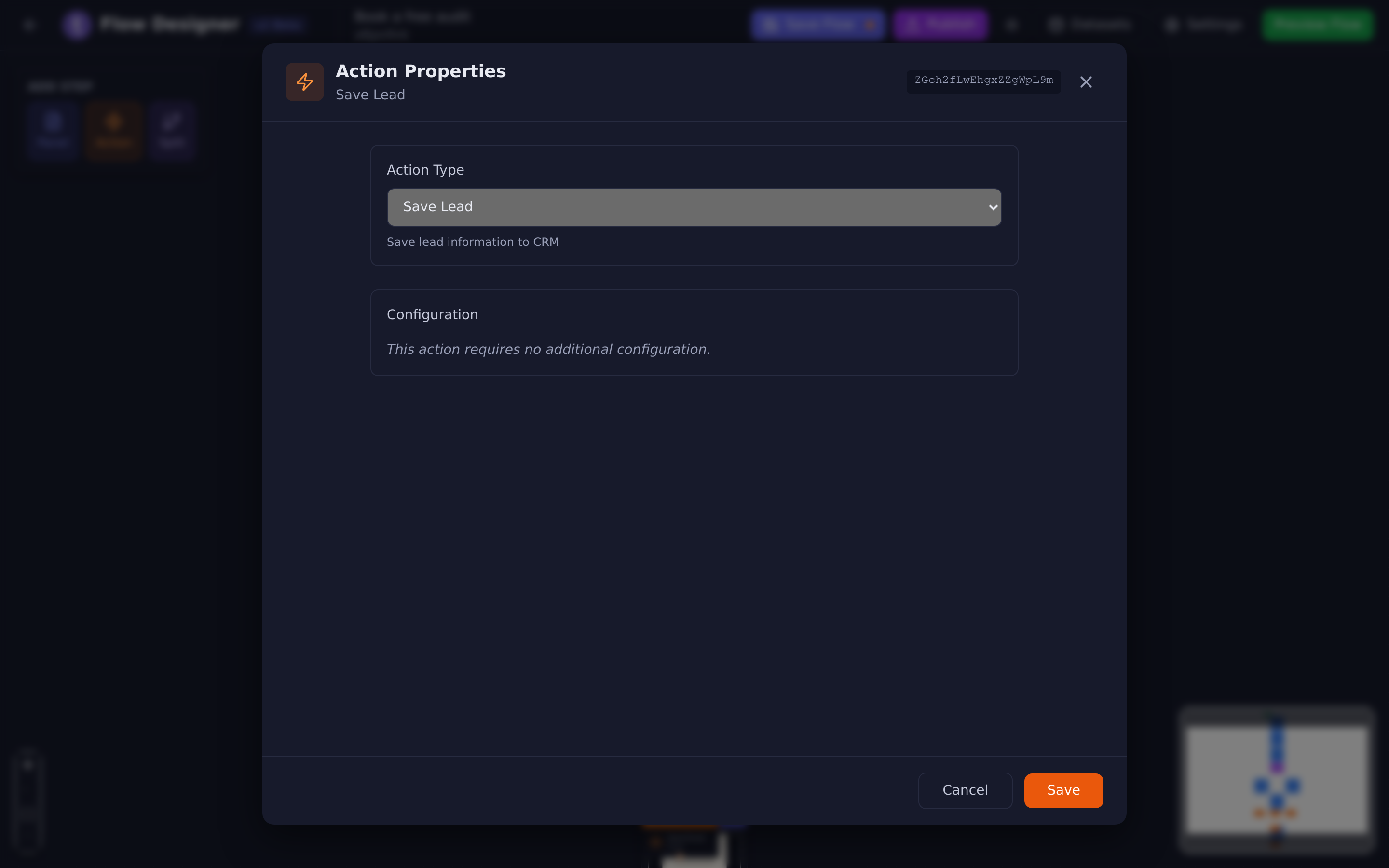
| Save Lead | Creates or updates the lead from the answers collected so far. Matches an existing contact by email or phone rather than making a duplicate. | Nothing |
| Assign Lead | Hands the lead to a team member or a group. | Who to assign to |
| Change Stage | Moves the lead to a pipeline stage. | The stage |
| Change Quality | Sets the lead’s quality rating. | The quality |
| Add Tag | Tags the contact. You can create a new tag without leaving the action. | The tag |
| Remove Tag | Removes a tag. | The tag |
| Add Value | Adds a monetary amount to the contact’s value. | The amount |
| Set Automation | Turns AI automation on or off for this contact. | On or Off |
Set Automation is how you hand a conversation to a human: turn automation off at the end of the branch where a person should take over, and no further automated follow-ups go out.
#Flow control
| Action | What it does | What it needs |
|---|---|---|
| Jump to Step | Sends the visitor to another step. | The target step — picked by the number in the circle on the canvas |
| Wait | Pauses before the next step. | A value and a unit |
| Redirect URL | Sends the visitor to another web address and ends the flow. | The URL, which can contain variables |
| Reset Session | Clears everything collected and starts the flow again from the first screen. | Nothing |
Redirect URL takes variables, so you can hand values to whatever page you
send them to: https://example.com/thanks?name=$NAME&plan=$PLAN.
#Integration
| Action | What it does | What it needs |
|---|---|---|
| API/Webhook Call | Calls another system. | A URL, a method, optional parameters and headers |
| AI Prompt | Sends a prompt to the AI and stores the reply. | The prompt, and a name to store the reply under |
| Payment Checkout | Takes a payment on the gateway’s own checkout page, and brings the buyer back into the flow. | A payment connection, an amount, and the three steps the buyer can come back on |
| Enroll in Course | Gives the person access to one of your e-Learning courses and emails them a link to start. | The course, and the person’s email collected earlier in the flow |
#Webhook
Parameters go one per line as key=value, and the values can be variables:
name=$NAME
email=$EMAIL
phone=$PHONE
Headers go one per line as Name=value, which is where an authorisation token
goes:
Authorization=Bearer abc123
Use =, not :, even though the box shows Authorization: Bearer token as an
example. A header written with a colon is not sent. A header value that itself
contains = is cut off at that point.
Return Type decides what gets kept from the reply: the HTTP Status Code,
the Plain Text body, or the whole JSON Response. Whatever you choose is
stored under the identifier you type in Store Response In (Identifier), so a
reply stored as WEBHOOK_RESPONSE is available afterwards as
$WEBHOOK_RESPONSE. The WEBHOOK_RESPONSE shown in the empty box is only an
example: if you leave the box empty, the reply is not stored. If the call fails or the other system takes too long to
answer, the stored value is error or timeout instead, which you can test in
a split.
To print one value from a JSON reply, such as $WEBHOOK_RESPONSE[customer:name],
see Formulas and JSON values.
If you give no parameters at all, Tayon sends everything it has collected.
#AI Prompt
Write the prompt — variables work, so you can feed the visitor’s answers into
it — and name where the reply should be stored. The box shows
AI_RESPONSE as an example; type a name or the reply is not stored. The reply is produced in the background, so do not build a screen
that expects it immediately.
#Payment Checkout
Choose Stripe or Mercado Pago, set the amount, and pick the steps the buyer lands on when the payment succeeds, is cancelled, or is still pending.
Two things about it are unlike every other action, and both catch people out:
- The amount is the total, not a unit price. Quantity is recorded and displayed but never multiplies anything.
- The step’s own outgoing edge is the failure path. Success, cancel and pending are dropdowns inside the step, drawn on the canvas as dashed lines. The ordinary edge is taken only when no checkout could be created at all.
It is covered in full in Take a payment inside your site.
#Enroll in Course
Pick the course in Course. The result is stored in $ELENROLLSTATUS, and
for a paid course the step belongs on the payment’s success path. See Enroll
people in a course from a flow.
#Data tables
Six actions work with your datasets. They are covered in full in Datasets.
| Action | What it does |
|---|---|
| New DataSet Item | Starts a new row for this visitor. |
| Save DataSet | Writes the collected answers into that row and finalises it. |
| Filter DataSet | Finds the rows matching a condition. |
| Update DataSet | Changes the rows the filter found. |
| Delete DataSet | Deletes the rows the filter found. |
| Calculate DataSet | Works out the total, average, minimum or maximum of a column. |
#Two actions that are not available yet
Two entries appear in the action list but do not do anything when the flow runs:
- Read Business Card
- AI Phone Call
You can select them and fill in their settings, and the flow will not fail — it will simply carry on to the next step as though the action were not there. Do not build a flow that depends on either of them.
#When an action does not seem to fire
- Is it on the branch the visitor actually took? An action under the True side of a split never runs for anyone who went False.
- Did you publish?
- Is it after a Redirect? Redirect ends the flow, so anything after it never runs.
- Does it need a lead that has not been saved yet? Tag, stage, quality and assign all need Save Lead first.
- Is it a delayed message to someone other than the lead? See above.
Updated: