Publish your bot as its own page
Give a bot a branded page at its own address — with your logo, colours and legal links — and share it as a link or a QR code.
You’ll need: A flow and a web bot on your account.
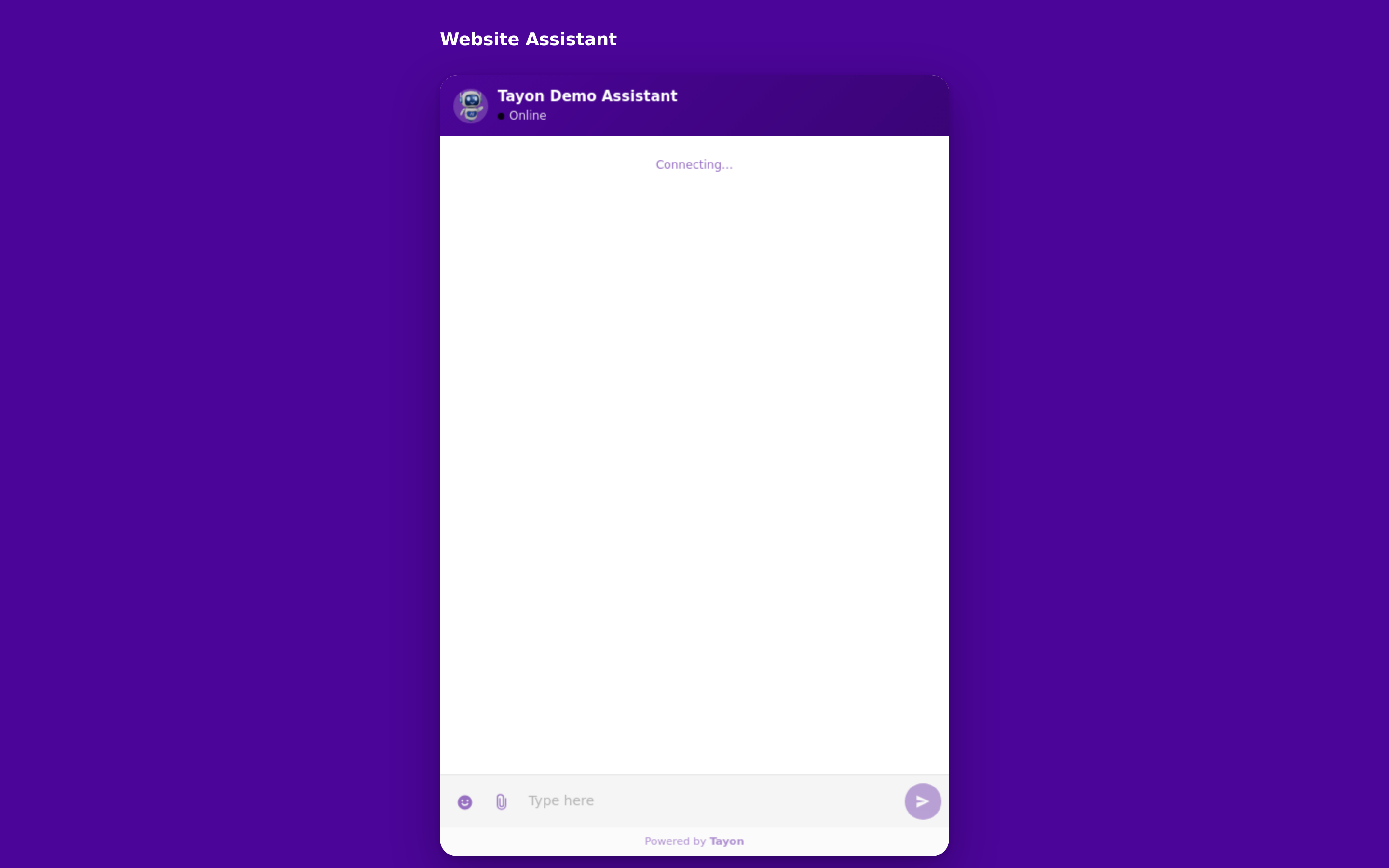
A bot link is your bot published as a page of its own — your logo, your colours, your legal links, at an address you can share. No website needed, and nothing to embed.
#Create one
AutomationBotsBot Links
- Choose New bot link.
- Under General Data, fill in the Title and the Page Address (URI) — the last part of the public web address, so keep it short and readable.
- Pick the Web Bot that supplies the look of the chat, and the Flow that supplies the conversation. Both are required.
- Add Copyright text for the footer if you want one.
- Choose Save & Publish.
#Brand the page
Colors sets the Text Color and Background Color of the page around the chat.
Images takes two uploads, each up to 1 MB, in JPEG, JPG, BMP or PNG:
- Select your logo — shown at the top of the page.
- Select image — the larger illustration beside the chat.
#Add your legal pages
Content Pages attaches up to three documents, which appear as links in the page footer and open without leaving the page:
- Privacy Policies
- Terms of use
- Legal notice
Write them first under Content Pages; then pick them here. Editing a content page later refreshes every bot page that shows it, so the published text never drifts from what you wrote.
#Advanced
The Advanced section injects custom code into the page.
#Share it
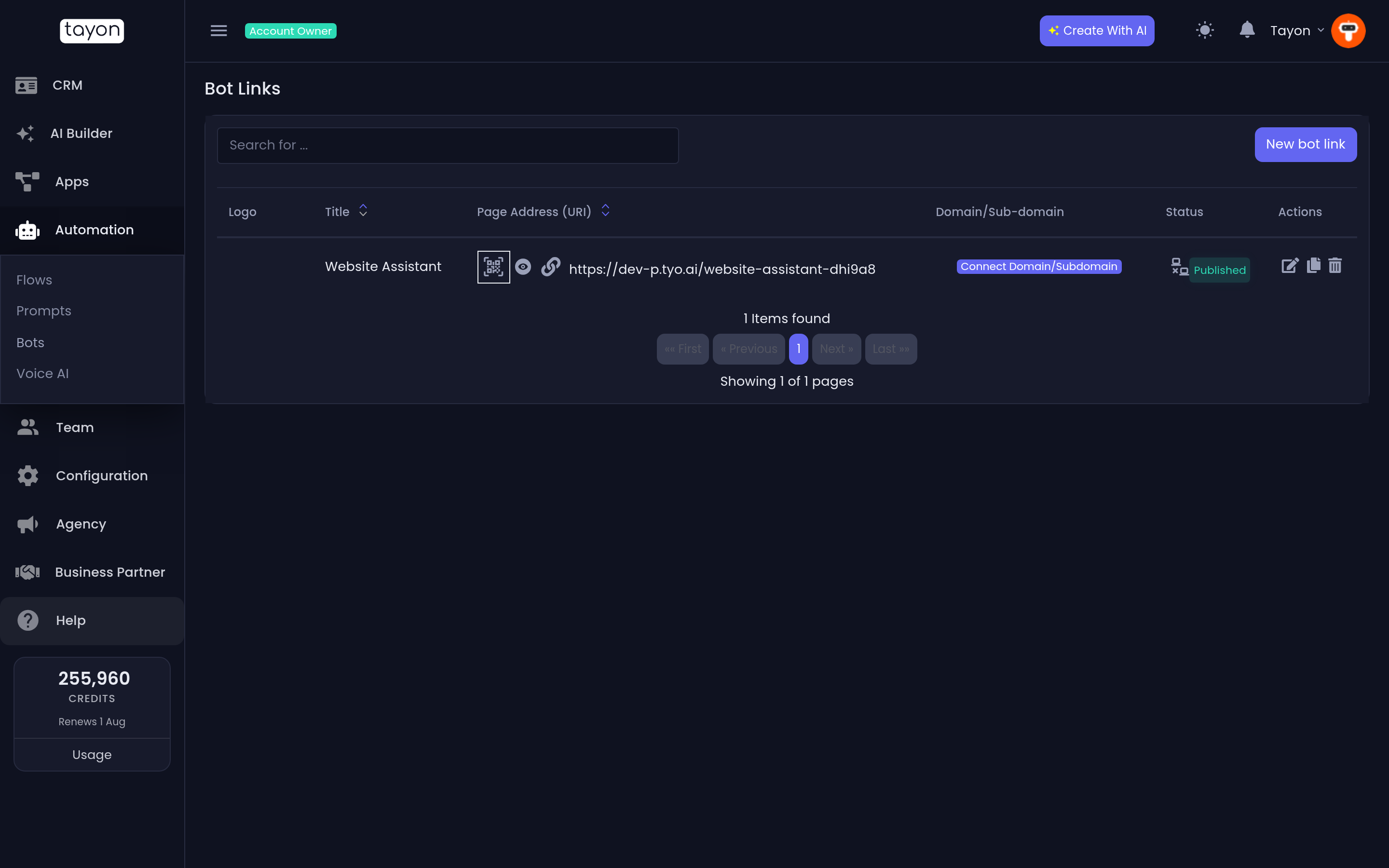
Each row on the Bot Links list carries:
| Action | What it does |
|---|---|
| Show bot link | Opens the live page |
| Copy URL | The full public address |
| Generate QR Code | A code for print, slides or packaging |
| Domain/Sub-domain | Point an address of your own at the page |
| Duplicate Bot Link | Copy the whole setup, optionally into another account |
| Edit Bot Link | Reopen the form |
| Delete Bot Link | Removes it, and takes the page offline |
#Publishing states
The Status column tells you whether the page is actually live. A link that says Not published has a Publish now or Try publishing again action next to it.
Two failures explain themselves:
- This bot link has no widget. Pick one and save again.
- This bot link has no flow. Pick one and save again.
Both mean a required field was left empty. Reopen the link, choose the missing one, and save.
Anything else is a transient problem — choose Try publishing again, and contact support if it keeps failing.
#Changing the page later
Save and publish again. The address stays the same, so anything you have already shared — including printed QR codes — keeps working.
Updated: