Create an online course with AI
Describe a course in a short chat, choose its size, and the AI writes every lesson, the quizzes, a cover and a certificate into your e-Learning academy as a draft.
probusinessYou’ll need: The Pro plan or above, and edit access to e-Learning. Credits for the generation.
Tell the AI Builder what your course teaches and who it is for, and it writes the whole course for you: modules, full lesson text, quizzes, a description and a cover image. The result lands in your e-Learning academy as a draft, so nothing reaches students until you have read it and published it.
#Start the course builder
- Open AI Builder.
- Under What would you like to build, tick Online course.
- Describe your course in the box and choose Start building.
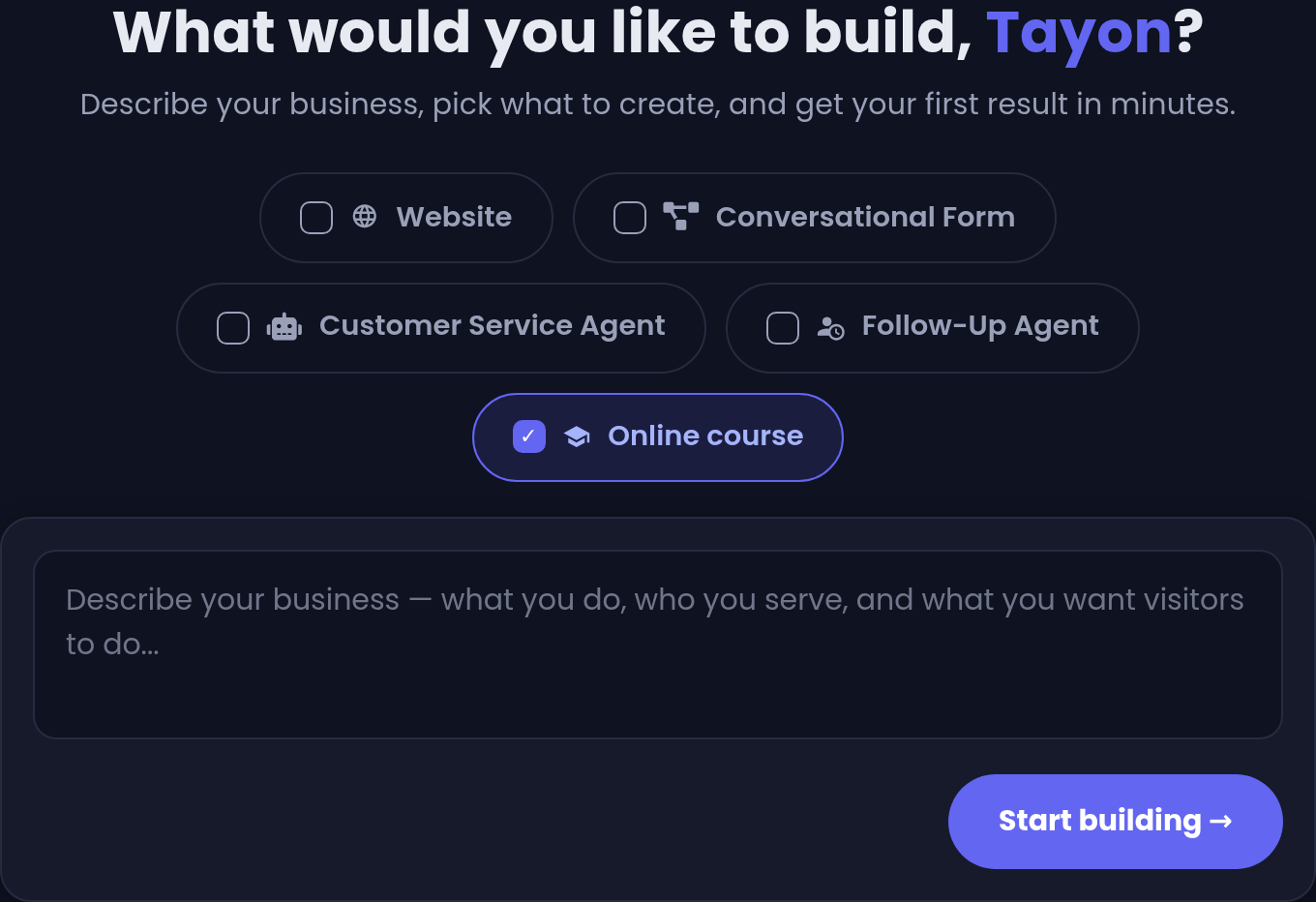
Online course is built on its own. Ticking it clears the other boxes, and the options to start from files, screenshots or a picture don’t apply to it.
If you start another builder and type something like create a course about…, Tayon offers to switch you to Online course.
#Describe the course in the chat
The chat panel is headed Course requirements. The AI asks one question at a time until it knows three things:
- the topic: what the course teaches;
- who it is for: the students and what they already know;
- what students will achieve: what they can do at the end.
It may also ask about your approach (practical or theoretical, the examples to use, your own method) and whether the course is free or paid. It never asks how long the course should be, what language it is in, or about videos; you choose those on the next card.
You can attach images or dictate your answers with the microphone. Nothing is charged while you chat, beyond the small usage cost of the chat itself.
#Choose the size
When the AI has what it needs, the card Ready to write your course appears.
| Setting | Options |
|---|---|
| Modules | 1 to 8 (4 by default) |
| Lessons per module | 2 to 6 (3 by default) |
| Course language | English, Português or Español |
| Price | Leave it as As in the chat (or free), or type a price to override the chat |
| Currency | USD, BRL or EUR |
| Quizzes | On or off |
Under the settings, a line shows the number of lessons and the usual cost, for example 12 lessons · Usually 380–600 credits. Choose Write my course to start.
#While it writes
The screen shows Writing your course and its progress: the outline, then each lesson (Writing lessons (3 of 12)…), the quizzes, the cover image, and finally saving the course in your academy. This takes a few minutes. You can leave the page; the course will be waiting in e-Learning.
#What you get
When it is done, you see a summary with the number of modules, lessons, quizzes and the price, plus Open the course and Create another course.
The course is saved as a draft with:
- an outline of the modules and lessons you asked for;
- every lesson written in full, usually 600 to 1,100 words, ending with key takeaways and an exercise;
- if quizzes are on, a quiz at the end of each module (5 questions) and a final quiz (10 questions). They use one-answer, several-answer and true/false questions, and they count towards the certificate but never block a student from moving on;
- a course description and a 16:9 cover image, saved in the AI - Courses category of your Media library;
- the certificate turned on, for students who average 70% or more;
- the AI tutor turned on, with instructions written for this course;
- the price from the chat, or the one you typed on the card.
Before you publish, read the lessons and the quiz questions. The AI writes confidently, but you are the expert on your subject.
#What it costs
The course is charged by AI usage, plus a 20-credit build fee and 75 credits for the cover image. The card shows the usual range before you start, and you are charged only when the course is ready. As a guide, a course of 6 lessons and 3 quizzes cost 335 credits.
The AI tutor, video storage and streaming are charged separately, as students use them. See Plans and credits.
#When it goes wrong
- The course could not be created this time. Nothing was charged. Try again.
- Creating courses is available on the Pro plan and above. Upgrade your plan to use the course builder.
- You can view e-Learning but not create courses. Ask the account owner for editor access to e-Learning.
- This course has been deleted from e-Learning. The project still exists, but its course was deleted. Start a new one with Create another course.
Updated: