Create an AI agent and tell it how to write
Add an AI agent to your team by hand, then use its group instructions and the follow-up prompts to control what it writes.
You’ll need: A paid plan. Account owner or a member allowed to manage the team and prompts.
This article gets you an AI agent on your team, and shows you where to write the rules it follows when it writes to a lead.
#Add the agent
TeamMembers
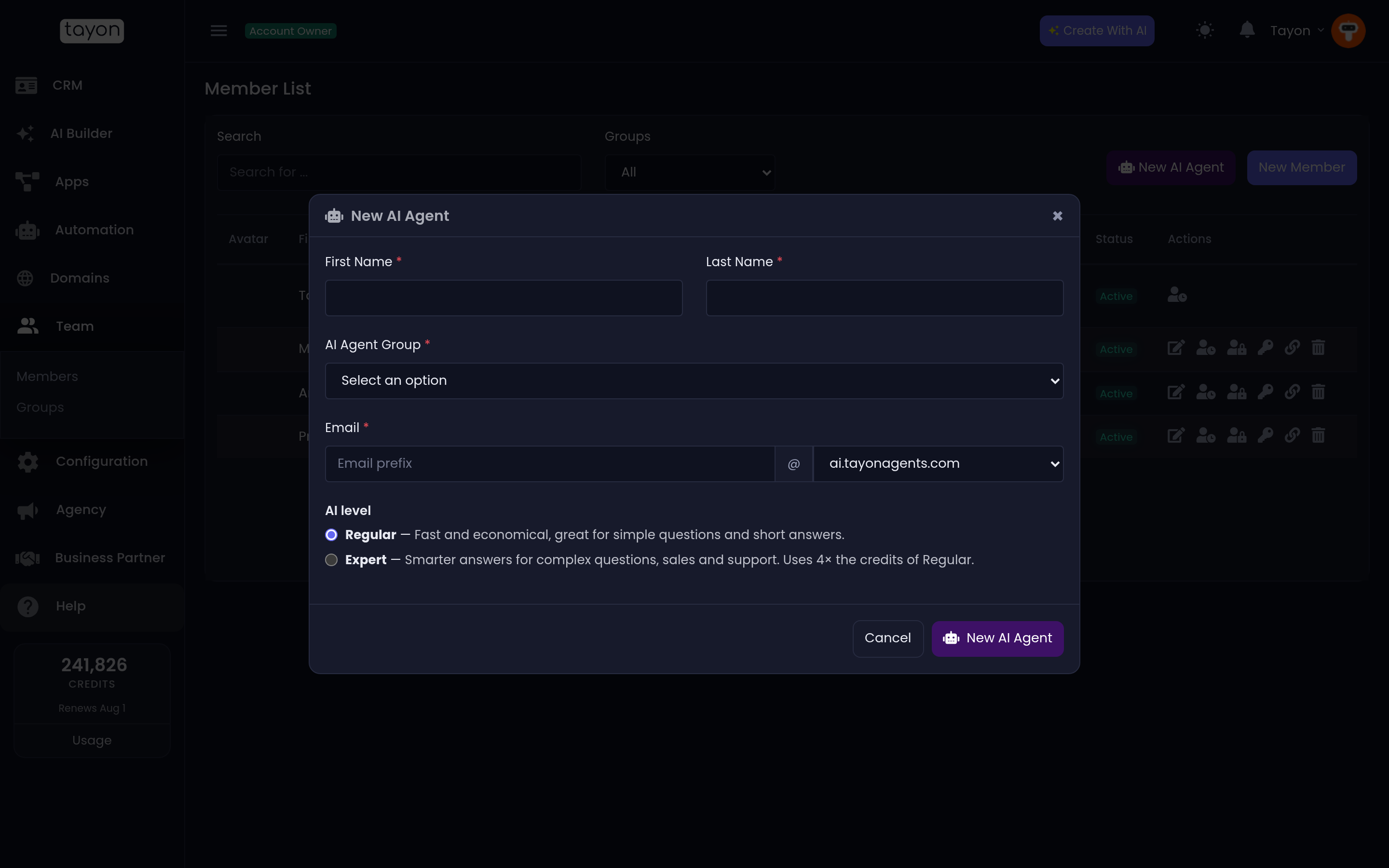
- Choose New AI Agent.
- Enter a First Name and Last Name. Leads see this name on emails.
- Under AI Agent Group, pick an existing group of agents, or choose Create new AI Agents Group and type a New group name.
- Under Email, type an Email prefix and pick a domain. The default domain works straight away; a domain you have connected to Tayon also appears in the list.
- Choose an AI level, then create the agent.
| AI level | Use it for |
|---|---|
| Regular | Fast and economical. Good for short, simple messages. |
| Expert | Smarter answers for sales and support. Uses more credits per message. |
The email address is the agent’s own mailbox. It sends from it, and replies only reach the agent when they come back to it.
#Give the group its instructions
Every AI agent group has an Instructions box where other groups have a description. Whatever you write there is added to every message the agents in that group write.
Open Team, then Groups, and open the agent’s group. Use the box for things that apply to every message: the signature, the tone, what never to promise.
#Write the follow-up prompts
AutomationPrompts
The Prompts screen holds the rules the AI follows. For a follow-up agent, these types matter:
| Prompt Type | What it controls |
|---|---|
| Business Info | What the AI knows about your business, product or offer. Used in every message. |
| First Contact Message | How to write the first message of a sequence. |
| Follow-Up Message | How to write every message after the first. |
| Email Subject | How to write subject lines. |
| Response Instructions | How to answer when a lead replies. |
| Chat/WhatsApp Instructions | Rules for WhatsApp and SMS messages only. |
| Email Instructions | Rules for email messages only. |
How to create and edit a prompt is covered in Tell your bot about your business.
#An apology and a hand-off message
Response flows can send two more kinds of AI message: an apology and a hand-over to a person. Each follows its own prompt, which you create once:
- Choose New Prompt and pick Instructions as the Prompt Type.
- In Agent (optional), type
sorryfor the apology, ortransferfor the hand-off. - Write what the message should do. For example: Apologise for the inconvenience, acknowledge the problem in one sentence and say a manager will call within one business day.
- Save.
Without these two prompts, an apology or hand-off message reads like any other email, with nothing that says sorry or names a person.
#One set of prompts per account
The AI looks prompts up by type. When two prompts share a type, either one may be used. If you run several agents, keep one prompt of each type and put agent-specific rules in each group’s Instructions box.
#Next
Assign a test lead to the agent and build its flows. See The AI Tasks flow.
Updated: