Work a single lead
Everything on a lead's record — details, tags, notes, files, scheduled messages and the full conversation history.
Open a lead and you get one screen with everything Tayon knows about that person: who they are, where they are in your pipeline, what you have written about them, and every message either side has ever sent.
Click the lead’s name in the Leads list, or use Edit lead in the row’s Actions.
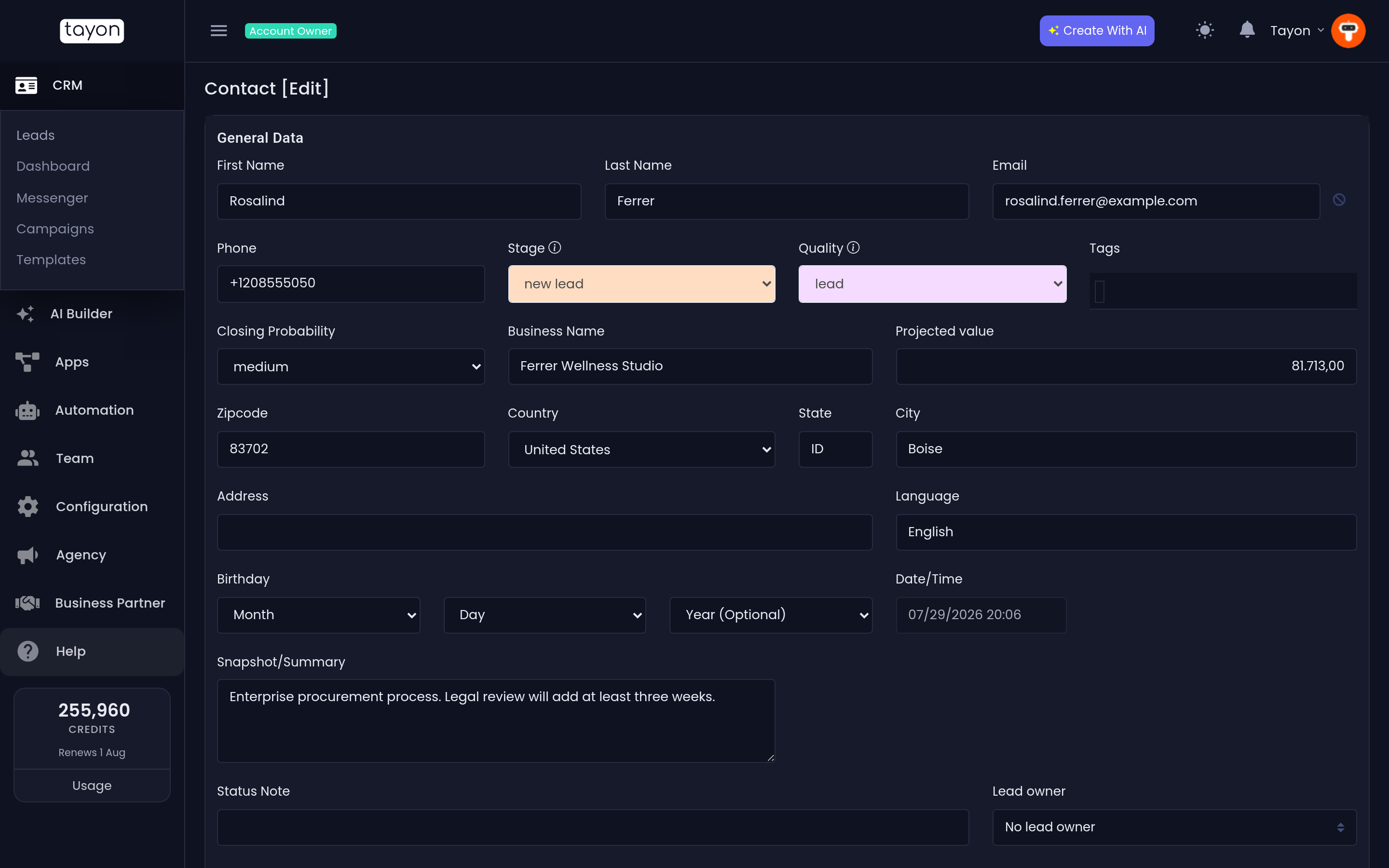
#General Data
The top panel holds the facts.
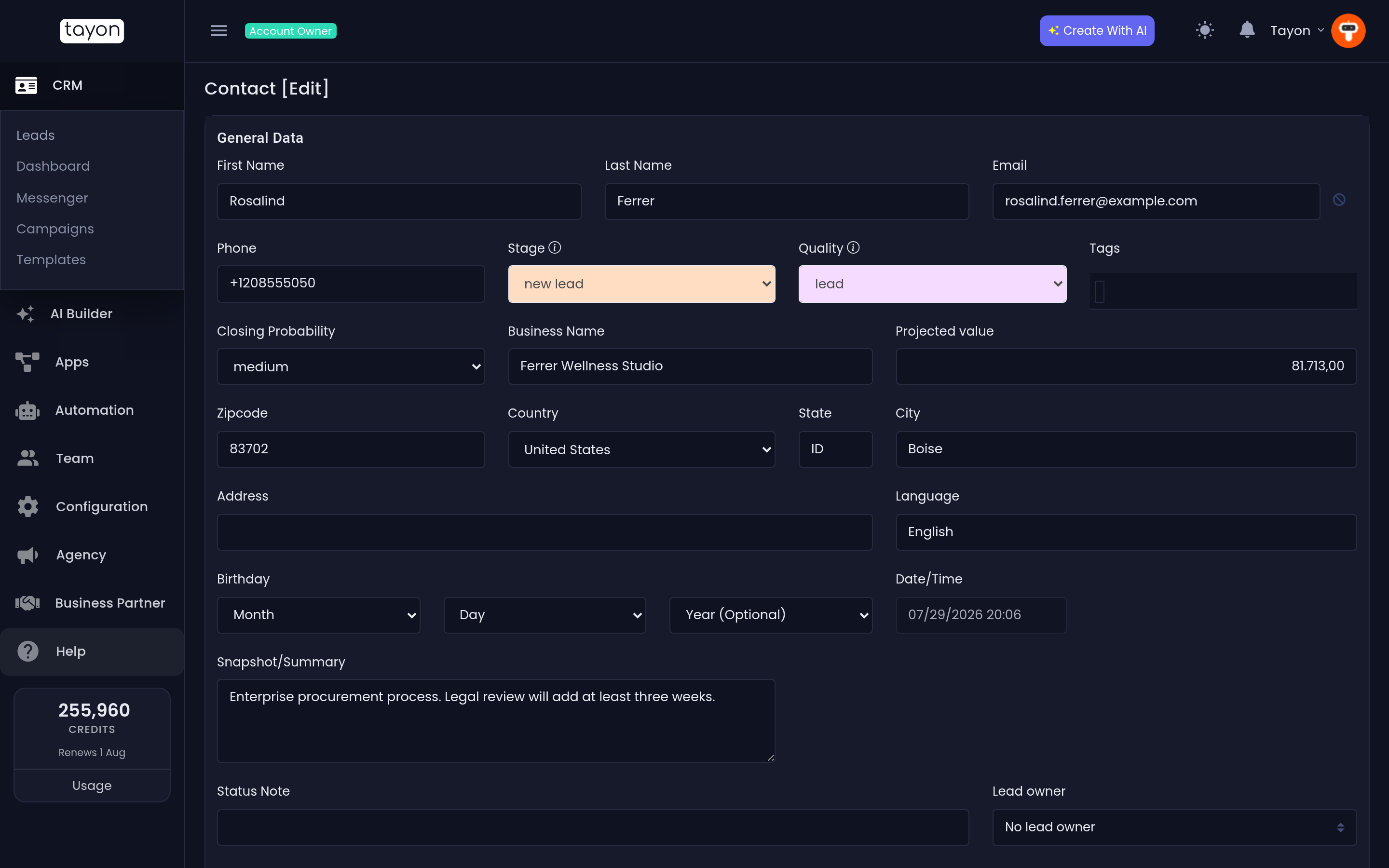
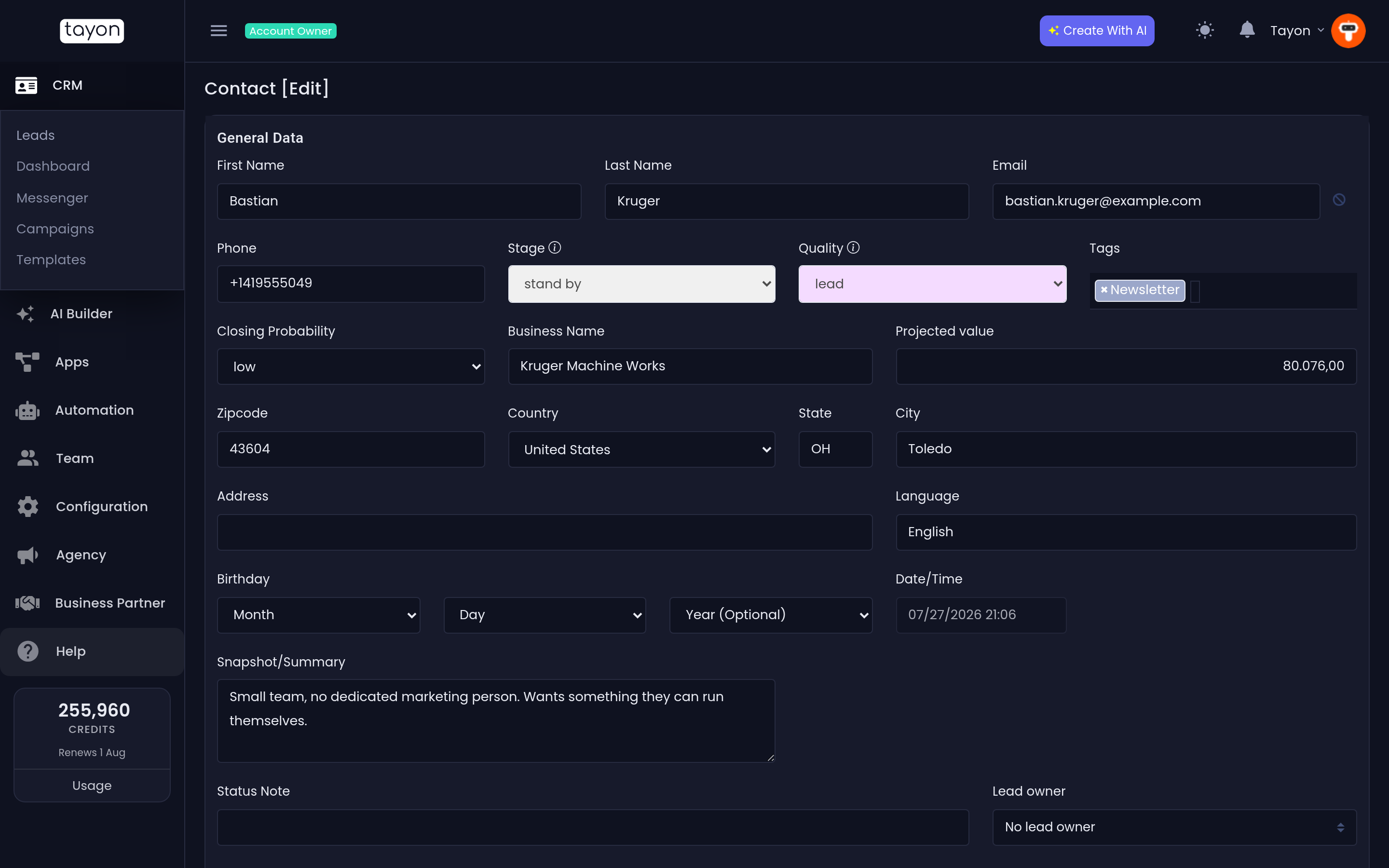
First Name and Last Name, Email, Phone, Business Name, Zipcode, Country, State, City, Address, Language and Birthday are plain fields. Year of birth is marked Optional — day and month are enough.
Four fields are about the deal rather than the person:
| Field | What to put in it |
|---|---|
| Stage | Where this lead is in your pipeline |
| Quality | How good the lead looks |
| Closing Probability | Your own estimate, as a percentage |
| Projected value | What the deal is worth if it closes |
Projected value is not decoration. The pipeline board totals it per column, so it is what turns your board into a forecast.
Snapshot/Summary is a free-text description of the lead. When the lead came from a bot or a conversational form, it usually arrives already filled in.
Status Note is a one-line reminder, up to 100 characters. Whatever you type here shows as a hover note next to the lead’s name back in the Leads list, so keep it short and current: waiting on their architect, call after the 15th.
#Tags
The Tags box takes as many tags as you want. Start typing to filter the list; the tags themselves are created and coloured on their own screen — see Label leads with tags.
#Who owns the lead
Lead owner is a single dropdown holding both Members and Groups, plus No lead owner. A lead belongs to one person or one group, never both. Assign leads to people and groups covers what that choice actually changes.
#The automation switch
Automation disabled/enabled decides whether your bots and AI are allowed to answer this person. Turn it off and Tayon stops replying to them automatically — useful when you have taken the conversation over yourself.
Replying to a lead by WhatsApp or SMS from the Messenger turns it off for you. See Take over a conversation from the bot.
Restart AI flow closes the lead’s current AI conversation and starts a fresh one. You are asked to confirm first.
#Follow-up flows
If your account has a flow built for follow-ups, a Start Follow Up Flow button appears here. Once one is running, the button becomes End Follow Up Flow and the line Current follow-up flow names the flow that is running.
#Saving
Three buttons sit at the foot of the panel:
- Save & Return — saves and goes back to the list.
- Save — saves and keeps you on the lead.
- Cancel — discards.
#The panels below
Scroll past General Data and you get four more sections.
#Files
Choose file attaches a document to the lead. Each attachment can be removed with Delete.
#Notes
New note opens a box for free text; Save files it against the lead with a timestamp. Notes are listed newest work first and are the right place for anything longer than a Status Note.
#Conversation
The conversation panel replays every message exchanged with this lead across email, SMS and WhatsApp. Inbound and Outbound separate what they sent from what you sent. Open on Messenger takes the same thread into the full Messenger, where you can reply.
If the lead ever asked to stop receiving email, a marker appears here and on the lead’s email field reading This contact asked to stop receiving email messages from you. You can also set that yourself with Prevent this contact from receiving emails.
#Messages
This panel lists messages scheduled for this one lead, and New Message adds another. See Schedule a message or run a campaign.
#Chat Log
When the lead arrived through a chat, a Chat Log section appears at the very bottom with the transcript. See detailed logs… opens the unabridged version.
#If a save is refused
Saving a lead whose email or phone number already belongs to another lead in your account stops with Duplicate contact found. The message names the existing lead and which field matched.
- Cancel — close it and correct what you typed.
- Edit existing contact — abandon this record and open the one that already exists.
Updated: