Publish and share your site
Put a conversational form live at its own address, share the link, and point a domain of your own at it.
You’ll need: Administrator access to connect a domain.
Editing a conversational form changes your working copy. Publishing is what copies that work to the live page your visitors see. Until you publish, the address serves nothing.
#Publish
Publishing happens in the Flow Designer, not in the list.
- Open the site with Edit Flow.
- Choose Publish in the header.
- Read the confirmation — it names the exact address the site is about to go live at.
- Choose Publish Now.
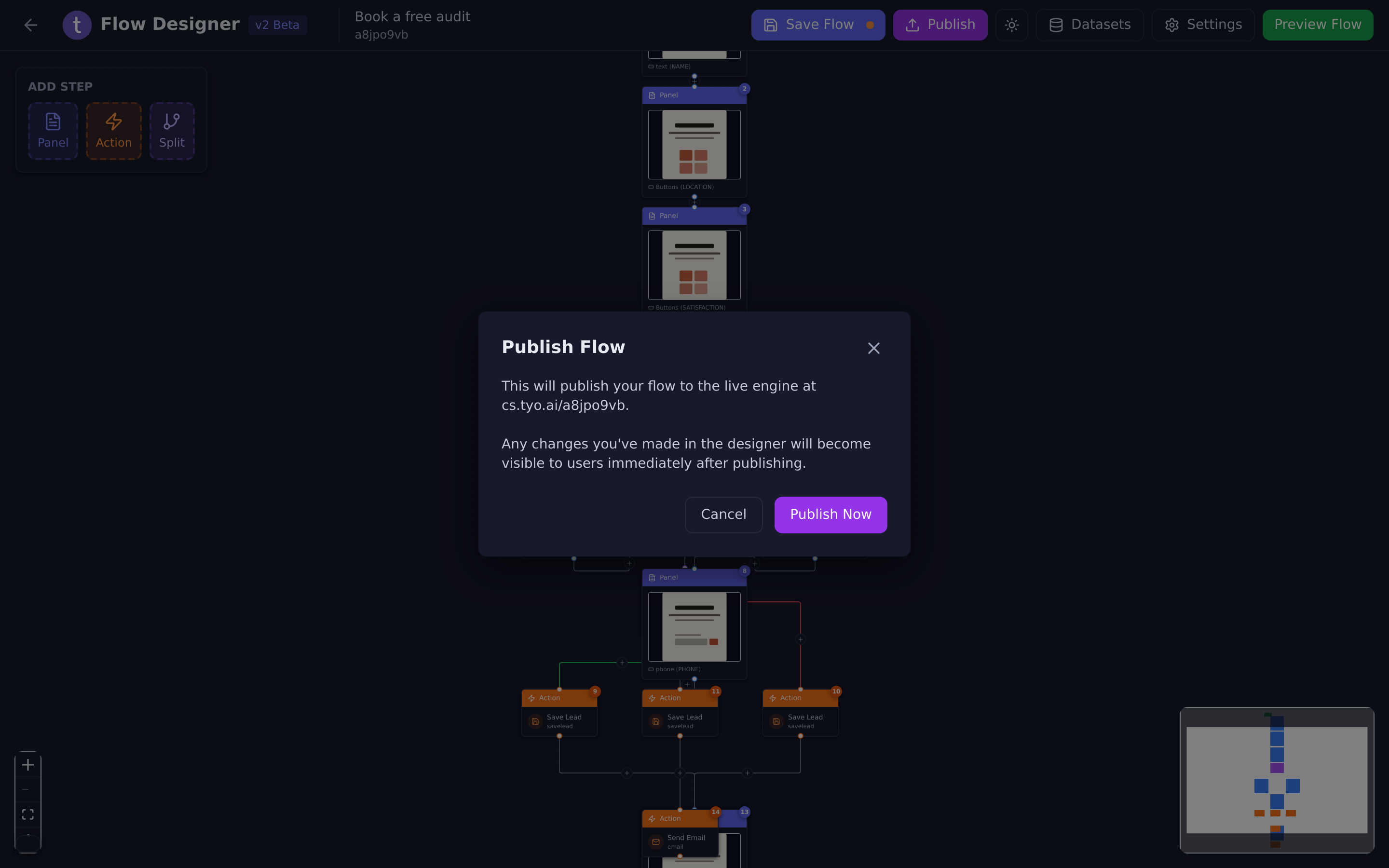
Changes are visible immediately after publishing. There is no scheduling, no staging step and no approval queue.
If the address you chose is already taken by another site, publishing stops and tells you so. Change the address in the designer’s Settings and publish again.
#Share the link
Back on Conversational Forms, each row shows its public address with three buttons next to it.
 123
123- Generate QR Code
- Show page
- Copy URL
- Copy URL puts the full link on your clipboard, ready to paste into an ad, an email or a social post.
- Show page opens the live site in a new tab. Use it after every publish to confirm the change actually landed.
- Generate QR Code turns the address into a QR code for print, packaging, a stand or a table card.
#Use a domain of your own
Instead of the default address you can serve the site from a domain or
subdomain you own, such as apply.yourcompany.com.
- Publish the site at least once.
- On its row, choose Connect Domain/Subdomain.
- Enter the domain and follow the instructions for pointing it at Tayon.
- Watch the badge on the row until it reads Connected.
The badge tells you where the connection has got to:
| Badge | Meaning |
|---|---|
| Publish the flow to connect a domain | The site has never been published. Publish first — there is nothing to point a domain at yet. |
| Connect Domain/Subdomain | No domain connected. This is the button that starts the process. |
| Waiting connection | Tayon is waiting for your DNS change to take effect. This can take a few hours. |
| IP Error | The domain resolves somewhere that is not Tayon. The badge links to instructions for fixing it. |
| Connected | Done. The address column now shows your domain, and the copy, preview and QR buttons all use it. |
| Disconnection pending | You asked to disconnect and it is being undone. |
| Retry | The check is being run again. |
Once a domain is connected, the site’s own address can no longer be changed in the designer’s settings — the domain is doing that job.
#Take a site off the air
You do not have to delete a site to stop it serving. On the list, select the Active badge to switch it to Inactive. The address stops working immediately; everything you built and every response already collected stays exactly where it is. Select the badge again to bring it back.
#If a change does not appear
Work through these in order:
- Did you publish? Saving is not publishing.
- Are you looking at the right address? A connected domain and the default address both work — but if you edited the address in settings, an old link points at nothing.
- Is the site Active? An Inactive site serves nothing regardless of what you published.
- Is your browser showing you an old copy? Open the link in a private window to rule it out.
Updated: