Turn on two-factor authentication
Add a second step to sign-in, so a stolen password is not enough to get into your account.
You’ll need: Access to your account email, or a phone number on your profile if you want codes by SMS.
With two-factor authentication on, signing in takes two things: your password, and a six-digit code sent to you at that moment. Someone who steals your password still cannot get in.
Tayon sends the code by email or by SMS. There is no authenticator app to install.
#Turn it on
- Open your account menu and choose Profile.
- Scroll to the bottom and choose Enable Two-Factor Authentication.
- Pick where you want codes sent — Email or SMS — and choose Send Code.
- Enter the six-digit code you receive, and confirm.
 12
12- Change Password
- Enable Two-Factor Authentication
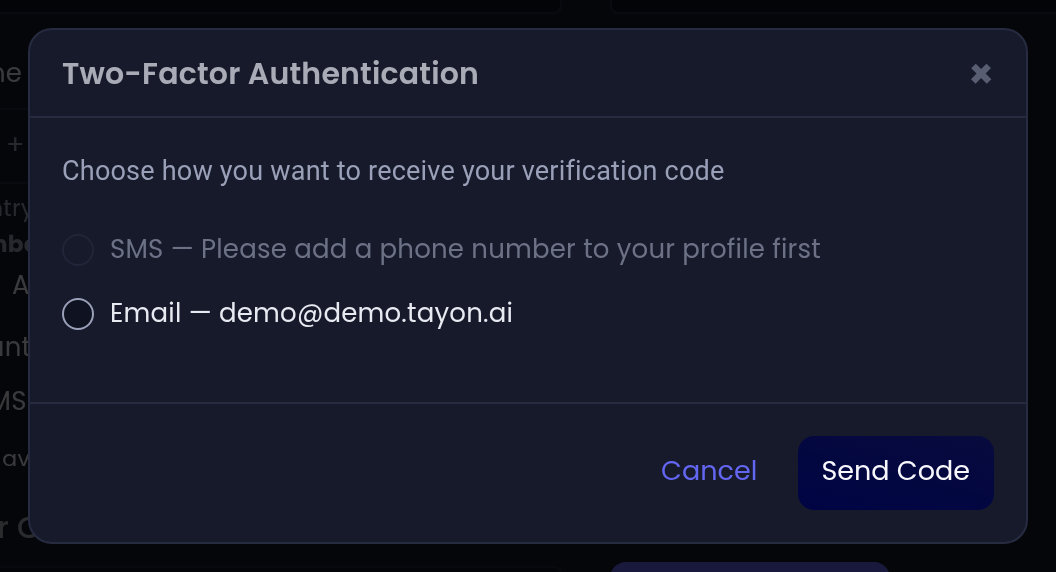
Once it is on, your Profile shows Two-Factor: Enabled via email (or via SMS) instead of the enable button.
#Signing in from then on
- Enter your email and password as usual.
- Tayon sends a six-digit code and asks for it.
- Type the code and continue.
#Remember this device
On the code screen you can tick Remember this device for 30 days. On that browser, on that machine, you will not be asked for a code again until the 30 days are up.
Only tick it on a device that is yours. It is stored as a cookie, so clearing your browser data ends it early — and so does turning two-factor off and on again.
#The rules on codes
| Length | Six digits |
| Valid for | 10 minutes |
| Wrong attempts allowed | 5, then you must request a new code |
| New codes | Requesting one immediately cancels the previous code |
| Resends | Up to 3 in any 10-minute window |
#Turn it off
- Open Profile.
- Choose Disable Two-Factor Authentication.
- Enter your current password to confirm.
Turning it off also forgets every remembered device and signs out your other sessions. If you turn it back on later, every device has to be trusted again.
#If you are locked out
There are no printed backup codes. Recovery depends on still being able to reach the address the codes go to:
- Codes go to your email and you can still read that inbox — request a new code and continue.
- Codes go to SMS and you have lost the phone — your account owner or administrator can help; if the account is yours alone, contact support.
#Where two-factor is required
Two-factor is optional for ordinary accounts, but Tayon insists on it for the riskiest access. Tayon’s own staff must have it enabled before they can reach the platform administration panel, or sign in to a customer’s account to help them.
Updated: